Fridge gizmo

fridge gizmo takes shape
My dream of a gizmo stuck to the fridge to tell me my next train time, the weather and certain tweets got a step closer today. I ordered an Arduino shield with a 2 line LCD display and some buttons - and a tiny USB-powered wifi adaptor for the Rasperry Pi – the Edimax EW-7811UN Wireless 802.11b/g/n 150Mbps Nano USB Adaptor

I know there are cheaper (and larger) displays to be had, but I like the fact that this one is a shield that plugs straight into the Arduino, so no soldering required. And it has buttons! How cool would it be to press a button for weather, another one for tweets and another for train times?

My mad plan is to get the Raspberry Pi to do all the talking to the internet, and somehow transfer the text to the Arduino, perhaps using PHP like this: http://www.midnightcheese.com/2011/10/displaying-twitter-and-weather-on-your-arduino-lcd-screen/

As a half-way house, I’ll try and get something working on OS X first.

Posted in Arduino, computers, hardware, internet, Linux, MacOS X, Raspberry Pi | Tagged , , , | Leave a comment

Which is better: Arduino or Raspberry Pi? There’s only one way to find out…

…join them together!
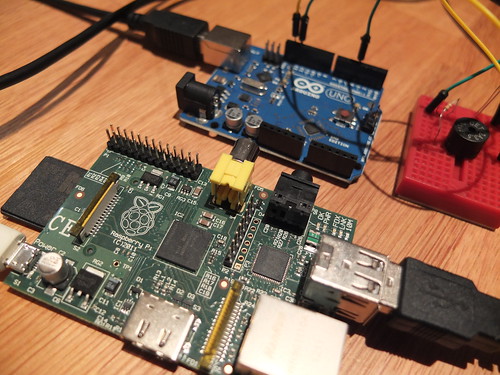
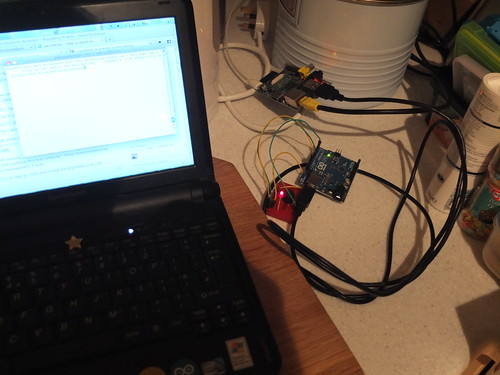
Arduino connected to Rasperry Pi

But seriously, they are very different things for very different purposes, and it’s a bit sad that some hard-core Arduino fans hate the Raspberry Pi (though perhaps understandable). The Arduino is a relatively expensive (for its processing power) microcontroller, though it does have the backing of a huge open source community of software and hardware projects. I bought one while I was waiting for my Raspberry Pi to arrive, and to be honest we’ve learnt more about electronics and programming so far from the Arduino than we have from the RasPi.

The Raspberry Pi, however, is a ridiculously cheap actual computer with a graphics chip that can display HD video. Its potential is immense, but I can see a great future in joining the Arduino to the Raspberry Pi to get the best of both worlds. The Arduino is great for low-level stuff in the real world, with light bulbs, switches, sensors, motors etc, and the RasPi great at stuff like talking to the internet and storing larger amounts of data.

There is a hardware gizmo called the GertBoard which promises to make the GPIO pins on the Raspberry Pi more accessible to hacking and interfacing with electronics, but I’ve had a quick look at it, and it’s not for me. It’s £30, and comes as a bag of parts that require a great deal of soldering – and then one look at the manual had me heading for the hills. Just way too complex for me – and part of it seems to involve adding a microcontroller – practically piggy-backing an Arduino-type device on the Raspberry Pi. Well, I already have an Arduino I can plug in via USB, so why not just use that? I know directly addressing GPIO pins on the Raspberry Pi will be very useful, but at my level I’m quite happy turning lights on and off, ringing buzzers, maybe driving a 2-line LCD display – and USB should be fine for that.

And today I managed to get my Raspberry Pi talking to my Arduino – I could type text on the Pi’s keyboard, and the Arduino (connected via USB) would beep and flash the letters in Morse code using the Morse project we started a couple of days ago after visiting Porthcurno.

I worked out that an Arduino Uno presents itself to a Rasperry Pi (running Raspbian Wheezy 2012-08-16) as /dev/ttyACM0 but I could not get

echo 'sos' > /dev/ttyACM0

to do anything other than make the Arduino light blink. This is exactly the same problem I had in the OS X command line, so I wasn’t totally disheartened. I clearly had the right device name, but some kind of handshaking or protocol was awry. I remembered that I got round the problem in OS X using a command line ‘screen’ session, so I tried that – no luck on the Raspberry Pi, as ‘screen’ was not installed.

So, I connected my Raspberry Pi to the internet (another story in itself)* and at the command line typed

sudo apt-get install screen

Then typed on the RasPi command line:

screen /dev/ttyACM0 9600

The 9600 is the baud rate set in the Arduino Morse sketch I was using. Then any letter I typed into the console on the Pi was translated into Morse beeps and flashes on the Arduino, as I typed them. A very satisfying achievement. (You can exit a screen session by typing ‘ctrl-a d’ to disconnect.)

Arduino and Raspberry Pi – a perfect match for each other.

* getting the Raspberry Pi on the internet so I could install ‘screen’ was fun. TV upstairs, in constant use by kids. Internet router is downstairs in kitchen, where there’s no TV. Sounds like a job for SSH. To cut a long story short, I wasted hours trying to open a remote SSH session into the wrong IP address. It’s quite hard knowing what the IP address of a screenless Raspberry Pi is when you don’t have access to the broadband router’s admin page. In the end I used an OS X utility called IPScanner, but there are other tricks you can use. The most bizarre, but ingenious, one I found was installing something to blink the IP address on the Raspberry Pi’s onboard LEDs!

Once I’d got SSH working, I could leave the Raspberry Pi screenless, keyboardless and mouseless in the kitchen connected to the internet & the LAN via ethernet and to the Arduino via USB, and using an SSH session on my laptop upstairs send a morse code message to the kitchen asking for more tea. Yeah, a guy can dream… Well, I might possibly teach the kids some Morse code by getting one upstairs sending rude messages from the laptop to another in the kitchen with a Morse key chart and a pad of paper.
This is cleverer than it looks...

Next task – to install the Arduino IDE on the Raspberry Pi…
Posted in Arduino, computers, Debian, hardware, Linux, Raspberry Pi | Tagged , | Leave a comment

The Porthcurno Museum of Submarine Telegraphy

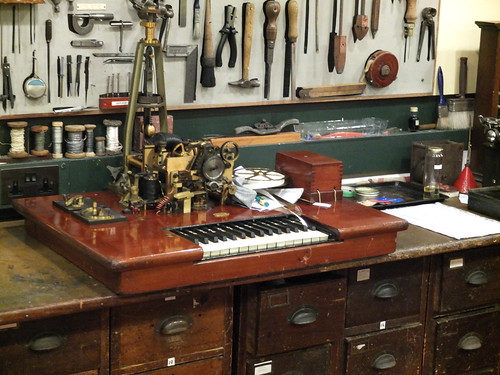
great keyboard
My favourite museum in the whole wide world has to be the Porthcurno Museum of Submarine Telegraphy in Cornwall. Porthcurno has a fascinating history – undersea telegraph cables joined Victorian Britain to the Empire and beyond, coming up on the amazing white beach at the far south west tip of Cornwall. In World War 2 tunnels were driven deep into the rocks because the site was of such strategic importance. The beach was protected by barbed wire and flame-throwers. Its blast and gas-proof doors were guarded by soldiers from Scotland (the thinking being they didn’t know the area and couldn’t be tortured to reveal strategic information). In later years it became the training centre for Cable & Wireless (a bit like Wood Norton is to the BBC).
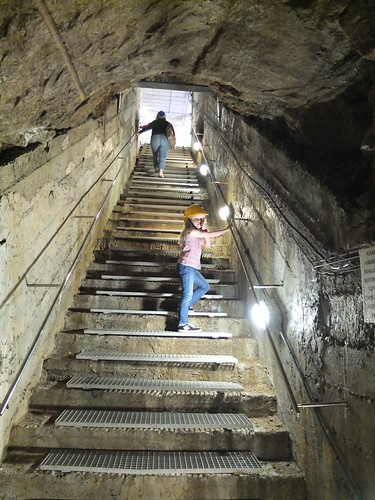
light at the end of the tunnel
We first went there many years ago, when the museum was smaller and quainter. Almost the only visitors, a lovely old man showed us round the amazing brass telegraph machines, and typed out our eldest son’s name in punched tape on a teletype machine. We also got to go inside the hut on the beach where the actual undersea cables appeared in metal pipes labelled things like ‘Vigo’ – extraordinary to think the other end of the cable was in Portugal.

Now the museum is much more professional, and much busier. This is a good thing, though part of me does yearn for the days when we got a personal tour. Lottery funding means a new visitor centre is being built to cope with the increased numbers.

On our visit this year, we arrived just in time for a great practical demo and talk about the history of telegraphy, with working Wheatstone needle telegraphs, Morse keys and the like. The guide explained why the American Samuel Morse’s binary code was superior to the Brit Wheatstone’s needle telegraph – Morse only needs 2 wires, and you can listen to it clicking or beeping at the receiving end, while you write it down, rather than having to stare at a twitching needle for hours. Morse also invented a printer to make a permanent record of received code – this also meant that the receiving station could be left unattended for period, unlike a Wheatstone receiver.

We then explored the WW2 tunnels, full of marvelous brass telegraph equipment and explanations of how undersea cables were laid, repaired – and in wartime stolen. We climbed the escape hatch, home to nesting swallows, which brings you out on the hilltop with great views of the valley.

All that wonderful old machinery, and a rainy day, got me itching to make a gizmo to create Morse code. I was going to code something from scratch on our Arduino, but I found someone has already done exactly what wanted: http://www.psychicorigami.com/2010/05/26/my-first-arduino-project-morse-code/

The code needed a few tweaks – when I compiled it, I got an error saying that as of Arduino version 1.0 ‘BYTE’ is no longer valid syntax, and to use ‘Serial.write’ instead. I altered 2 lines of the code like this and it seems to work (previous code is commented out)

Serial.write(in);
/* Serial.print(in, BYTE); */
}
else {
Serial.write(-1);
/* Serial.print(-1, BYTE); */

morse screen grab
Next, the circuit. I couldn’t see a circuit diagram on the web site, but as luck would have it I had  exactly the same Sparkfun Arduino starter kit.
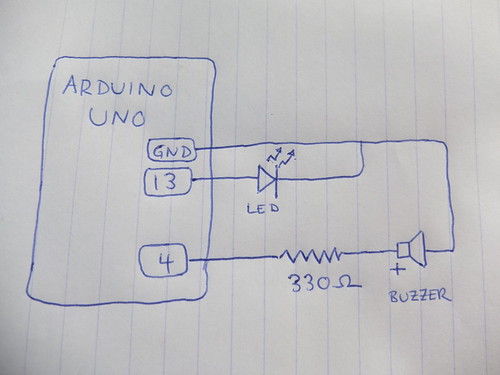
Arduino morse  circuit
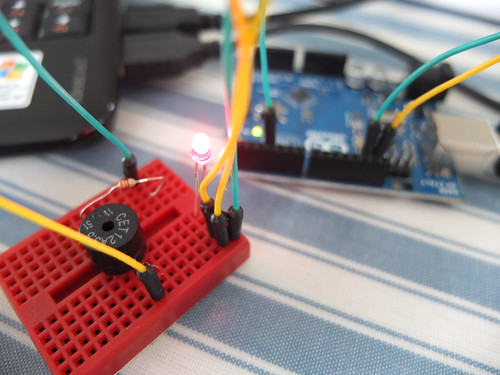
This is how I wired it up: connect Arduino pin 4 via a 330 ohm resistor to the positive terminal of the buzzer. Connect the negative side of the buzzer back via a ground rail to the GND pin on the Arduino next to pin 13. Then connect pin 13 to one side of the LED, and the other side of the LED back to GND via your ground rail.
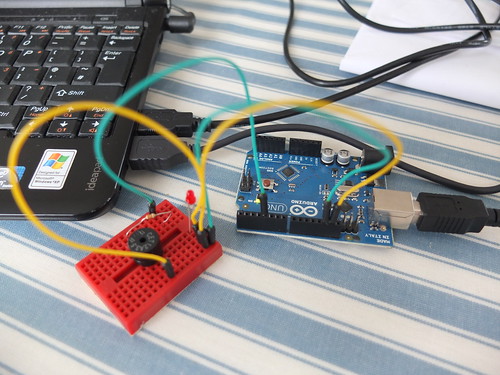
Arduino morse project
Upload the code to the Arduino, open the serial monitor in the Arduino software, type a message in, press enter – and your message is translated into Morse flashes and beeps!

My dad was a radio ham, and I remember him sending BEST BENT WIRE as it sounds cool in Morse – this is a bit slow to get the sense of the rhythm, so I might try tweaking the code to make it faster. And how cool would it be to get it to read tweets out in Morse…?
Arduino morse project

You can see more of my photos of the museum here.

Posted in Arduino, computers, education, ICT | Tagged , , , , | 6 Comments

Prof Unwin talks about the Type B Desk

I probably should have uploaded this (and a load of other ancient Bush House audio treasure I forgot I had) when all the Bush nostalgia was in full flow a few weeks ago. But I didn’t.

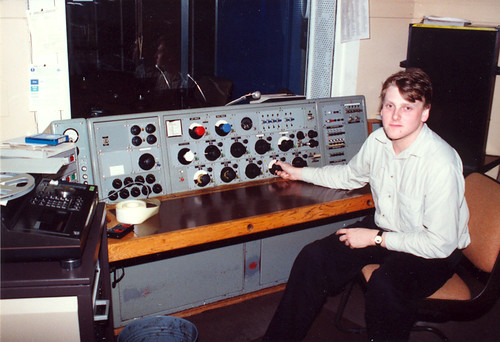
This is Stanley Unwin, then a BBC maintenance engineer, recorded on 5th March 1959 in what became Studio S6 in Bush House. He is discussing the BBC Type B mixing desk, still in use when I joined the World Service in 1991. A bit like this….

B-type studio

Posted in BBC, nostalgia, radio | Tagged , , | 2 Comments

2 Pi Household

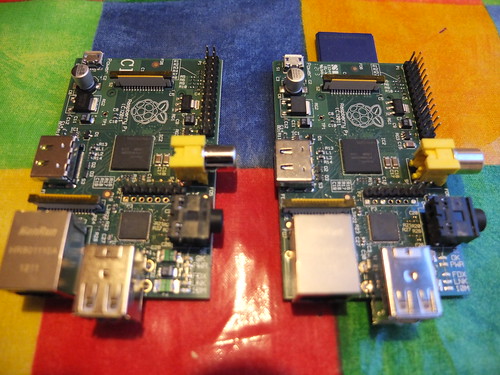
2 different Pis - RS (left) and Farnell (right)

We got out 2nd Raspberry Pi this week – possibly a bit premature as we’re still finding our way with the first one. I’d like to have one in the back of the main TV as a media centre, and another one in the back room for the kids to play with Scratch and learn some coding.

I moved TVs and things round and put one in the back room, the idea being that the kids would have more access to the RasPi without fighting over the TV – much to my annoyance, the sound doesn’t work over HDMI on the small Samsung TV. It worked just fine on the larger Sony TV. Looking at the RasPi forums, this is going to be a time-consuming thing to fix. I tried putting hdmi_drive=2 in config.txt – and I didn’t even get a video signal over HDMI any more, let alone sound! I had to use the composite video output to put the config.txt file back the way it was. The Samsung TV seems to be defaulting to 1440×900 when connected to the RasPi and might be in some sort of DVI monitor mode – hence the lack of sound. Not sure I have the time or the patience to try and get to the bottom of this though. I could make a new, clean flash card image and have it do its first run with the Samsung TV plugged in, but that’s a time consuming process – copy the disk image to the SD card on the laptop, reboot laptop with a Gparted live CD, resize the flash card image to 8GB… all a bit of a slog and it might not make any difference.

I did find this essential tweak though – elinux.org/RPi_Debian_Auto_Login – this gets your Pi to automatically log in and start the windowed environment, which is essential to make it kid-friendly. If only the darn sound on my Samsung TV was as easy to fix…

Posted in Debian, hardware, Linux, Raspberry Pi | Tagged | Leave a comment