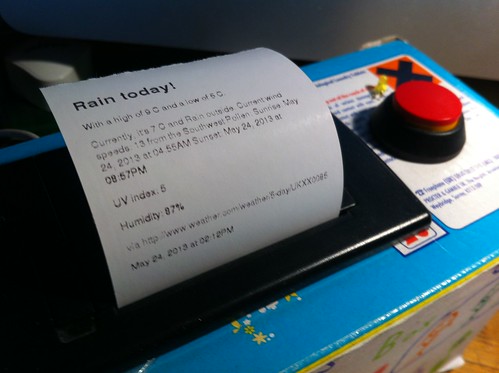
Daily weather forecast on my little internet printer

weather on my printer - rain, of course
Rain, of course

I want the weather forecast waiting for me on my little Raspberry Pi-powered internet printer in the morning. I tried signing up for the Printer Weather forecast app but it never worked – maybe it’s not running at the moment. I couldn’t work out how to install it myself, so I was a bit stuck.

Then I had an idea. I use IFTTT to email myself a weather forecast every morning. IFTTT stands for If This, Then That (or is it ‘If That, Then This’?). It glues together different web sites and services like Gmail, Flickr and Twitter in ways that can be incredibly useful. I had an idea to use the weather service on IFTTT combined with JD Harper’s really neat idea for using Dropbox text files as a way of printing to a GoFreeRange printer.

His insanely clever idea is to use a Python script to poll a Dropbox folder for text files – as new ones appear, his script reformats them as HTML, sends them off to the GFR backend print server with your printer’s URL, so the text prints. It then moves the text files to another folder so they don’t get printed twice.

Like JDHarper, I have a Mac, but I had a few issues getting his Python script to work. I had to install ‘elementtree’ and update the Mac’s version of Python from 2.4.4 to 2.7.7 as getcode() wasn’t supported in Python 2.4.4

I then used crontab to get the Mac to run the Python script every minute. (There’s another really useful guide to scheduling tasks with cron in MacOS X here.) My crontab.txt file looked a bit like this:
* * * * * cd /Users/gilesbooth/RaspPi/printer/ ; python printtxt.py
The first bit changes the directory the folder where JD Harper’s Python code lives, and the second bit runs it.
I loaded it by typing
crontab crontab.txt
at the command line.

It worked! I could now drop a text file, anywhere in the world, into one of my Dropbox folders, and (as long as my Mac is turned on) it prints on my little printer, wherever the printer may be.

This is where IFTTT comes in, and things get really tasty. Instead of getting the weather emailed to me, I changed my IFTTT recipe to send it as a text file at 6am each day straight into the Dropbox folder which is polled by the Python script on the iMac. I added a bit of HTML to the forecast to make it easier to read, but it works!
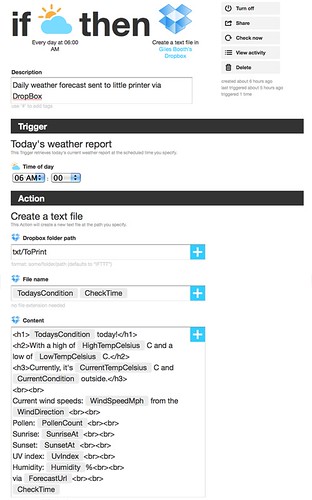
Using IFTTT to print daily weather forecast on my little printer

Obviously, having to have my iMac turned on sucks rather. So the next thing to do is to get the RaspberryPi to do the work of the iMac, if it’s possible to get the Pi to poll Dropbox folders… and some pictures would be nice. I might also re-write the Python script to make the formatting prettier.

Daily weather forecast on my little printer
looking brighter

Post-script

I have now managed to get it all running on a Raspberry Pi, with no need to have an Mac running to get files from DropBox to the GFR print server. Details to follow in a new post here.
Posted in computers, internet, Linux, Raspberry Pi, Raspbian | Tagged , , , , , , | 1 Comment

Root my Nook!

With apologies to any Australian readers – although if I break it, that may be an appropriate usage of the word ‘root’.

Nook on the hook

The Barnes & Noble Nook Simple Touch has been on sale for £29. £29! At that price, it would be rude not to buy one, especially when it can be hacked to run extra apps. You can pay $30 for a tiny e-Ink test screen for an Arduino, so £29 for a larger screen with a computer glued to the back seems like an amazing bargain.

The Common Reader
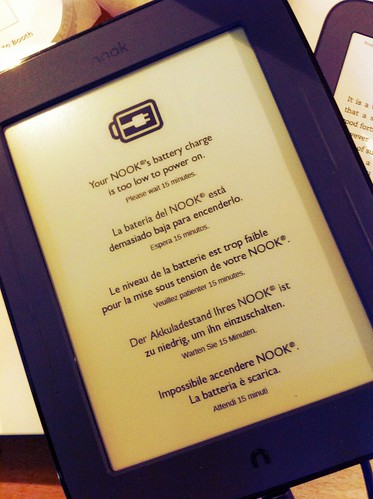
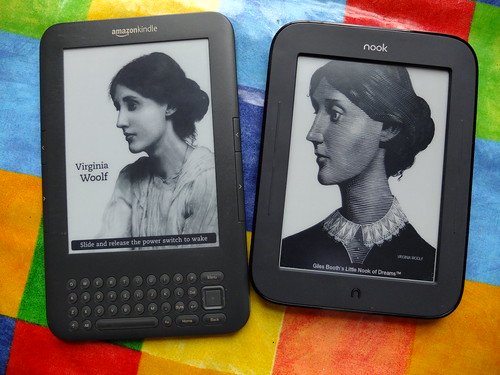
Nook Simple Touch side-by-side with my old 3G Kindle. The Kindle has sound capabilities but the Nook has a touch-screen. And it was £29.

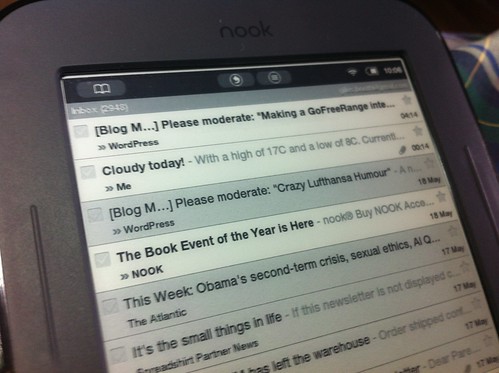
The £29 Simple Touch as shipped is a perfectly decent eReader, black & white e-Ink display, no backlight, but it does have a touch screen – it doesn’t allow you to add any extra apps, though, even though under the hood it’s running Android. This means you can turn it into a simple, very very cheap, Android tablet computer.

This is where rooting comes in. You just need a micro SD card (I used a 2GB one I found in an old phone), a USB reader for said card and a computer you can use to write a disk image to the SD card.

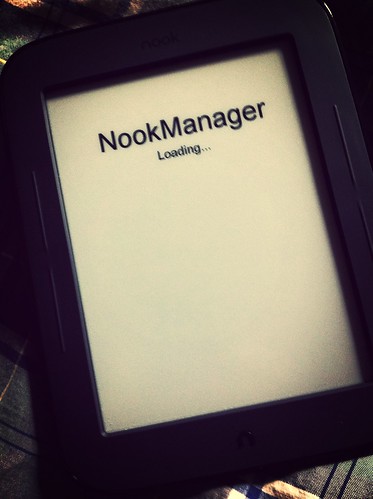
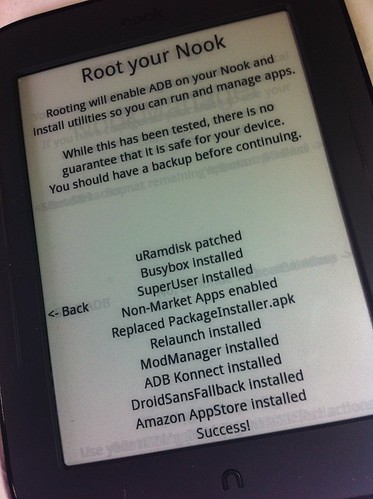
I activated my Nook using a Nook account, updated the firmware to 1.2.1 from the uk.nook.com site (the update on the US site didn’t seem to work) and then I followed these instructions: http://www.babblingengineer.com/how-to/how-i-turned-my-nook-into-an-e-reader-monster/

Scary...

Rooting my Nook

followed by these to get the Google apps installed: http://forum.xda-developers.com/showthread.php?t=2086582

Rooting my Nook

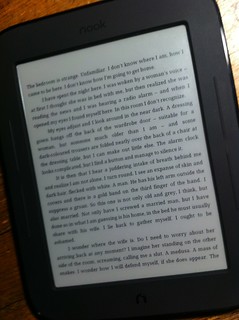
I was able to get Gmail and the GoogleMarket working, but have had no luck with Google Chat. I tried using the Amazon Marketplace, but it said that it didn’t work in my country (the UK), so you need another way of installing apps. I managed to get a few apps installed using the Google Market app (such as Goodreads and Dropbox), but there’s a snag – you can’t search it, so installing SearchMarket is pretty essential. If you’re an avid reader, you may find Goodreads reason enough to root your Nook, along with the Kindle software. It does seem a bit perverse, but then I have quite a lot of books ‘on Kindle’. It’s supposed to be hard to get the Kindle software to work, but I managed to read an archived book ok:

Reading a Kindle book on a Nook

The default web-browser is pretty crashy, though Opera Mobile seems to be much more stable. Gmail is also a bit crashy if I’m honest, but maybe that’s because I’ve removed the SD card. Importantly, though, the Nook still works as an e-Reader, and all the Barnes & Noble software remains.

Gmail on my rooted Nook

There are some recommended apps and tips here: http://lifehacker.com/5926798/turn-your-rooted-nook-into-the-ultimate-ereader-with-these-10-apps

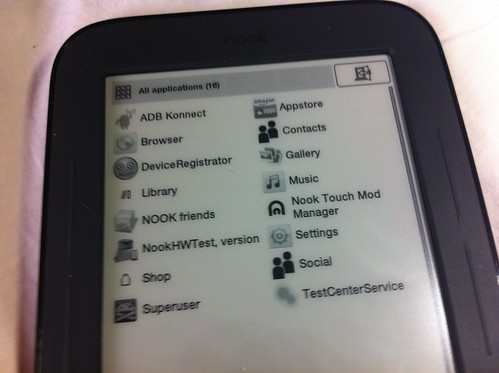
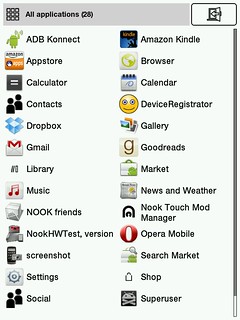
Here’s a screengrab of the app screen after I’d installed a few more:

shot_000001

which is oddly in colour – in fact, it looks more like this:

shot_000001bw

This is my first Android device. Wow, they made taking screenshots hard, didn’t they, compared with iOS? I guess Apple made it easy on iOS by way of apology for making it so impossible to remember in OS X. Cmd, shift, alt, option, cross fingers, 4 is it?

Post-script

I’ve found another work-around for the search box not working in the Android Market app – you can use a web-browser on your computer, log into Google, go to play.google.com and send apps to your ‘phone’ (i.e. Nook), and they then appear under ‘My apps’ in the Market app, so you can install them.

Posted in Android, computers, hardware, Linux, thrift | Tagged , , , , | 1 Comment

Adding an LED to the internet printer

Adding an LED to my little Internet printer

Sometimes I’m not sure if my little Raspberry Pi-powered GoFreeRange internet printer is actually working or not – the Raspberry Pi is hidden inside the box, and you can’t usually see the onboard LEDs. Today I thought my printer had been quiet – it turned out the mains plug had fallen out. So I decided to add an LED that lights up when the Python script that makes the printer work starts running, and which can be fitted to the top of the soap box. (I know there are lights, and even a button, on the original Arduino-powered GFR printer, but I’m not sure what they do).

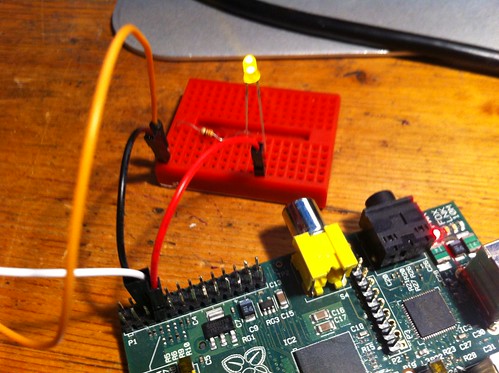
I connected the GND pin (pin 6) on the Raspberry Pi to a breadboard (via the black wire in the photo), so the GND pin can be shared by the thermal printer and the LED. I connected GND back to the printer (with the orange wire).

I connected the GND rail on the breadboard to a 330 ohm resistor (all I had) to the short leg of an LED.

Then I connected the long leg of the LED to a GPIO pin on the Raspberry Pi – pin 7 (GPIO 4) – that’s the red wire in this photo.

I added this code near the top of the printer.py Python script, just after all the other import commands:

import RPi.GPIO as GPIO
# to use Raspberry Pi board pin numbers
GPIO.setmode(GPIO.BOARD)
# set up GPIO output channel
GPIO.setup(7, GPIO.OUT)
GPIO.output(7,GPIO.HIGH)

This then lights an LED when the Python script starts running. It doesn’t, of course, necessarily tell me it’s stopped running, but at least I know there’s power to the Pi and the script has started at least once since it booted up.

This probably commits all kinds of crimes against coding and electronics – advice and suggestions for improvements are most welcome!

The next step is to get an LED to light when it polls for new stuff to print, or when stuff is incoming – perhaps a different colour LED for incoming data? Though stuff coming out of the printer is usually a pretty big clue that there’s incoming data, so I’m not sure exactly how useful that would be. I might also see if I can get the button to shut the Pi down so it can be safely unplugged.

Polling blinking

Here’s how I got the LED to blink when the code is polling for new content. I added the following lines near the top of the printer.py script:

import RPi.GPIO as GPIO
# to use Raspberry Pi board pin numbers
GPIO.setmode(GPIO.BOARD)
# set up GPIO output channel
GPIO.setup(7, GPIO.OUT)
GPIO.output(7,GPIO.LOW)

The last line isn’t probably necessary, but it was useful for me when testing to get the script to turn the light off when it started up.

I then modified the last section of the printer.py code so it read like this:

while(True):
GPIO.output(7,GPIO.HIGH)
checkForDownload()
GPIO.output(7,GPIO.LOW)
time.sleep(pollingTimeoutSecs)

This causes the LED to blink momentarily when it polls for new data, so I know the script is running.

Posted in computers, ICT, Linux, Raspberry Pi, Raspbian | Tagged , , , | Leave a comment

Making a GoFreeRange internet printer with a Raspberry Pi

PLEASE NOTE THIS POST IS NOW OUT-OF-DATE. The Go Free Range printer is now at http://exciting.io/printer/ – I’ve not updated my Raspberry Pi code because my own thermal printer is broken, and will only spew out lines saying ‘CP437′ – if anyone knows of any possible fix, I’d be very grateful.

I love the idea of the Berg Little Printer, but it’s expensive: a self-contained box that lets you rip & read internetty stuff such as weather, messages, diary events, travel news, whatever anyone can think of. I already have a thermal printer I used for my Little Box of Poems, so I decided to make an open source GoFreeRange internet printer instead. The GoFreeRange printer normally uses an Arduino, but as I have the wrong kind of Arduino, I wanted to use a Raspberry Pi instead.

You can read more about little thermal internet printers in this Wired article from 2012.

Untitled

Here’s roughly how I did it (more details to follow):

  • I made a fresh Raspberry Pi SD card using the normal default Raspbian Wheezy disk image: http://www.raspberrypi.org/downloads
  • I got the Raspberry Pi on t’internet using a wifi dongle, setting it up using the GUI wifi tool on the desktop, and enabled SSH using the raspi-config tool so I could log into it from a computer with no keyboard or mouse connected to the Pi. I also used the raspi-config tool to expand the disk image to fill the SD card and update the system software. I did not get the Pi to boot into the graphical environment at startup, as I was going to be running it ‘headless’.
  • I powered up my thermal printer and connected it to the Raspberry Pi in the same way I did with The Little Box of Poems. I put the Raspberry Pi and printer in an old washing tablet box.
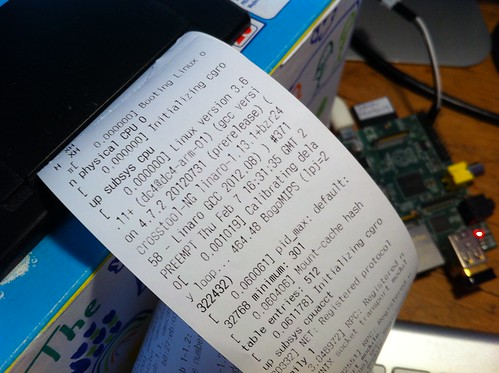
  • I followed Andrew Nicolaou’s instructions: https://github.com/andrewn/raspi-printer#readme - I changed the baud rate in cmdline.txt – this causes the Raspberry Pi to send its Linux boot messages to the printer as well as the video output. It’s a bit verbose – I got a yard of nerdy gubbins spewing out of my printer, but it worked. (You can disable this if you like, see below).
    Raspberry Pi boot screen text coming out of printer
  • Then, following Andrew’s instructions, I installed the python-serial library. I was a bit thrown about the bit where he says to save a file with your unique printer ID. I didn’t have one, and I didn’t know how to get one. It seemed like a bit of a catch-22, so eventually I just ran his printer.py script anyway.
  • I then went to this page on my desktop computer and made a note of the printer URL: http://printer.gofreerange.com/my-printer – somehow the file with my unique printer ID seemed to get made in the process. I did a test print – it worked!
  • Untitled

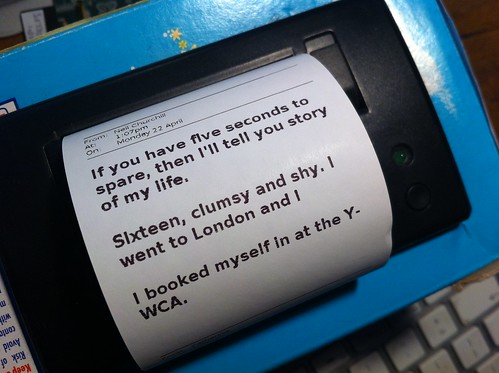
  • Then, having saved my printer URL in a notepad, I signed up for Printer Mail – http://printer-mail.herokuapp.com/. This means people can send messages to my printer by filling in a simple form on a web page. Brilliant!

I had a couple of kernel panics – the Pi rebooted itself without warning. Not sure why, need to investigate. I’d like to make the boot-up text a bit less verbose too.

As I’m running the printer script manually, I need to follow Andrew’s instructions on getting it to run automatically when you boot the Pi up, and get all the gubbins in a self-contained box.

People sending my printer messages from anywhere they can get on the internet all over the world is pretty damn cool, but other possible uses include waking up to a daily printed weather report and printing paper bookmarks customised for the book you’re reading. Or print out anything you star in Google Reader. What’s that you say? Oh well, you get the idea.

The Raspberry Pi version of the GoFreeRange printer doesn’t have a button – it just prints anything that’s sent it. I have a big red shiny button in my printer box that’s going spare, but I quite like the idea that no human intervention is required, it just squirts out… stuff.

I’ve been away from my printer all day, working a late shift. Quite excited to see what might be on it when I get home…

What’s next?! Excited… very excited.


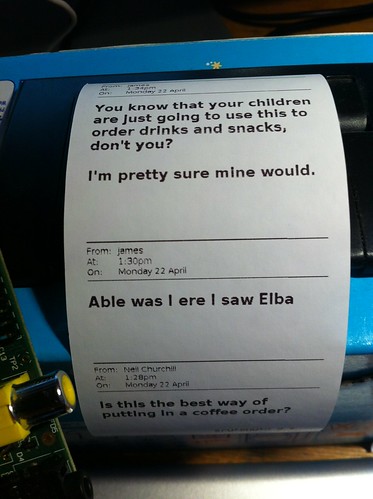
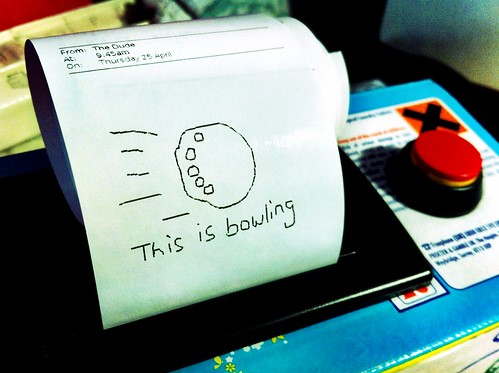
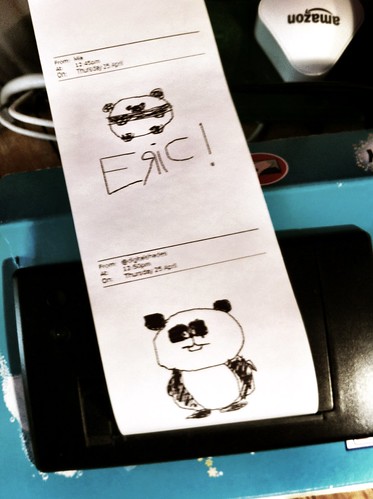
I also signed up for the Printer Paint app – so you can draw me a picture on your computer and send it to my little printer. I love pictures appearing on my printer – send me one! http://printer-paint.herokuapp.com/send/blogmywiki

Incoming message from His Dudeness

Addendum:

I’ve now disabled serial port login on the Pi, to see if that helps with stability – following the instructions here: http://www.hobbytronics.co.uk/raspberry-pi-serial-port. I did this when I made the Little Box of Poems, and it seems like a good idea. You just comment out the last line of /etc/inittab, the one that reads
T0:23:respawn:/sbin/getty -L ttyAMA0 115200 vt100
by putting a # (hash) at the start of the line. There are also instructions there on how to stop the printer spewing out all the Linux boot-up info when you turn the Pi on.

Post-script to the addendum

I had trouble getting the Python script to run at startup. This is quite important, because I want my little printer to just start working – and stay working – when I plug it in. I don’t want to have to log in by SSH to start the script running.

I couldn’t get the update-rc.d method to work, so instead I edited /etc/rc.local by typing
sudo nano /etc/rc.local
and adding the line
sudo python /home/pi/raspi-printer/printer.py
to it. This seems to work.

I've got pandas on my printer

Posted in Linux, Raspberry Pi | Tagged , , | 17 Comments

Dorothy Parker in Reverse

An unsuccessful attempt to get a book club to pick The Collected Works of Dorothy Parker as their next book reminded me that I once rewrote her short story ‘A Telephone Call’, swapping the genders to see if it still worked. I think it does.

PLEASE, God, let her telephone me now. Dear God, let her call me now. I won’t ask anything else of You, truly I won’t. It isn’t very much to ask. It would be so little to You, God, such a little, little thing. Only let her telephone now. Please, God. Please, please, please.

If I didn’t think about it, maybe the telephone might ring. Sometimes it does that. If I could think of something else. If I could think of something else. Maybe if I counted five hundred by fives, it might ring by that time. I’ll count slowly. I won’t cheat. And if it rings when I get to three hundred, I won’t stop; I won’t answer it until I get to five hundred. Five, ten, fifteen, twenty, twenty-five, thirty, thirty-five, forty, forty-five, fifty…. Oh, please ring. Please.

This is the last time I’ll look at the clock. I will not look at it again. It’s ten minutes past seven. She said she would telephone at five o’clock. “I’ll call you at five, darling.” I think that’s where she said “darling.” I’m almost sure she said it there. I know she called me “darling” twice, and the other time was when she said good-by. “Good-by, darling.” She was busy, and she can’t say much in the office, but she called me “darling” twice. She couldn’t have minded my calling her up. I know you shouldn’t keep telephoning them – I know they don’t like that. When you do that they know you are thinking about them and wanting them, and that makes them hate you. But I hadn’t talked to her in three days – not in three days.

I still heartily recommend the Penguin Collected Dorothy Parker. It’s a big book, but made of short stories. You can pick & choose, like sweets. Leave some of the poetry if you like. There will always be hard-centred, unloved ones left ignored, but you will also find some praline-filled iced gems, with a bittersweet aftertaste.

Posted in fiction, literature, nostalgia, relationships | Tagged , , , | 1 Comment