How to Build a Little Box of Poems

I wanted to build a little internet printer, spewing out weather and tweets and the like. When I was testing my thermal printer, however, I got bored reading sample text and replaced it with a short poem. And that gave me an idea: why not make a self-contained box that just prints a random poem when you press a button?

A few people seem to really like the idea, especially those working in education. It could be a great school project combining four different subjects: Science/Phyisics (the electronics and circuit wiring – why is a resistor needed? How can you supply the correct voltage & current to both Arduino and printer from 1 power supply?), ICT (programming the Arduino), DT (making the box) and English (get your class hunting for great, short poems, or better still get them writing their own Imagist poems, limericks or haikus).

You will need:

  • An Arduino Uno or similar. A starter kit would contain some of the other bits you need, eg http://proto-pic.co.uk/arduino-starter-kit/ (roughly £40 for a kit, about £20 for a bare Arduino)
  • A thermal printer such as http://proto-pic.co.uk/thermal-printer/ (about £40)
  • A 10 Ω resistor (may be in Arduino kit)
  • some wires (ditto)
  • a push button (ditto)
  • something to power the printer and the Arduino – the printer needs a hefty power supply that can provide between 5 and 9 volts at at least 1.5 amps. The Arduino needs a similar voltage but takes much less current.
  • a computer to program your Arduino running version 1.0 or above of the Arduino software, and a USB lead (only needed when you make it)
  • some till roll – either this http://proto-pic.co.uk/thermal-printer-paper-34/ or buy some from Ryman’s or another office supply store, and spool some off so the roll fits.
  • some short poems
  • a box to put it in – I used a Fairy washing tablet box made of strong cardboard.
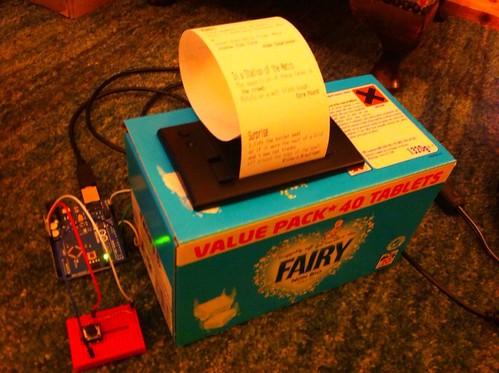
  • Little Box of Poems - work in progress

When you get your printer, connect a suitable power supply insert the paper and test it by turning it on when you hold down the button. You should see a test pattern that tells you the baud rate of your printer. (Baud is a measure of how fast data is sent over a serial connection). It should look like this:
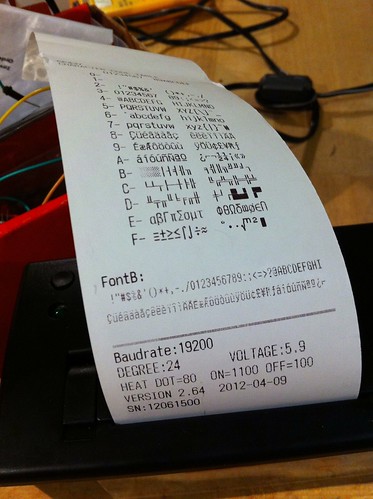
It prints!

If the baud rate is anything other than 19200 you need to tweak a number in my code, and in the Adafruit Thermal library – that’s a bunch of code that makes it easier to tell your printer what to do. They have instructions on their web site for how to install it. It’s essential.

Here’s how I wired it together, combining the sample Arduino button sketch with the Adafruit thermal printer example:

box-of-poems-diagram

I used a tiny breadboard that I got with my Arduino kit to test the code – it connects a small black push button via a resistor. I later replaced the small black button with a huge red button that I fitted to the top of the box.

I powered my Arduino by USB, either from a computer or from an iPhone charger, and I used a separate 5v 2A power supply for the printer – I daresay they can be wired so only 1 plug is needed.
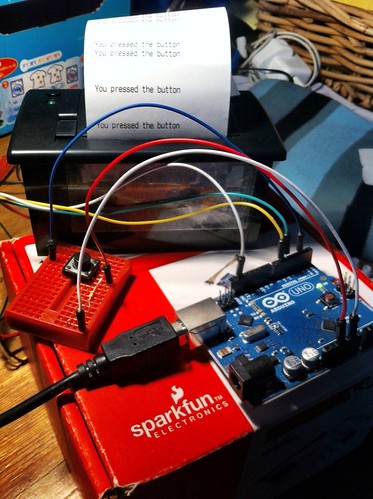
Print on button press proof of concept

You can download my Arduino source code here or read it below. There are three files in the zip, the main one is displayed at the foot of this blog post. The other 2 files are logos.

Pome printed by ArduinoFeel free to edit it with your own choice of poems – I’m not sure how many can be crammed into the Arduino’s tiny memory, but I daresay you can get more in if you remove the graphics – I have a little ‘Blog My Wiki’ logo and a QR code that links to this blog. I used the Adafruit instructions on how to make graphics for the printer – I have to say that using ‘Processing’ to make them worked much better for me than using LCD Assistant. I used a random free web site to make the QR code and carefully resized it in Photoshop and saved it as a PNG.

The poems are split into three arrays – one for title, one for the main text of the poem, and a third for the author. This is because I wanted to print headings, text and footers in diffrent styles, and this seemed the simplest way to do it. ICT challenge: is there a more efficient way to code this?

So wire up the printer and switch to your Arduino. Upload the code, and press. Hopefully you will get a random poem. Rip & read. Share & enjoy.
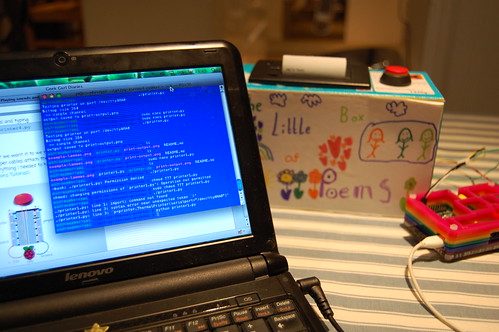
Injecting a Pi filling to my Box o'Poems

Post-script: December 2012

Thanks to Twitter, The Little Box of Poems inspired Carrie Anne Philbin’s Little Box of Geek – this is a project based on a Raspberry Pi rather than an Arduino. I’ve found that I can only get about a dozen short poems in the Arduino before it starts spewing out gibberish – I’m guessing because it’s running out of memory. Clearly the Raspberry Pi has much more storage by default and, crucially, is easy to get on the internet, so I’m rebuilding my Little Box of Poems with a Raspberry Pi filling. I’ll post my results when I get it working, which shouldn’t take too long thanks to Carrie Anne’s excellent blogposts and videos. Do visit her site and spread the word about her important work which is getting girls into IT. You can follow @GeekGurlDiaries on Twitter.

/*
 Little Box of Poems
 © 2012 Giles Booth
 
 http://www.suppertime.co.uk/blogmywiki
 @blogmywiki

 not for commercial use
 if you modify this code for edcuational or charitable use
 please credit Giles Booth and/or @blogmywiki in printouts
 */

const int buttonPin = 2;     // the number of the pushbutton pin - doesn't change
int currState = 0;           // set variables to hold the state of the button
int prevState = 0;

#include "SoftwareSerial.h"
#include "Adafruit_Thermal.h" // you need to download this and put it in your Arduino library
#include "bmw.h"              // BlogMyWiki logo
#include "qr2.h"              // QR code graphic for my web site
#include <avr/pgmspace.h>     // I have no idea what this does

int buttonState = 0;     // variable for reading the button status
int printer_RX_Pin = 5;  // This is the green printer wire
int printer_TX_Pin = 6;  // This is the yellow printer wire

Adafruit_Thermal printer(printer_RX_Pin, printer_TX_Pin);

void setup() {
  pinMode(buttonPin, INPUT);
  Serial.begin(19200);   // this is the baud rate of your printer - may vary
  pinMode(7, OUTPUT); digitalWrite(7, LOW);
  printer.begin();
}

void loop(){
  // read the state of the button:
  currState = digitalRead(buttonPin);
  if (currState != prevState)   // if something has changed, do something
{
  if (currState == HIGH) {
    printPoem();
  }
  else {
    // if you want something to happen when the button is released, put it here
    // such as a beep, or a display saying 'your poem is on its way'
  }
prevState = currState;
}
}

void printPoem(){

  // put poem titles in order in here  
  char* myTitles[]={"In a Station of the Metro","This is just to say","Surprise","Moment","The Sick Rose","Women, Wine and Snuff"};

  // put poems in here in order
  // they must all be on the same line, in double quotes, separated by commas
  // use \n for a new line and \" to escape a quotation mark
  char* myPoems[]={"The apparition of these faces in the crowd;\nPetals on a wet, black bough.", "I have eaten\nthe plums\nthat were in\nthe icebox\n\nand which\nyou were probably\nsaving\nfor breakfast\n\nForgive me\nthey were delicious\nso sweet\nand so cold", "I lift the toilet seat\nas if it were the nest of a bird\nand i see cat tracks\nall around the edge of the bowl.",
"Clear moments are so short.\nThere is much more darkness.More\nocean than terra firma. More\nshadow than form.", "O rose, thou art sick!\nThe invisible worm,\nThat flies in the night,\nIn the howling storm,\n\nHas found out thy bed\nOf crimson joy,\nAnd his dark secret love\nDoes thy life destroy.","Give me women, wine and snuff\nUntil I cry out,\n\"hold, enough!\"You may do so sans objection\nTill the day of resurrection;\nFor, bless my beard, they aye shall be\nMy beloved Trinity."};

  // put author names & dates here, in order
  char* myAuthors[]={"Ezra Pound","William Carlos Williams","Richard Brautigan","Adam Zagajewski","William Blake","John Keats"};

  int poemChoice = random(0, 6);  // choose a random poem number between 0 and 5

  printer.doubleHeightOn();
  printer.println(myTitles[poemChoice]);
  printer.doubleHeightOff();
  printer.boldOn();
  printer.println(myPoems[poemChoice]);
  printer.boldOff();
  printer.justify('R');
  printer.println(myAuthors[poemChoice]);
  printer.justify('L');

  printer.printBitmap(bmw_width, bmw_height, bmw_data);    // print Blog My Wiki logo    
  printer.printBitmap(qr2_width, qr2_height, qr2_data);    // print QR code graphic
  printer.boldOn();
  printer.println("The Little Box of Poems");
  printer.boldOff();
  printer.setSize('S');     // Setting the size adds a linefeed
  printer.println("www.suppertime.co.uk/blogmywiki");
  printer.println("@blogmywiki");
  printer.feed(3);

  delay(2000);   // 2 second pause to help prevent multiple presses     
}

Posted in Arduino, education, ICT, literature, poetry | Tagged | 6 Comments

Little Box of Poems

Pome printed by Arduino

Anyone who’s unfortunate enough to follow me on Flickr knows that I’ve become a bit obsessed by till-roll lately. I bought a tiny thermal till-roll printer to hook up to my Arduino or RaspberryPi, the idea being to make a cheap version of the Berg Little Printer – which is a nice idea, but way too expensive for me. I decided instead to make one of these: http://gofreerange.com/hello-printer, only possibly with a RaspberryPi controlling it, instead of an Arduino.

I got my £40 printer from Proto-Pic, realised I’d forgotten to order paper, ran out to Rymans to buy thermal till-roll, spent ages winding it onto a small spool, and chucked at my oh-so-meta receipt. I had to butcher an old camera power supply to get 5 volts at 2 amps to the printer – it’s a thermal printer, it needs current to get hot. Soon I got bored printing test patterns, so I replaced the default test text with a short Imagist poem by Ezra Pound.

Then I had an idea.

Instead of making an internet-connected printer spewing out tweets and weather, why not make a totally self-contained gadget that simply prints a random short poem when you press a button? I have a big, red shiny button in my drawer of electrical bits. This could be good. A little box of poems. Put it in your school. Put it in your workplace. Press the button. Rip & read. Pass them on. I’ve been handing little poems to all sorts of people today. It’s a nice thing to do.

Little Box of Poems - work in progress

So I need your suggestions for great short poems, please. I’m kind of drowning in William Carlos Williams at the moment. Which is fine, but some others would be good. So far only one person has suggested any, so I am starting to wonder if I am crazy. I want to see how many poems I can cram into the Arduino’s tiny ZX Spectrum-sized memory.

UPDATE: I’ve now given my Little Box of Poems a Raspberry Pi filling!

Posted in Arduino, hardware, literature, poetry | Tagged , , | 3 Comments

Fridge Gizmo recap

Behold the mighty FridgeGizmo! Er, not on the fridge. Yet.

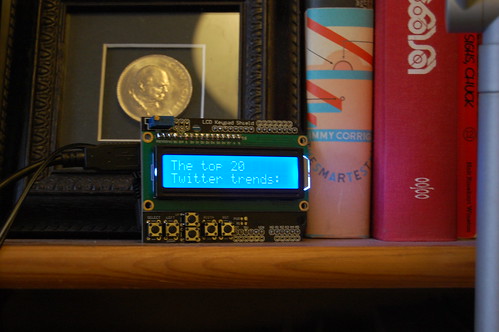
Here’s a quick recap on the main steps I took in making a self-contained gizmo which displays London weather, global random tweets and Twitter trends on an LCD display. No soldering was involved. It’s really rather hypnotic watching utterly random tweets scroll by on a cool blue LCD display…

Ingredients:

  • RaspberryPi with normal, default bog-standard Raspbian OS – I used a model B with ethernet, but an A would do as I was also using…
  • Edimax USB wifi dongle.
  • Arduino Uno microcontroller.
  • LCD keypad shield for Arduino – though I’ve not used the buttons yet, and any Arduino-friendly display would do.
  • Kindle power supply for Raspberry Pi.
  • Some random old power supply for the Arduino.
  • A USB lead. A really, really short A-B lead or adapter would be better than the one I have.

Method:

  1. My basis was this project: http://www.midnightcheese.com/2011/10/displaying-twitter-and-weather-on-your-arduino-lcd-screen/
    This uses a Mac to send weather and tweets to an Arduino with a different LCD display.
  2. I tweaked the Arduino code for my display etc.
  3. I got my Raspberry Pi connected to the internet over wifi.
  4. I installed the Apache web server and PHP on the Raspberry Pi.
  5. I tweaked the PHP script to show weather in London in centigrade, rather than Nashville in Fahrenheit.
  6. I added a horrible kludge to the bash script that calls the PHP script in order to keep open the serial communication between the Pi and the Arduino.
  7. I got the RaspberryPi to run the script automatically when I turned it on. This was harder than I expected but I got there.

To do list:

  • get the display to scroll twitter trends or split over two lines – at the moment trends are truncated
  • display UK twitter trends rather than global trends
  • weather forecast, not current weather
  • my display can’t cope with accented characters – strip out, replace with equivalent normal ASCII ones or work out how to get display to do it.
  • display the time of my next train into town – this is going to be difficult as our local train data isn’t freely syndicated – well, why would you want to encourage people to use public transport when you can charge people to breathe the air around them? (Little bit of politics, there).
  • get the buttons to do something – switch between tweets, weather, train info?
  • build it into a box and stick it to the fridge or put it on a bookcase, bedside table
  • add a clock?
  • possible heresy: remove the Arduino and get the Raspberry Pi to address the LCD display directly. This must be eminently do-able, but I like my Arduino and the way the LCD shield just plugs into it. I’m not good at soldering.

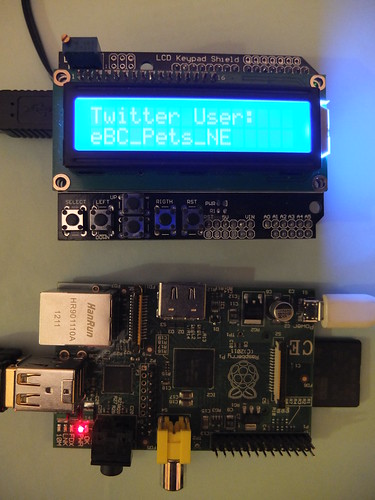
Raspberry Pi displaying random tweets on LCD display via an Arduino

Source Code

Here’s the code I uploaded to the Arduino, very slightly tweaked from Midnight Cheese: http://www.midnightcheese.com/2011/10/displaying-twitter-and-weather-on-your-arduino-lcd-screen/

#include <LiquidCrystal.h>
#include <WString.h>

LiquidCrystal lcd(8, 9, 4, 5, 6, 7);
// these figures copied from sample sketch that came with my LCD shield

void setup() {
//  analogWrite(5, 100);    // Set LCD contrast level (0-255) - removed for my LCD shield
  lcd.begin(16, 2);       // Set the LCD's number of rows and columns
  Serial.begin(9600);     // Initialize communication with serial(USB) port.
  lcd.print("FridgeGizmo v1.1");    // Print welcome message to LCD.
  lcd.setCursor(0, 1);              // move cursor to start of 2nd line of display
  lcd.print(">>>fetching data");    // Print 'please wait' message to LCD.
}

int bufferArray[250];     // Our array to store characters arriving from serial port.
int output = 0;
int i = 0;

void loop() {
  int count = Serial.available();

  if (Serial.available() > -1) {
    delay(1000);
    for (i=0; i<count ; i++) {
     bufferArray[i] = Serial.read();          // Put into array
     output = 1;                              // Show new data has been recieved
    }
  }

  if (output != 0) {                          // If new bytes have been recieved
    int position = 0;
    if (bufferArray[0] == '!') {              // Print on first line if message begins with '!'
      lcd.clear();
      lcd.setCursor(0,0);
      position = 1;
    } else if (bufferArray[0] == '@') {       // Print on second line if message begins with '@'
      lcd.setCursor(0,1);
      position = 1;
    } else if (bufferArray[0] == '^') {       // Clear screen if message begins with '^'
      lcd.clear();
      lcd.setCursor(0,0);
      position = 1;
    } else {
      lcd.clear();
      lcd.setCursor(0,0);
    }
    int j;
    for (j = position; j < count; j++) {
      lcd.write(bufferArray[j]);
    }
    output = 0;                               // Don't print on next iteration
    memset(bufferArray, 0, count);
    count = 0;
  }
}

This is the tweetwx.sh bash script on the RaspberryPi that runs the tweetwx.php script with the ‘screen’ command kludge at startup:

#!/bin/bash

screen -d -m /dev/ttyACM0 9600

sudo php /var/www/tweetwx.php

This is the PHP code tweetwx.php that fetches weather & twitter data from the internet and formats it and sends it to the Arduino and display:

<?php
// Include the PHP Serial class.
include "php_serial.class.php";
//Define the serial port to use
define('SERIALPORT','/dev/ttyACM0');

// Weather
$zipcode = "UKXX0085";
$title = "London UK WX.";
// $unit = "c"; - will add unit switch later

// Setup the serial connection
$serial = new phpSerial;
$serial->deviceSet(SERIALPORT);
$serial->confBaudRate(9600);

// Time
$lastTime = date('D M j H:i:s Y');
$lastTime = strtotime($lastTime);

// Scroll text up LCD screen
function scrollChunks($message) {
  global $serial;
  $serial->deviceOpen();
  for ($i=0; $i<count ($message); $i++) {
    if ($i==0) {
      $serial->sendMessage($message[$i]);
    } else if ($i&1 && $i!=0) { // If $i is odd and not zero
      $serial->sendMessage($message[$i]);
      sleep(1);
      $message[$i] = substr_replace($message[$i], "!", 0, 1); // Print on top line !
      $serial->sendMessage($message[$i]);
    } else if (!($i&1) && $i!=0) { // If $i is even and not zero
      $message[$i] = substr_replace($message[$i], "@", 0, 1); // Print on top line @
      $serial->sendMessage($message[$i]);
      sleep(1);
      $message[$i] = substr_replace($message[$i], "!", 0, 1); // Print on top line !
      $serial->sendMessage($message[$i]);
    }
    echo $message[$i]."\n";
    sleep(1);
  }
  sleep(1);
  $serial->sendMessage(" ");
  $serial->deviceClose();
}

// Wordwrap our text to lines no more than 15 characters long.
// The LCD displays 16 characters at a time, minus a space for our
// placement character.
function segmentString($t) {
  $chunks = wordwrap($t, 15, "\n", true);
  $chunks = explode("\n", $chunks);
  // Alternate each line with '!' and '@'
  for ($i=0; $i<count ($chunks); $i++) {
    if ($i&1) {
      $chunks[$i] = "@".$chunks[$i];
    } else {
      $chunks[$i] = "!".$chunks[$i];
    }
  }
  scrollChunks($chunks);
}

function displayRSS() {
  global $serial;
  global $title;
  echo "Display only: ".$title."\n";
  sleep(3);
  $serial->deviceOpen();
  $serial->sendMessage($title);
  sleep(240);
  $serial->sendMessage("^");
  sleep(3);
  $serial->deviceClose();
}

function pullWXRSS() {
  global $zipcode;
    $yql = "http://query.yahooapis.com/v1/public/yql?q=select%20*%20from%20weather.forecast%20where%20location%3D\"".$zipcode."\"%20and%20u%3D\"c\"&format=json";

  $session = curl_init($yql);
  curl_setopt($session, CURLOPT_RETURNTRANSFER,true);
  $json = curl_exec($session);
  $json_output =  json_decode($json,true);
  global $serial;
  global $title;
  $title = $json_output['query']['results']['channel']['item']['condition']['temp']."c ".$json_output['query']['results']['channel']['item']['condition']['text'];
  echo "Pull and Display: ".$title."\n";
  echo "Waiting a few seconds to display on Arduino...\n\n";
  sleep(5);
  $serial->deviceOpen();
  $serial->sendMessage($title);
  sleep(240);
  $serial->deviceClose();
  sleep(3);
}

// Display current weather from Yahoo! YQL
function displayWX() {
  global $lastTime;
  global $title;

  $currentTime = date('D M j H:i:s Y');
  $currentTime = strtotime($currentTime);

  echo "\n\n\n\nCurrent Time: ".$currentTime."\n";
  echo "Last Time: ".$lastTime."\n";

  $timeDiff = $currentTime - $lastTime;
  echo "Time Difference: ".$timeDiff."\n";

  // 1 hour = 3600
  if ($timeDiff>=3605 || $title == "London UK WX.") {
    echo "It's been an hour. Pulling WX.\n";
    $lastTime = $currentTime;
    pullWXRSS();
  } else {
    echo "An hour has not passed. Displaying old WX.\n";
    displayRSS();
  }
  displayPubTimeline();
}

function displayPubTimeline() {
  $jsonurl = "http://api.twitter.com/1/statuses/public_timeline.json";
  $json = file_get_contents($jsonurl,0,null,null);
  $json_output = json_decode($json,true);
  foreach ($json_output as $tweet) {
    $name = $tweet['user']['screen_name'];
    $text = $tweet['text'];
    echo "\n\n\n".$name."\n";
    echo $text."\n\n";
    global $serial;
    $serial->deviceOpen();
    $serial->sendMessage("Twitter User:");
    sleep(1.5);
    $serial->sendMessage("@".$name);
    echo "@".$name."\n";
    sleep(2);
    $serial->deviceClose();
    if (strlen($text) > 16) {
      segmentString($text);
    } else {
      $serial->deviceOpen();
      $serial->sendMessage($text);
      $serial->deviceClose();
    }
    sleep(5);
  }
  sleep(5);
  displayTopTrends();
}

function displayTopTrends () {
  $jsonurl = "http://api.twitter.com/1/trends/daily.json";

  $json = file_get_contents($jsonurl,0,null,null);
  $json_output = json_decode($json,true);
  $json_output = current($json_output['trends']);

  global $serial;

  $serial->deviceOpen();
  $serial->sendMessage("The top 20");
  sleep(1);
  $serial->sendMessage("@Twitter trends:");
  $serial->deviceClose();
  sleep(3);
  echo "\n\nTwitter Trends\n\n";

  foreach ($json_output as $trend) {
    $trendname = $trend['name'];
    echo $trendname."\n";
    $serial->deviceOpen();
    $serial->sendMessage("^".$trendname);
    $serial->deviceClose();
    sleep(15);
  }
  $serial->deviceOpen();
  $serial->sendMessage("^");
  sleep(1);
  $serial->deviceClose();
  sleep(3);
  displayWX();
}

displayWX();
?>
Posted in Arduino, computers, hardware, Raspberry Pi, Raspbian | Tagged , , , , | 1 Comment

Making FridgeGizmo run automatically

…or How to Get a Script to Run Automatically at the Auto-login on default Raspberry Pi Raspbian Linux.

I want to get my FridgeGizmo that displays local weather and global tweets on an LCD display to start itself up automatically when I plug it in, with no user intervention. I tinkered around with .profile files, but I could only get them to run when I manually opened a terminal session (by SSH from my laptop, in my case). This is no good. I wanted the Raspberry Pi to run my script to send text to the LCD display (via the Arduino) when the Pi logs itself in to the normal LXDE graphical environment. I don’t want it to run too soon (at boot, for example) because I need to be sure that it’s connected to the internet and that Apache and PHP are running, as they are needed to make FridgeGizmo work.

Here’s how I did it…

I opened a terminal window (SSH in my case, but a root terminal window on the Pi screen should work too). I navigated to the home folder of the default user – pi – by typing
cd /home/pi
at the command line.

I then created a new file called auto.desktop by typing
sudo nano auto.desktop
at the command line.

Into this file I pasted the following text:

[Desktop Entry]
Encoding=UTF-8
Name= Connect
Comment=Checks internet connectivity
Exec=lxterminal --command "/var/www/tweetwx.sh"
Terminal=true

and saved it using ctrl-O, ctrl-X. /var/www/tweetwx.sh is the path to the shell script which calls the PHP file that pulls weather and tweets from the internet and sends them to the Arduino and its LCD display.

I then had to make a directory inside the /home/pi/.config folder to put this file in by typing in the root command window:
cd /home/pi/.config
mkdir autostart

I then moved my auto.desktop file in there by using this command:
cd /home/pi
mv auto.desktop .config/autostart/

I then rebooted the Raspberry Pi, connected to the screenless and keyboardless Arduino, and soon weather and tweets started appearing on the LCD with no human intervention. Yay!

Posted in Arduino, computers, hardware, Raspberry Pi, Raspbian | Tagged , , , , | Leave a comment

Pi shall tweet unto Arduino

DSCF4545

More work to do, but big breakthroughs with FridgeGizmo today. I got the RaspberryPi pulling London weather and random worldwide tweets and trends and displaying them on my LCD display via an Arduino Uno.

I installed Apache 2, the Apache curl module and PHP on the Raspberry Pi using the excellent instructions here: http://fusionstrike.com/2012/installing-apache2-raspberry-pi-debian

I added the PHP Serial class to my Apache directory /var/www/ and used similar files I used on my OS X test version – changing the device name to ttyACM0, which is how an Arduino Uno appears on the Raspberry Pi running Raspbian.

I had to power the Arduino & LCD display shield with another power supply – the screen’s contrast was dim otherwise, suggesting it wasn’t getting enough current from the Raspberry Pi’s USB port alone.

When I ran my bash shell script to fire it off.. not much happened. It pulled the weather ok, then just hung with no error messages. It looked like it might be a similar problem I had in OS X, with serial connections over USB getting dropped. I found that typing

stty -F /dev/ttyACM0 -hupcl

at the RaspberryPi command line before running the script, made it work. Lots more tidying up and tweaking to do, but I have a self-contained RaspPi/Arduino combo that gets weather and tweets over wifi and displays them on an LCD screen. Yay!

UPDATE: having powered it all off and on, I’ve struggled to get this working again without typing screen /dev/ttyACM0 9600 and sending some characters to the Arduino before quitting Screen and running the script. More work needed… :)

UPDATE TO THE UPDATE!

Well, seems like stty -F /dev/ttyACM0 -hupcl was a red herring. According to this article, there are big problems with serial communication between the Raspberry Pi and Arduino. So how did I get it to work? I think the screen command (which I used in my Raspberry Pi/Arduino Morse code project) must do something to force open a connection. I tried getting my bash launching script to run screen but it would just hang and go no further until you manually quit the screen session. I then found you can run screen without starting a new console by using the command screen -d -m. So my bash script that launches the PHP code to pull tweets & weather down from the internet, now looks like this:

#!/bin/bash
screen -d -m /dev/ttyACM0 9600
php tweetwx.php

I know this is a horrible kludge, and I have no idea how or why it works, but it does seem to do the trick. As I recall screen doesn’t come included with Raspbian, I had to install it using sudo apt-get install screen at the Raspberry Pi terminal command line.

Now I just need to get my bash script to run automatically when the Pi boots up and it really will be self-contained, requiring no keyboard, TV or mouse.

Posted in Arduino, computers, hardware, internet, Raspberry Pi, Raspbian | Tagged , , , , , , | Leave a comment