Raspberry Pi day 3: Using the right disk image.

Day 3 in the Raspberry Pi House

I’ve realised the version of Raspberry Pi Debian Squeeze I’d been using was out-of-date. There are two problems with the Mac OS X script for making RasPi SD cards called RasPiWrite:

  • It downloads out-of-date images (certainly for Debian)
  • There’s a bug in it which means that the option to use your own disk image you’ve downloaded doesn’t work. I wasted ages on this before I twigged.

I even tried editing the Python script of RasPiWrite to force it to use a current image, but I couldn’t get it to work.

So, if you have a Mac as far as I can see, at the moment you have 2 options to make your RasPi SD card:

  • Use the slightly scary command line instructions here: http://elinux.org/RPi_Easy_SD_Card_Setup
    You need to be really careful with this though, because if you type the wrong thing in you can wipe your hard drive. Oopsy. And beware that ‘/dev/disk1s1 => /dev/rdisk1′ isn’t something you type, it’s something you work out in your head.
  • Use a Windows box.

I did the former (on my second-best Mac), and it worked. My terminal session looked something like this:

Giles-Booths-IdeaPad:~ gilesbooth$ diskutil unmount /dev/disk1s1
Volume NO NAME on disk1s1 unmounted
Giles-Booths-IdeaPad:~ gilesbooth$ dd bs=1m if=~/Downloads/debian6-19-04-2012/debian6-19-04-2012.img of=/dev/rdisk1
dd: /dev/rdisk1: Invalid argument
1859+1 records in
1859+0 records out
1949302784 bytes transferred in 321.937141 secs (6054917 bytes/sec)
Giles-Booths-IdeaPad:~ gilesbooth$ diskutil eject /dev/rdisk1
Disk /dev/rdisk1 ejected

Your command will almost certainly be different, so don’t cut and paste this! It takes quite a while to write to the card, so don’t worry if it looks like nothing is happening, and that error message didn’t seem to cause any problems.

My new card booted ok after a while – lo! I have RaspberryPi wallpaper and programming tools, education tools like Scratch, though the screen is in a weird 1824 x 984 resolution on my TV (which doesn’t fill the screen), rather than the better 1920 x 1080 which I’d had before. And you still have to create a root password using ‘sudo passwd root’ in the terminal before you can install any applications using Aptitude.

I’ve been mulling over some possible uses for my RasPi:

  • It would make an awesome partner to my Arduino.
  • It could be left on all the time displaying my Google calendar for the day or week plus the time of my next train on a TV’s AV or HDMI input.
  • Driving a display at work with relevant tweets or headines.
Posted in computers, Debian, hardware, Linux, operating systems, Raspberry Pi | Tagged | 5 Comments

Raspberry Pi day 2: I try to install an application

Yesterday I said I didn’t think there was an easy way of installing new software in the Raspberry Pi version of Debian Squeeze. Well, yes and no. There is a way, but it ain’t easy.

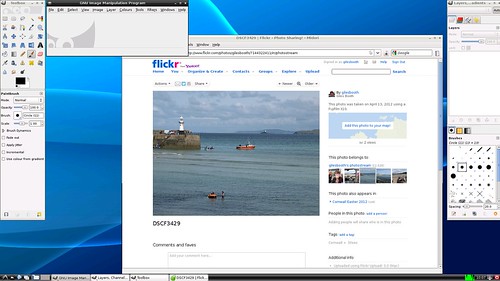
Gimp running on a Raspberry Pi

Installing software in Linux is always a bit of a minefield – it’s easy to get into ‘dependency hell’. Almost all software packages rely on other software packages to be installed before they will run, so you need to use a tool that will handle all this dependency stuff for you. My understanding is that Debian Linux (on which fluffy Ubuntu is based) is pretty good on this score.

The default Debian Squeeze RasPi distro comes with Aptitude for doing this. It’s not exactly a fluffy Synaptic-like experience; it’s a terminal-like thing running in a window, but at least it has menus so you’re not left at the mercy of a blank, accusing command line.

I thought I’d try installing the Photoshop-like image editing software Gimp as my first app. I started up Aptitude, managed to locate the Gimp package (itself no mean feat), selected it for installation and hit ‘g’ to install the packages. No luck. I needed to be logged in as root. The root account is the uber-low level admin account that has rights over everything on a Linux system.

Aptitude lets you ‘go root’ – but it wouldn’t take either of the passwords I could think of. Not ‘suse’ which I used to log in in the first place, nor ‘raspberry’.

Bit of googling revealed that this flavour of Linux has no root password by default. You need to get a terminal (command line) up and type the following:

sudo passwd root

You can then set a password for the root account, which you can give to Aptitude. And that’s how I installed Gimp.

Gimp is very slow – drawing is hilarious. My eldest son drew a wiggly line with a mouse and we watched it try to catch up for a good minute after he stopped moving it. But it works and it does screenshots.

My next objective is to work out how the hell I can download my own photos from Flickr. The bundled Midori web-browser seems to choke on the script on most modern Flickr pages (like the Lightbox) and I can’t find a simple ‘download this image’ on a plain page.

Oh, and I’d like a Twitter client. I’ve heard of one called Turpial but I can’t find it listed in Aptiude. Which will, I suspect, lead me into some editing of config files to get Aptitude to look at software packages other than the default rock-solid, up-to-date, free ones.

Posted in computers, Debian, education, hardware, ICT, Linux, Raspberry Pi | Tagged | 6 Comments

Raspberry Pi est arrivée!

Raspberry Pi est arrivée!
I had joked that the Raspberry Pi was indeed taking me back to the glory days of 1980s computing – mainly by making me wait so long; it reminded me of the interminable delays waiting for Sinclair to ship my ZX Spectrum by mail order.

Today it arrived, and I had almost forgotten why I wanted it in the first place. Here are a few initial reactions and observations:

  • A Kindle charger makes a perfect power supply. You need something with a micro USB plug. Mini USB won’t work.
  • Raspberry Pi

  • It’s a very long way from being a finished product – certainly not for the ‘consumer’ and probably not for an education market yet either.
  • It’s not for the faint-hearted. At the moment I’d say not to get one unless you have at least some experience of Linux. I have a bit of Linux experience and it took me half a day to get it working.
  • Wired (ethernet) internet is very handy, assuming you have the model B. The RasPi has no internal clock, for one thing, and the internet helps it know what millenium it is.
  • Making the SD card with the operating system is a bit of a pig if, like me, you only have Macs and WindowsXP – most of the tools seem to be written for Windows7 and Linux.
  • If you have a Mac, use RasPiWrite from www.exaviorn.com to make your SD card OS. A 4 GB one seemed big enough. [SEE NEW WARNING IN COMMENTS BELOW]
  • Fedora Remix on Raspberry Pi

  • DO NOT (at the time of writing) INSTALL FEDORA REMIX AS YOUR OS. I wasted hours on this. It was buggy beyond belief – forced me to change my password to something stupidly complex and then refused to let me log in. I never got past the login screen.
  • Install Debian ‘Squeeze’ as your OS instead. This is option 1 in RasPiWrite.
  • When you log in at the command line, you need to type startx to get the graphical user interface (windowed desktop) running. This isn’t at all obvious if you’ve never dicked around with Linux before.
  • I don’t think sound works on this default distro yet, and there’s not much software with it. There’s a simple web browser and not much else. I easily managed to find MP3 files on my network (on a USB stick in my router) – but the supplied MP3 player couldn’t produce any audio.
  • I couldn’t see a simple software / package installer for adding software. This is not Ubuntu. As I say, it’s all a bit hard-core nerdy Linux stuff. There is Python and possibly some other tools for programming but nothing terribly friendly-looking.
  • It’s quite slow – but nowhere near as slow as I’d expect a $25 computer to be, and it was driving a 1920 x 1080 display!
  • Debian Squeeze on Raspberry Pi

  • It’s still very early days for Raspberry Pi. Once people start making packages with more fluffy OSs (and perhaps even selling ready-made SD cards tailored to particular uses) this tiny computer will really start to change the world.
Posted in Debian, education, hardware, ICT, Linux, operating systems, Raspberry Pi | Tagged , , | 1 Comment

Télégramme 3

Télégramme Magazine - Issue 3: OUT NOW

Issue 3 of Télégramme magazine is out now. It’s a stunning piece of work by my friend Sarah Hill.

It’s about photography and art, there are articles and interviews, but mostly the pictures just speak for themselves.

The layout is beautiful, and the pictures are amazing, and you can read it for free on your computer. Dive in!


Posted in media, photography | Tagged , , | Leave a comment

More Arduino resources

Here are a couple of useful resources for learning about programming and electronics using the Arduino board:

Today I managed to control the brightness of an LED with a flex sensor.

Posted in Arduino, computers, education, hardware, ICT | Tagged | Leave a comment