Just a quick brain-dump of things I’ve discovered about the Humax HDR-FOX T2 Freeview HD box in my first few hours of ownership…
- I set it to 1080p video output via the supplied HDMI cable on our Sony Bravia Freeview HD TV. The picture quality is stunning, even on non-HD Freeview channels.
- I connected the box to the my broadband modem / router by ethernet to enable the BBC iPlayer – this also got the Humax box on my home network.
- It has a built-in FTP server – you can turn this on under the internet settings menu. Transferring files ON to the Humax is much easier by FTP than mucking around with USB sticks (though USB sticks are needed to get recordings off the box). If you look under the internet settings you’ll also find the box’s IP address. Probably ought to make this static, as it will likely change every time it’s turned on, but anyway I scribbled the address down.
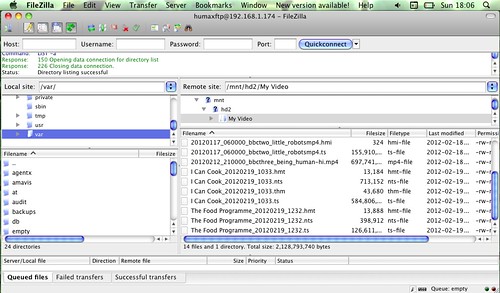
- On a computer on my home network I used an FTP client (FileZilla) to connect to the box, using the Humax box’s IP address, the username humaxftp and the password 0000.
- You can then see the Humax’s ‘My Video’, ‘My Photo’ and ‘My Music’ folders on your computer’s FTP client.
- I transferred three different types of BBC Redux file from the computer to the Humax box using FTP. (If you don’t know what BBC Redux is, skip this bit.)
- The Redux .TS MPEG 2 original data stream plays but you can’t fast forward or rewind.
- The much smaller Redux .TS MPEG 4 file played but also wouldn’t allow skipping within the file.
- Amazingly, the small Redux high bit-rate h.264 MP4 version, described as ‘suitable for iPad, tablet computers, TVs’ file played, looked pretty good AND allowed navigation – fast forwarding and rewinding. This is more than I could have dreamed of!
- These files also play off a USB stick stuck in the back of the Humax.
- Apparently the Humax box encrypts recordings it makes itself, so you can’t get those off by FTP. You can copy SD (non-HD) recordings to a USB stick and take the files elsewhere, but not HD recordings. One way round this that doesn’t involve mucking around with the Humax’s firmware is to use something called Foxy. This doesn’t break the encryption itself, rather it modifies an HD recording so you can copy it back onto the Humax and the Humax box will then decrypt it when you copy it off again.
- Foxy is a Windows .NET application. This is a bit of arse as my main computer is an iMac. But it looks like you can run Foxy on a Mac… you need to download and install the Mono runtime for OSX. Once you’ve installed it, you need to use the OS X command line to find Foxy.exe and run it using the command mono Foxy.exe - I can’t vouch this works for sure but the Foxy window appears on my iMac desktop and seems to work as you’d expect. Following the instructions I got the Humax to allow copying of an HD recording to a USB stick, though it was very slow and an error saying there wasn’t enough disk space flashed up at the end. When I copied the .TS file to my iMac’s hard drive, the video played flawlessly in VLC and looked gorgeous, but there was a problem with the sound – rather distorted. Will try again with a shorter programme – 40 mins of PanAm in HD is 1.64 GB (ouch!).
- I’ve not looked into DLNA servers yet – as I have a Mac it seems to be a toss-up between Twonky and MediaLink – neither of which is free. I’m going to look at Twonky first.


Day 2 update.
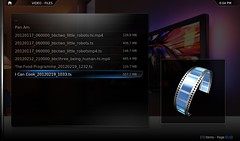
The Humax actually has its own DLNA server – you turn it on in the same place you turn on the FTP server. Using this I managed to watch an SD (non-HD) recording made on the Humax back on my netbook using the free XBMC media player on the laptop. This doesn’t copy the file, it streams it off the Humax onto the laptop over my wifi network. Pretty cool – means I can watch recordings back upstairs, though it doesn’t work with HD programmes.