 People have done some cool stuff controlling Raspberry Pi robots with Nintendo Wiimotes. Now I don’t have any robot bits, but I do have an old Wii sitting unloved upstairs, so I found the remote, put batteries in it and started to think about what I could do.
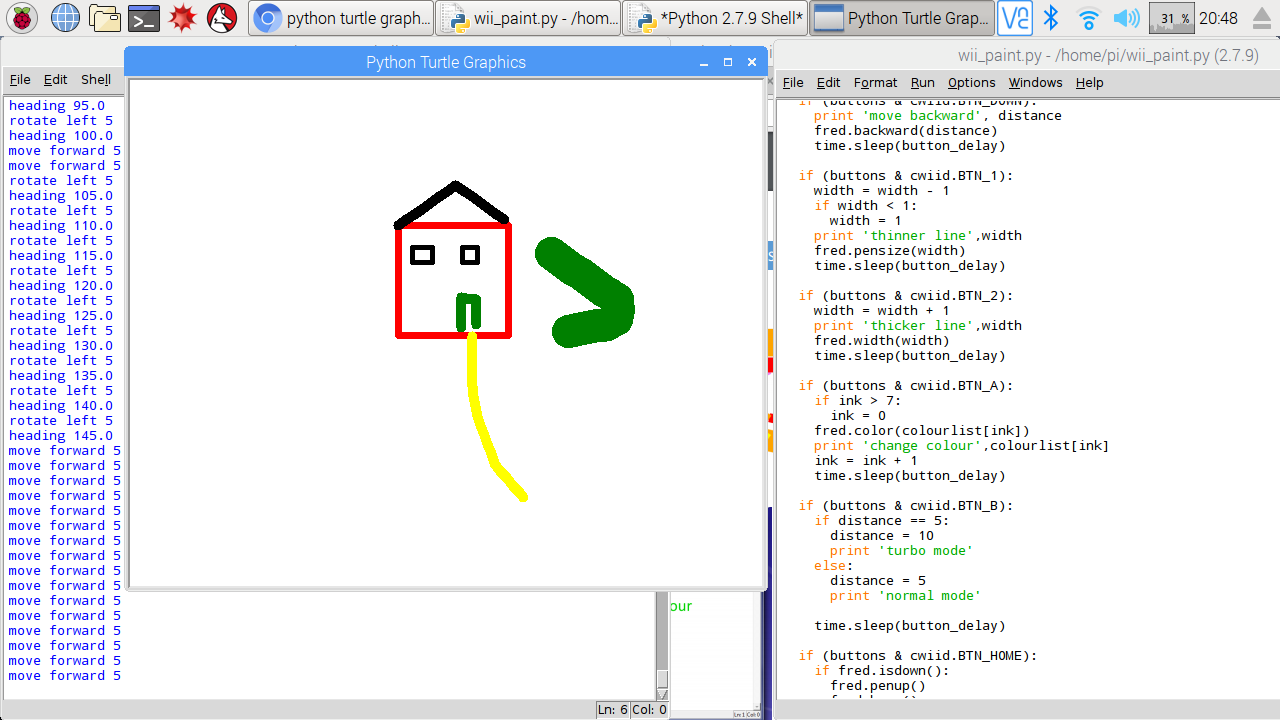
I can’t drive a robot, but I can drive a turtle – a virtual Python graphics turtle. So I made a paint program that is controlled using a Wiimote. I based the code on the excellent example on the Raspberry Pi Spy web site – Python code below.
You are in effect driving the turtle, and as such I think this is possibly quite useful for teaching how Python turtles work as you have to think from the Turtle’s point of view: if it’s facing down you need to turn right to go left. I’ve added some code to get readings from the accelerometer to turn left & right as well as using the left & right arrow buttons.
Here’s what I did in order:
- Found an original Nintendo Wii remote (NOT a Wii U!), put fresh batteries in it.
- Got a fresh Raspberry Pi 3 (thank you Picademy!) with the current version of Raspbian – this has Bluetooth built in, no dongles needed.
- Installed the cwiid library by typing
sudo apt-get install python-cwiidin the Terminal. - Turned on Bluetooth on the Pi using the desktop GUI and making the Pi discoverable. You should not need to pair the Pi and Wiimote using the Bluetooth GUI.
- Ran the Python code below in IDLE Python 2 – I used Python 2 because that’s what the original code used and the way I installed cwiid only made the library visible in Python 2.
Here’s how to use the program:
- Run it in Python 2. Press the 1 & 2 buttons at the same time on the Wiimote and wait. If you have problems connecting, try pressing the red button on the back of the Wiimote behind the battery cover.
- Move your turtle forward and backwards using the up & down arrows.
- The left and right arrows rotate – but do not move – your turtle in increments of 5 degrees.
- You can tilt the Wiimote left to turn left, tilt right to turn right.
- Press A to change colour.
- Press 2 to make the the line thicker, 1 to make it thinner.
- Press + for pen up, – for pen down.
- Press B to toggle ‘turbo’ mode – the turtle moves further with each press.
- Press the home button to return your turtle to the middle of the screen.
- Press home and B together to clear the screen (and get a little rumble!).
- Press – and + together to quit the program (and get a bigger rumble).
Lots could be added to this – using the accelerometer for motion or clearing or changing colour, implement an undo, add background colours, more colours… and I’d really love to be able to have a Jackson Pollock paint spatter mode! Any ideas on how to code that gratefully received.
#!/usr/bin/python
# based on
# wii_remote_1.py
# Connect a Nintendo Wii Remote via Bluetooth
# and  read the button states in Python.
#
# Original Project URL :
# http://www.raspberrypi-spy.co.uk/?p=1101
#
# Author : Matt Hawkins
# Date   : 30/01/2013

# Modified by Giles Booth July 2017 to add paint program
# www.suppertime.co.uk/blogmywiki

# -----------------------
# Import required Python libraries
# -----------------------
import cwiid
import time
import turtle

button_delay = 0.1

print 'Press 1 + 2 on your Wii Remote now ...'
time.sleep(1)

# Connect to the Wii Remote. If it times out
# then quit.
try:
  wii=cwiid.Wiimote()
except RuntimeError:
  print "Error opening wiimote connection"
  quit()

print 'Wii Remote connected...\n'
print 'Press some buttons!\n'
print 'Press PLUS and MINUS together to disconnect and quit.\n'

wii.rpt_mode = cwiid.RPT_BTN | cwiid.RPT_ACC
fred = turtle.Turtle()
distance = 5
turn = 5
colourlist = ['red','orange','yellow','green','blue','purple','violet','black']
ink = 7
width = 1

while True:

  buttons = wii.state['buttons']
  AccVar = wii.state['acc']

  # detect extreme left & right tilt for turning
  if AccVar[0] < 100:
    fred.left(turn)
    print 'tilt left'
    print 'heading',fred.heading()

  if AccVar[0] > 140:
    fred.right(turn)
    print 'tilt right'
    print 'heading',fred.heading()

  # If Plus and Minus buttons pressed
  # together then rumble and quit.
  if (buttons - cwiid.BTN_PLUS - cwiid.BTN_MINUS == 0):
    print '\nClosing connection ...'
    wii.rumble = 1
    time.sleep(1)
    wii.rumble = 0
    exit(wii)

  # If Home and B buttons pressed
  # together then rumble briefly and clear screen.
  if (buttons - cwiid.BTN_HOME - cwiid.BTN_B == 0):
    print 'Clear screen'
    wii.rumble = 1
    time.sleep(0.5)
    wii.rumble = 0
    fred.clear()

  # Check if other buttons are pressed by
  # doing a bitwise AND of the buttons number
  # and the predefined constant for that button.
  if (buttons & cwiid.BTN_LEFT):
    print 'rotate left', turn
    fred.left(turn)
    print 'heading',fred.heading()
    time.sleep(button_delay)

  if(buttons & cwiid.BTN_RIGHT):
    print 'rotate right',turn
    fred.right(turn)
    print 'heading',fred.heading()
    time.sleep(button_delay)

  if (buttons & cwiid.BTN_UP):
    print 'move forward',distance
    fred.forward(distance)
    time.sleep(button_delay)

  if (buttons & cwiid.BTN_DOWN):
    print 'move backward', distance
    fred.backward(distance)
    time.sleep(button_delay)

  if (buttons & cwiid.BTN_1):
    width = width - 1
    if width < 1:
      width = 1
    print 'thinner line',width
    fred.pensize(width)
    time.sleep(button_delay)

  if (buttons & cwiid.BTN_2):
    width = width + 1
    print 'thicker line',width
    fred.width(width)
    time.sleep(button_delay)

  if (buttons & cwiid.BTN_A):
    ink = ink + 1
    if ink > 7:
      ink = 0
    fred.color(colourlist[ink])
    print 'colour',colourlist[ink]
    time.sleep(button_delay)

  if (buttons & cwiid.BTN_B):
    if distance == 5:
      distance = 10
      print 'turbo mode'
    else:
      distance = 5
      print 'normal mode'

    time.sleep(button_delay)

  if (buttons & cwiid.BTN_HOME):
    if fred.isdown():
      fred.penup()
      fred.home()
      fred.pendown()
    else:
      fred.home()
    print 'Home'
    time.sleep(button_delay)

  if (buttons & cwiid.BTN_MINUS):
    print 'pen down'
    fred.pendown()
    time.sleep(button_delay)

  if (buttons & cwiid.BTN_PLUS):
    print 'penup'
    fred.penup()
    time.sleep(button_delay)
This is awesome! Love it. the WII-mote is so useful, I wish the CWIID driver would get updates so we could use the newer and generic WII-mote hardware. It has to work the same, WII’s don’t have any issues with them working, it’s just the ID.