The truth about cats AND/OR dogs

Here’s an activity I think you could do with almost any year group in KS2 or KS3. You could use it to teach about the origins of modern databases in Hollerith’s punch cards used to collect US census and immigration data in the 1890s. You could link it to the Jacquard loom punch cards that Ada Lovelace and Charles Babbage envisioned being used to program the Analytical Engine in the 1830s. You could also use it to teach logic gate concepts like AND and OR.

I got this idea from a school’s TV programme I must have seen over 40 years ago, which I only just remembered when reading about Hollerith’s tabulating machines in Code by Charles Petzold.  I think it was a programme about data processing and computers, and they made a really cool selection tool using a cornflake box, punched cards and pencils. I can’t remember the precise configuration, and it was way cleverer than this project, but it works on a similar principle.

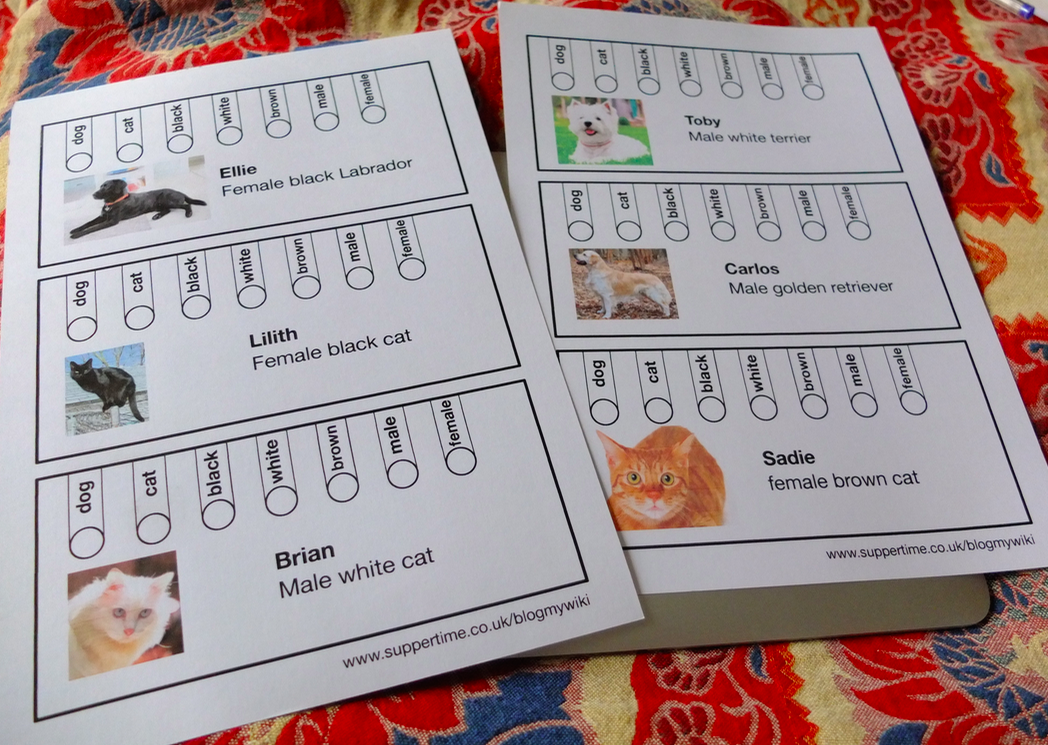
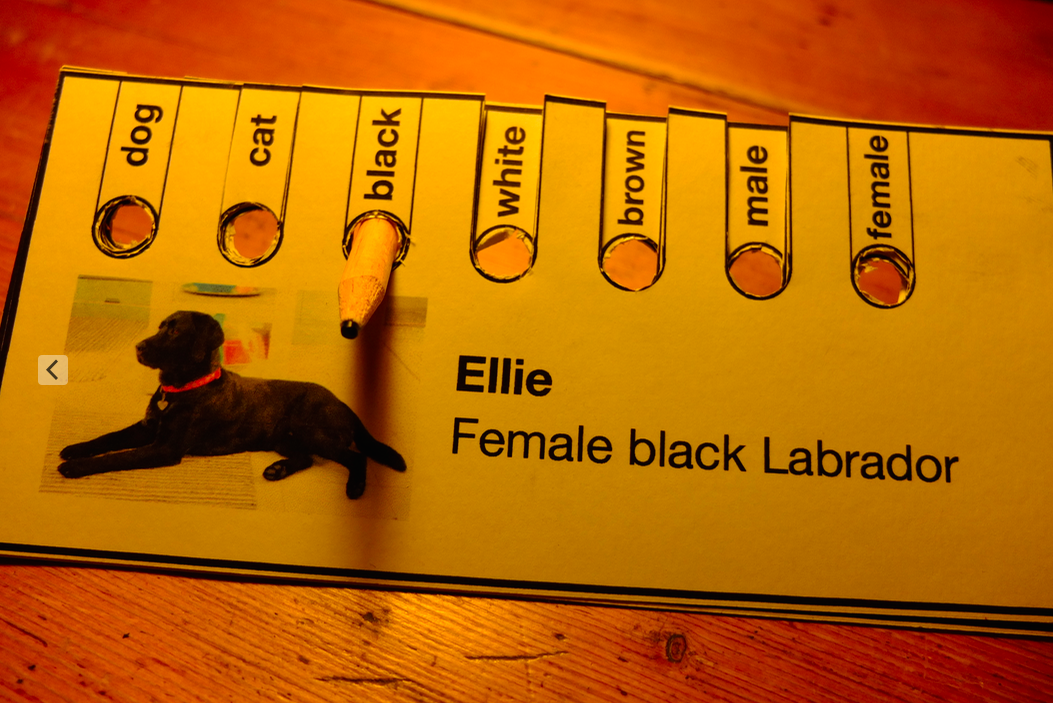
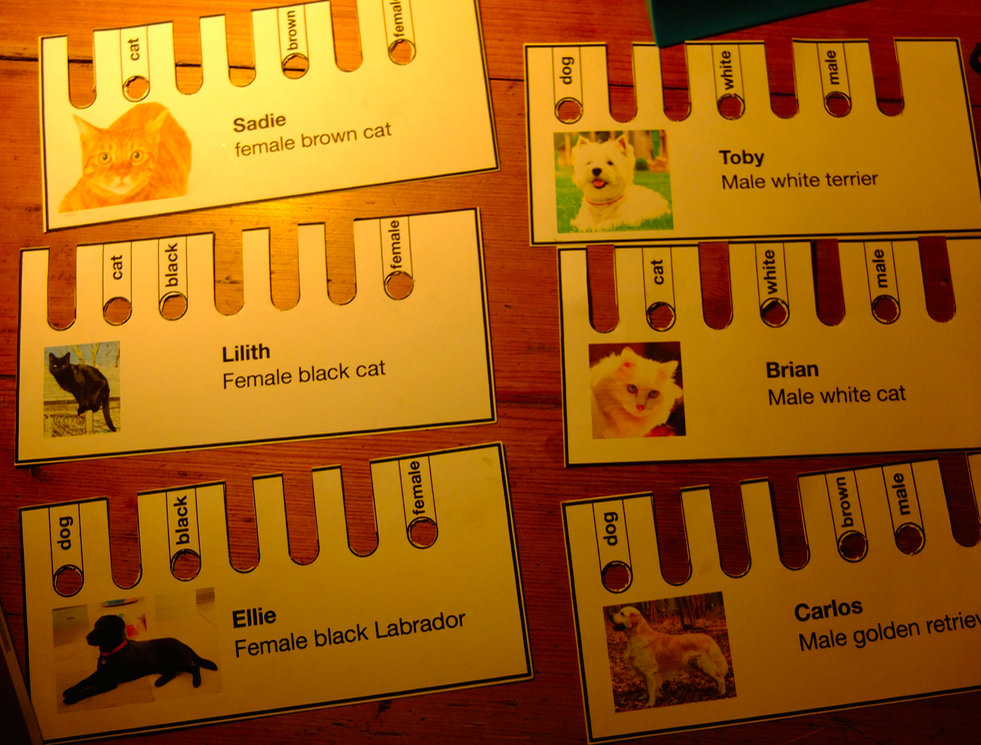
You have a stack of cards about cars, people, or in my case pets. You encode their properties using either a punched hole or a slot. For example my pet is a dog, black and female, so I snip out all the other labels and leave holes for dog, black and female.

I do the same for all the other animal cards and stack them up. The neat thing is that all the property fields are visible no matter what card is on top.

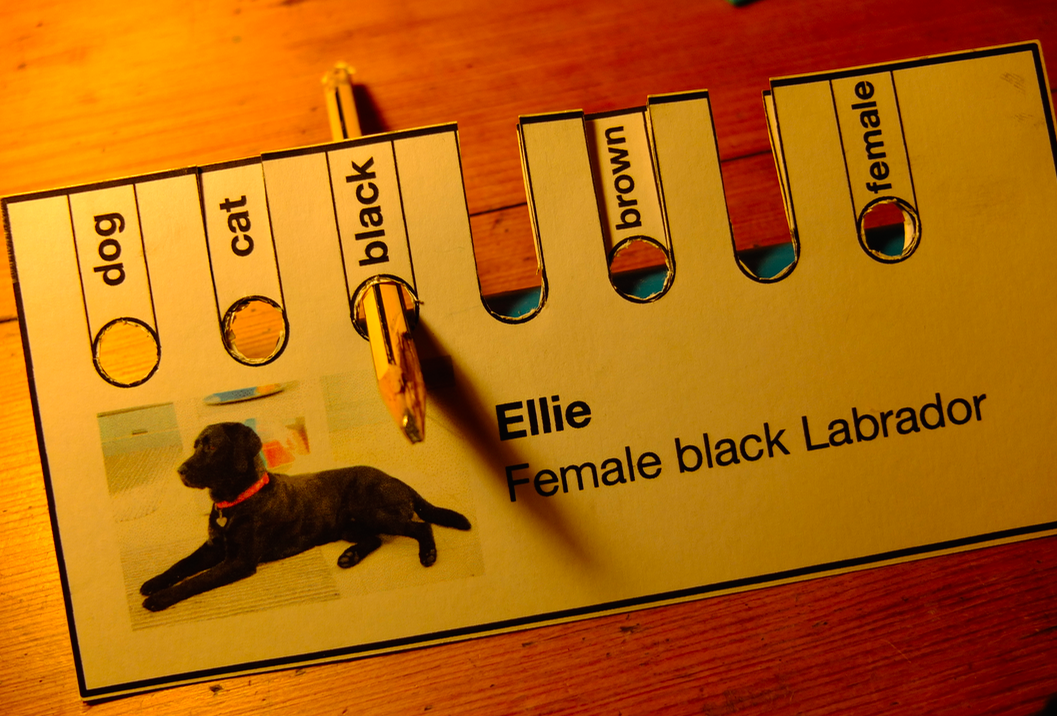
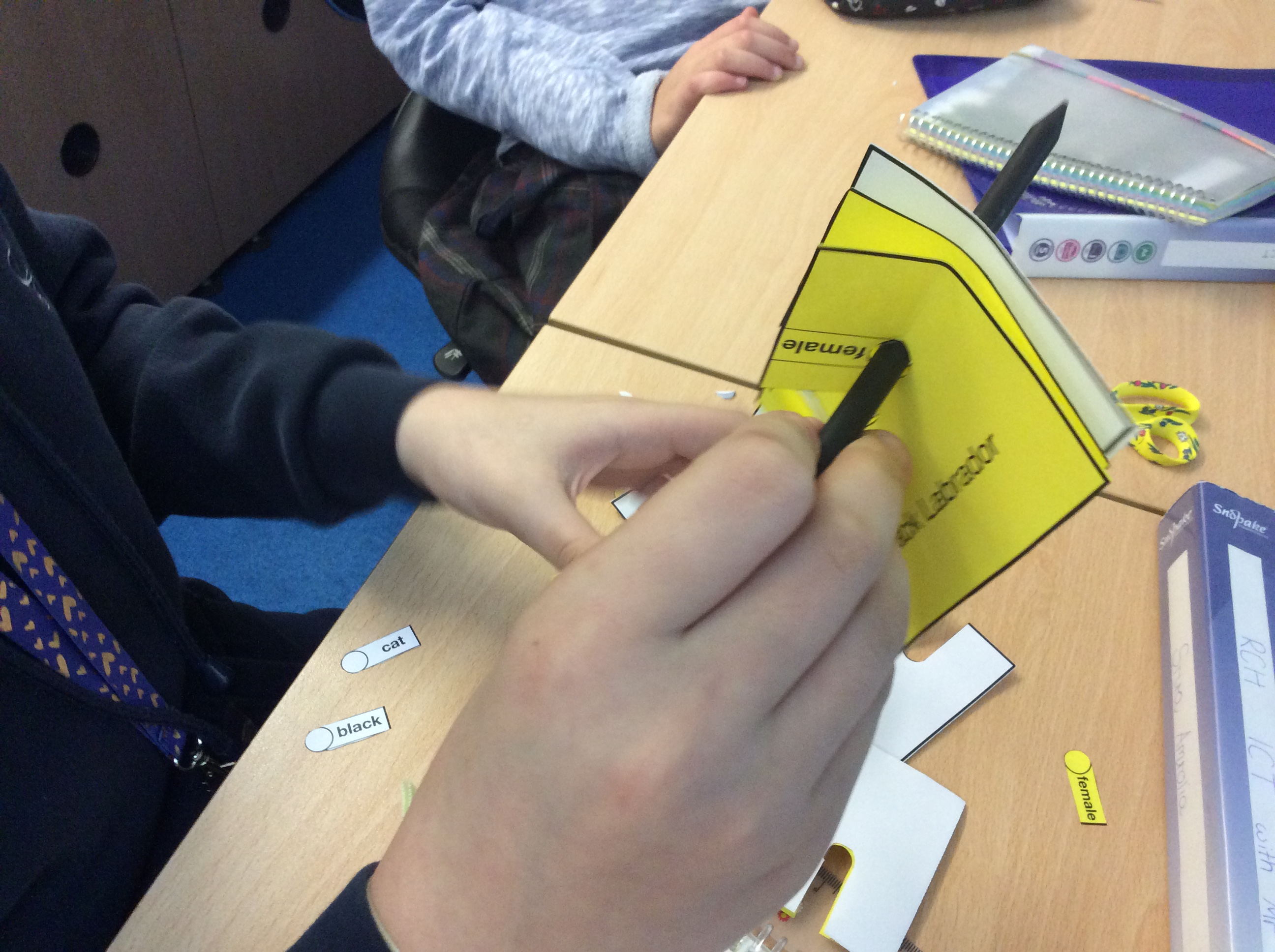
Now if I put a pencil in the black hole and lift it up, it picks up all the black animals in the pack. This is like running a query in a database:

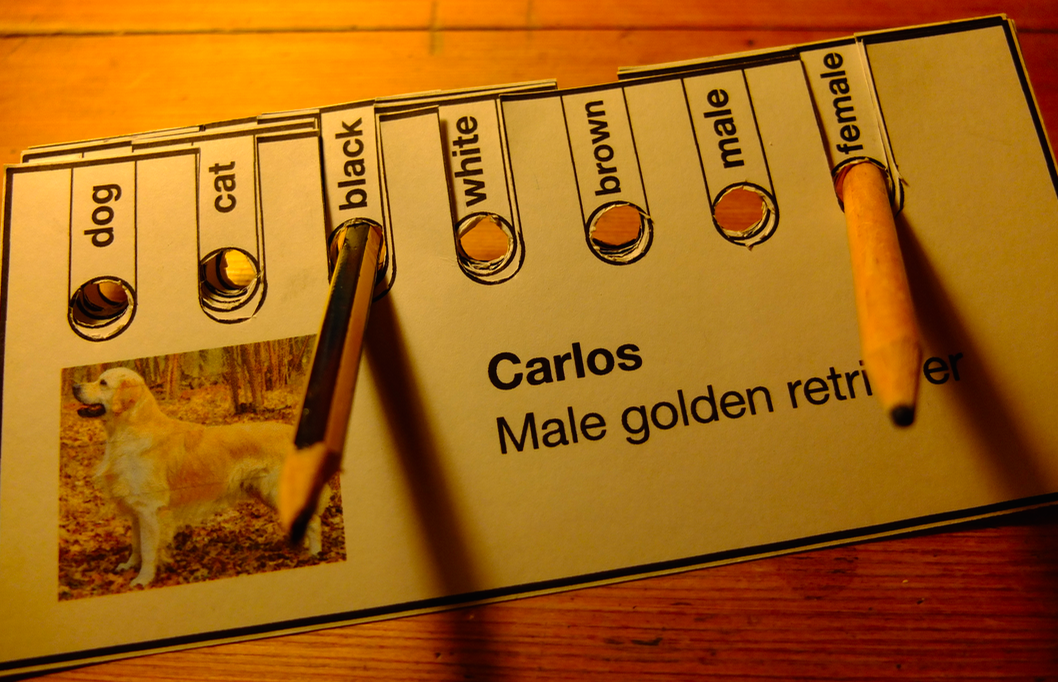
Of course I may want to select more than one property at a time, and I can do that with these cards. Say I want to sort out all the animals that are black AND female. Aha, I know, I’ll put a pencil in the black hole AND the female one. (It doesn’t matter what order the cards are stacked in).

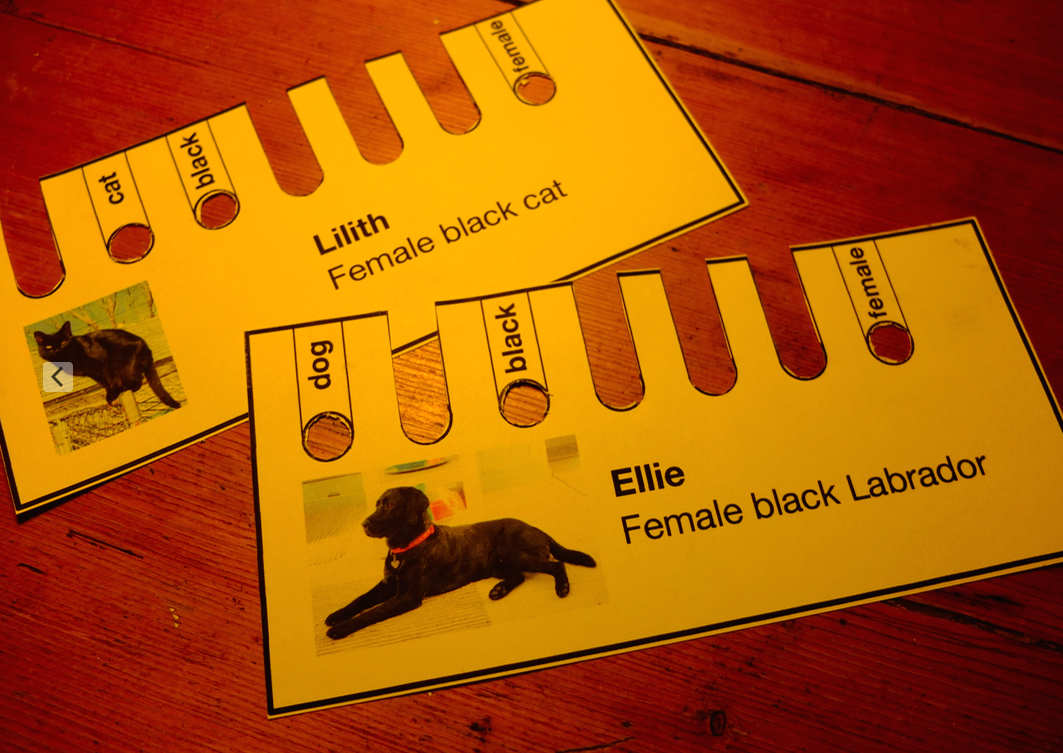
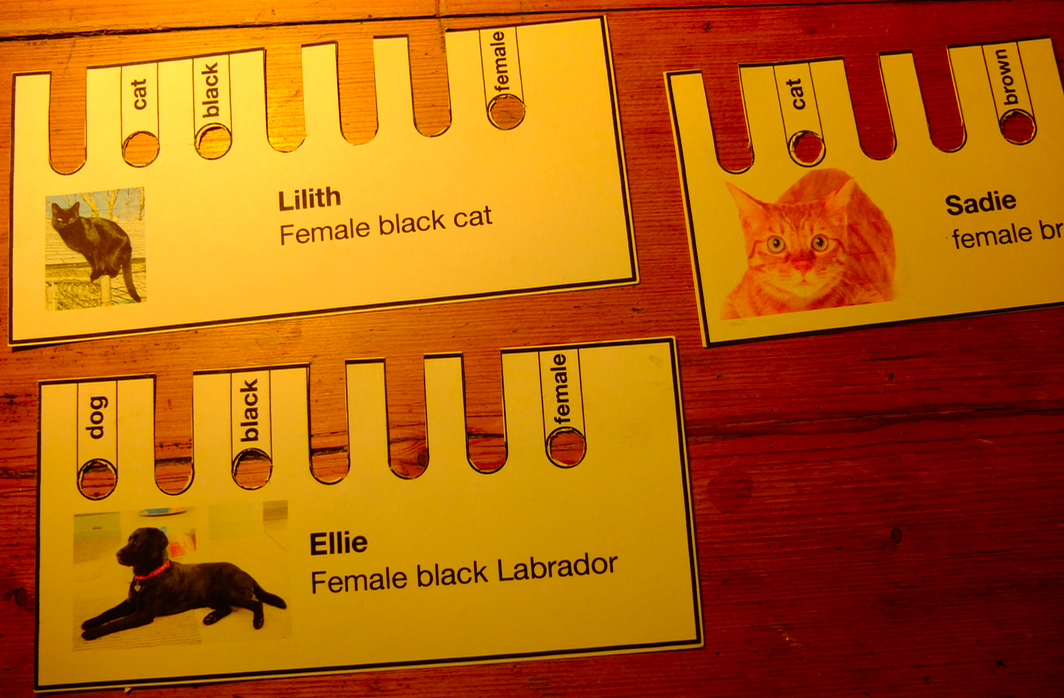
The results, however, may not be quite what you may expect. We seem to get all the animals that are black OR female, shown on the left. (Rejected cards left behind are on the right – note that these are NOT black and NOT female.)

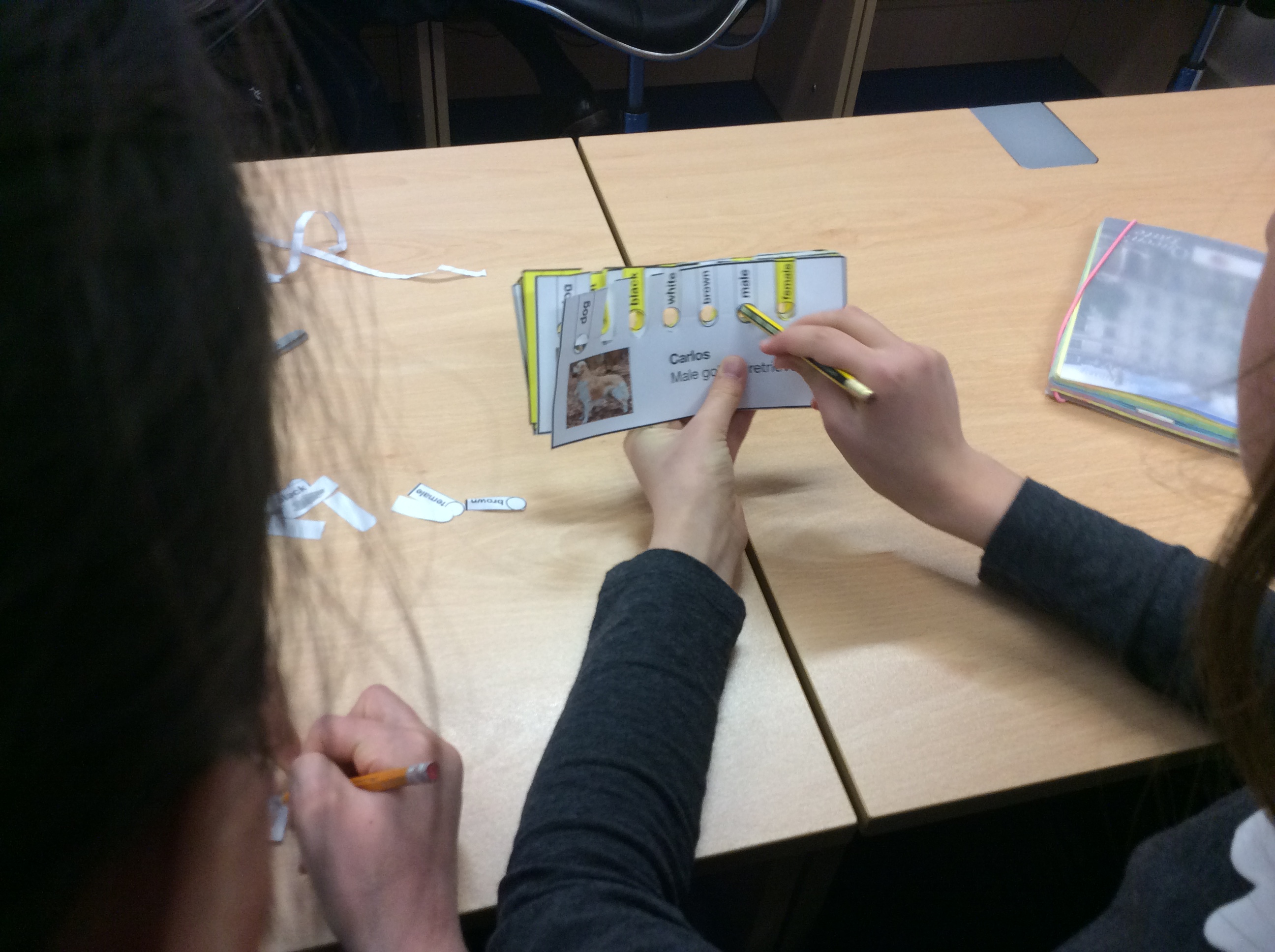
So we need to sort them again. I stack up the 3 cards I picked up on the left and re-select black. (I could also reselect female but they are all already female). Note that we can see that we now have no white, male pets left in this stack.

Finally I’m left with just the pets that are black AND female, Lilith the cat and Ellie the dog on the left:

There’s lots of scope for expanding this. Can you redesign the cards so you can select black AND female in 1 pass rather than black OR female as I do here? You could build a frame with levers or pins in a DT project. And using the blank cards you can make as many cards as you like, or make your own cards with more than 7 properties. Could you encode numbers, either as binary or using the system Hollerith used with number ranges? The possibilities are endless.

You can download PDF files of the cards here.

Please let me know your ideas or if you have used something similar in class!

UPDATE

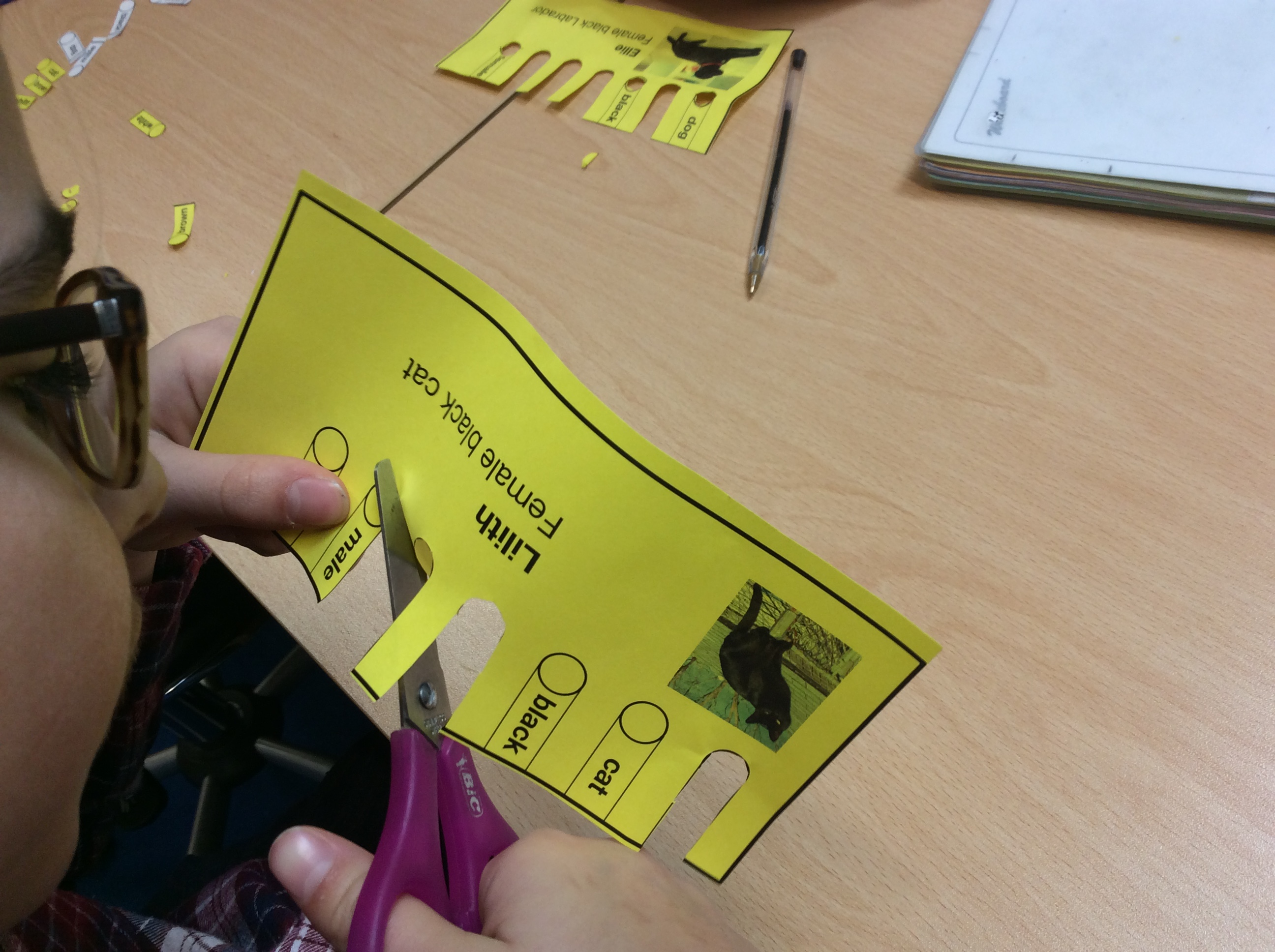
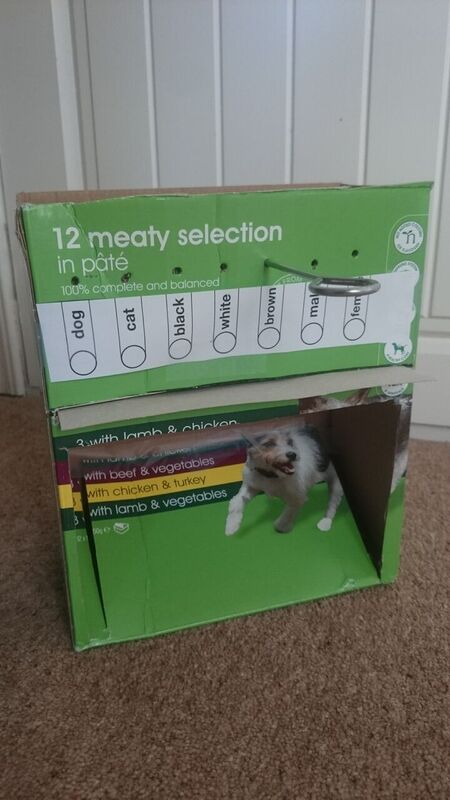
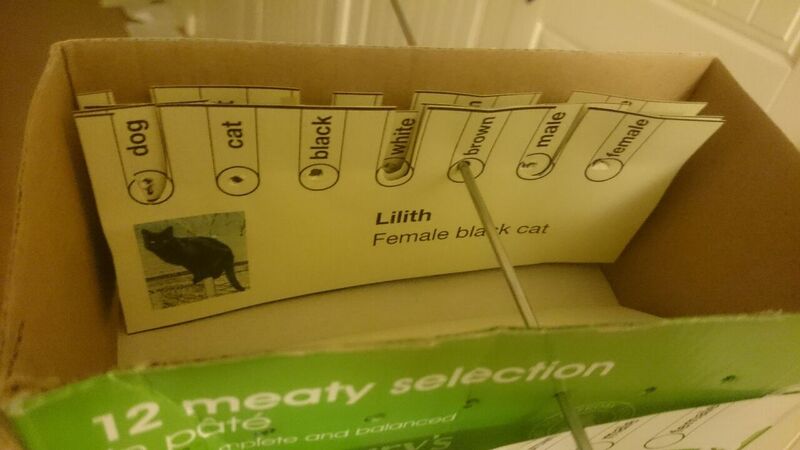
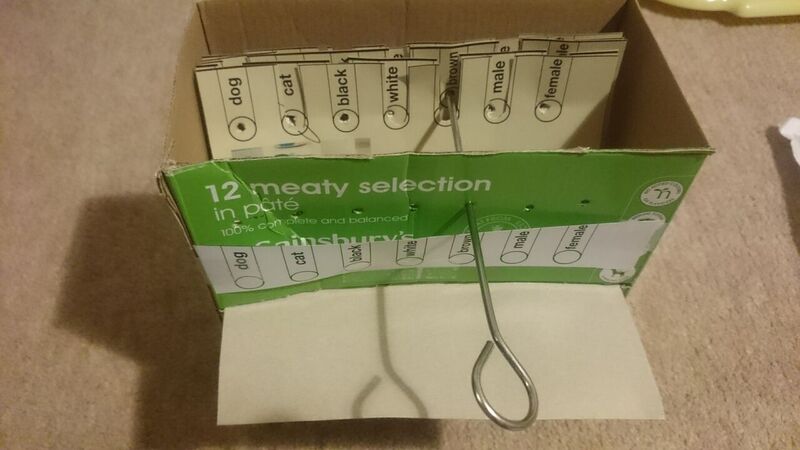
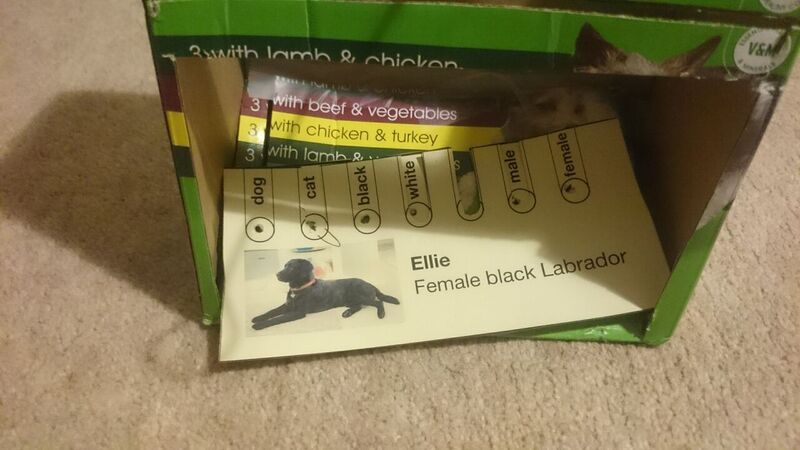
Thank you so much to Barbara Kershaw (see comments below) who not only saw the same schools’ programme, she also remembers how the box was made – and she just built one! Here are her amazing photos:


Posted in computers, education, ICT | Tagged , , , , | 6 Comments

Trash can PC

Here’s how I got a useful, working PC for next to nothing.

SonB and I found a couple of old PC chassis dumped on the street a year or so ago, both missing hard drives but we took the memory from one and put it in the higher spec base unit, an old Evesham PC that had a Soundblaster digital audio card and a Hauppage WinTV DVB-T tuner. Running less /proc/cpuinfo at the command line on it reports the CPU as an AMD Athlon(tm) 64 X2 Dual Core Processor 4600+ running at 1GHz.

We got this PC to boot off a memory stick but never did anything with it, but my interest in it was re-sparked when the Raspberry Pi foundation released a version of its PIXEL operating system that runs on normal PC (and some Mac) hardware. Would the trash PC boot PIXEL off a 2GB memory stick? Yes it would!

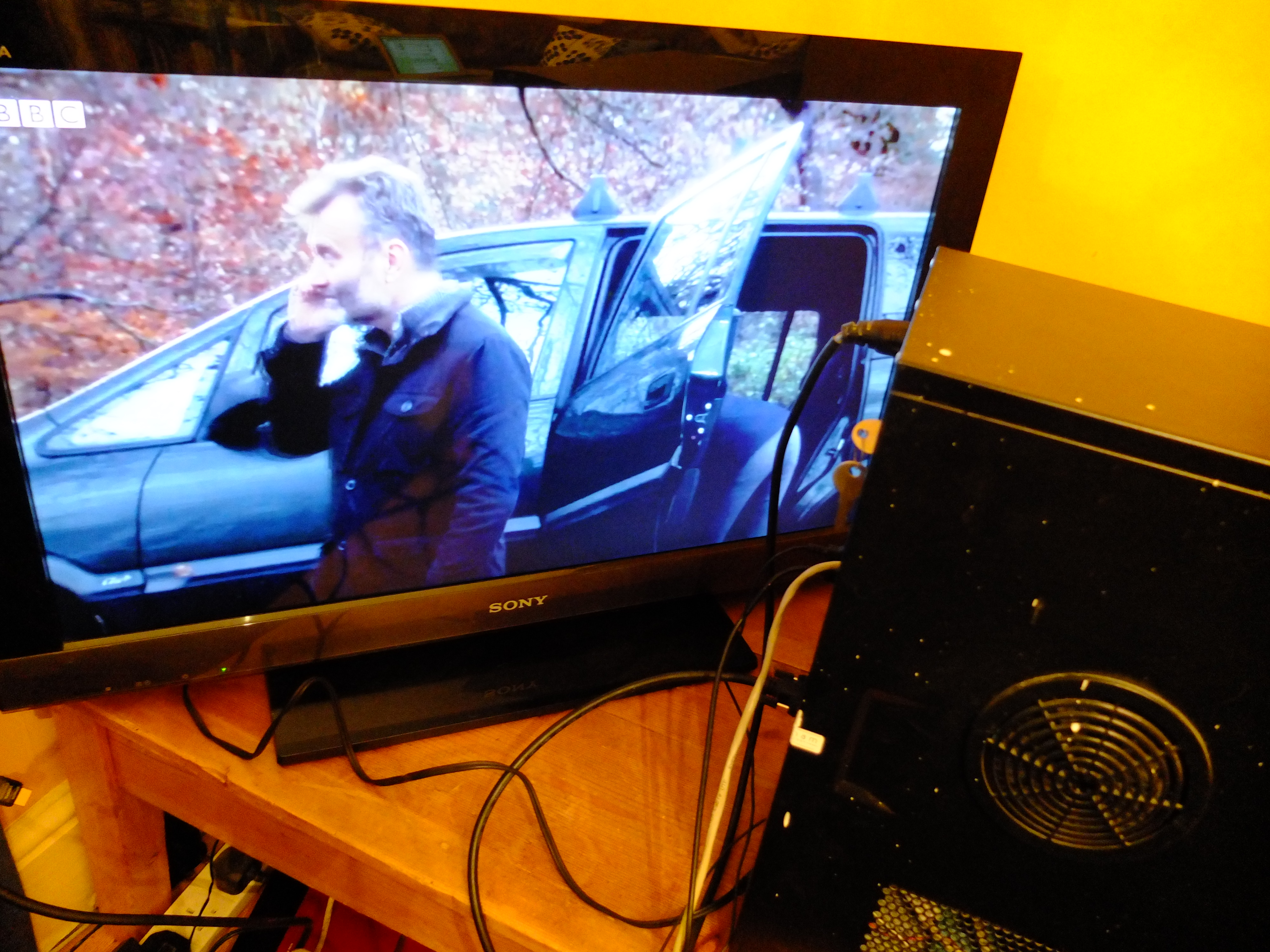
I had to experiment a bit with the BIOS settings on the PC to get it to boot off USB, and I found one of the USB sockets was physically damaged, but I soon got it to boot into PIXEL. Booting was slow but it worked – patience paid off. The PC doesn’t have any built-in wifi, so I plugged an ethernet cable in the back and into my broadband router.

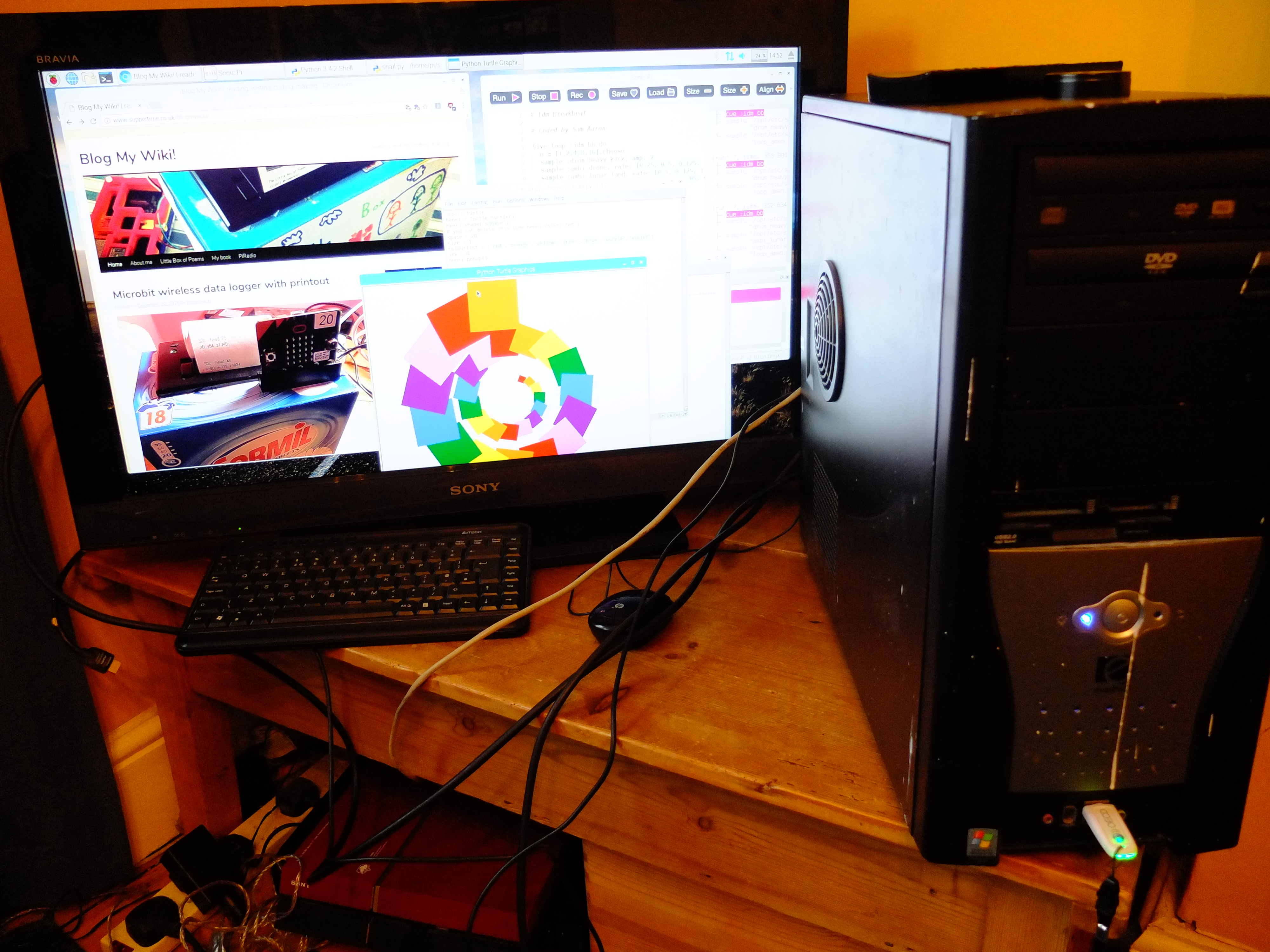
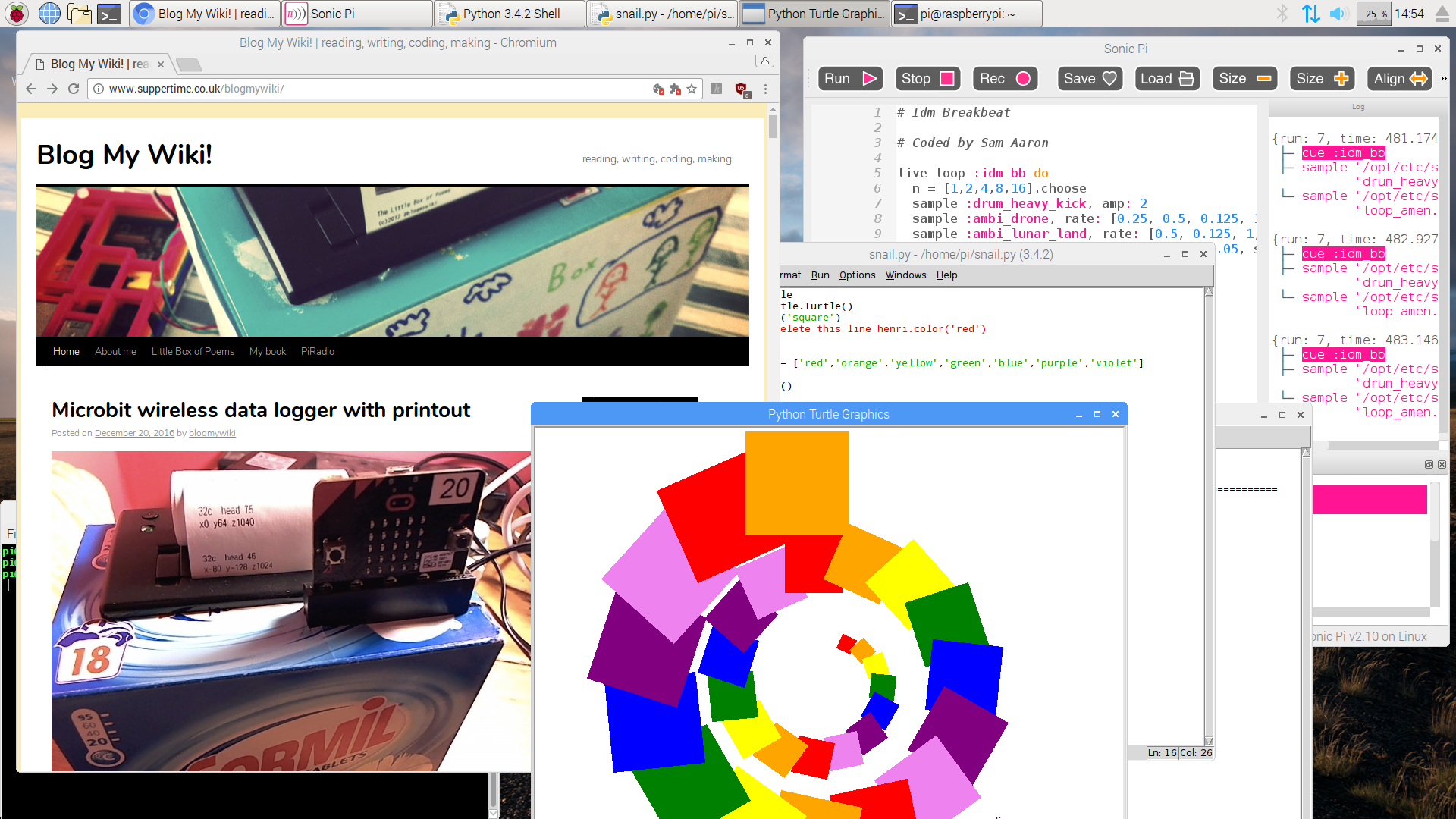
The picture shows me simultaneously web-browsing, playing music in Sonic Pi out of the SoundBlaster card, drawing a Matisse snail in Python – and of course doing a screen-shot using scrot. The picture quality on my old Sony TV is amazingly good – luckily I had a DVI to HDMI cable lying around as my TV only has HDMI inputs.

So there we go – discarded PC found on the street, minus hard drive to perfectly perfectly serviceable computer in about 15 minutes! The PC also has 2 Firewire 400 ports which I might be able to make use of – I have a load of old FW devices – plus SPDIF and optical audio ports, an E-SATA socket, multi-format card-readers, a DVD-ROM drive, another DVD-RW drive… plus that Hauppage TV card! I even wrote this blog post on the computer, though the PIXEL OS wouldn’t see the built-in card reader.

The OS would read an audio CD but not play the files, so I installed VLC but couldn’t get it to play the CD – possibly the drive is damaged, or something is missing from the x86 PIXEL version of Raspbian.  A fun foggy afternoon, however, as the Flash player works! Here it is playing Mark Kermode’s video round-up of the worst films of 2016:

It will also play radio programmes on the BBC iPlayer Radio web pages, and – though it took an age to get going – here it is playing a TV show perfectly off the BBC iPlayer web page! One of our home movies, I think…


Posted in Linux, Raspberry Pi, thrift | Tagged , | Leave a comment

Microbit wireless data logger with printout

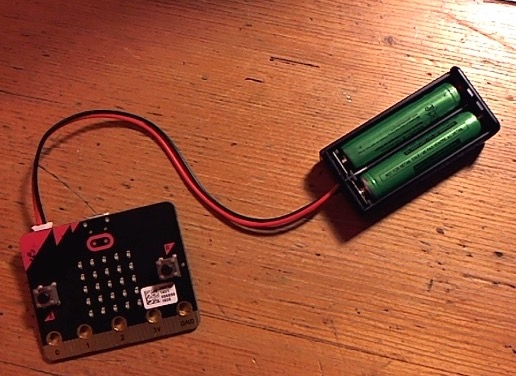
This project uses 2 microbits – one attached to a thermal till-roll printer as before. This time there’s a second microbit which can be battery-powered and put on a car, parachute, dog, whatever takes your fancy. Every 10 seconds it transmits radio data about its temperature, x/y/z data from the accelerometer and its compass heading. This is picked up by the printer’s microbit and logged on paper. (You could also save a file with the data which might be more useful!). Time information is missing of course, but if you know when you started you could always work that out…

Here’s the astonishingly compact Python code for microbit A which stays put and is attached to the printer. It constantly polls for incoming radio messages; when it gets one it prints the message with a few blank lines after. Flash it to the microbit using the Mu editor.

from microbit import *
import radio

uart.init(baudrate=19200, bits=8, parity=None, stop=1, tx=pin8, rx=None)

radio.on()
while True:
    incoming = radio.receive()
    if incoming:
        uart.write(incoming+"\n\n\n")

Here is the Python code for microbit B which flies away and has adventures in temperature and space. Once calibrated by drawing a circle, every 10 seconds it sends its temperature, compass heading and accelerometer data by radio to the printer. You could obviously increase the time or have its transmission triggered instead by another event such as a button press or even falling!

from microbit import *
import radio

compass.calibrate()
# remove next line to save power
display.scroll('transmitting data', wait=False, loop=True)
radio.on()

while True:
    x = accelerometer.get_x()
    y = accelerometer.get_y()
    z = accelerometer.get_z()
    tx_message = str(temperature())
         +"c  head "+str(compass.heading())
          +"\nx"+str(x)+" y"+str(y)+" z"+str(z)
    radio.send(tx_message)
    sleep(10000)   # wait 10 seconds
Posted in microbit | Tagged , , | 2 Comments

Connecting a thermal printer to a BBC microbit


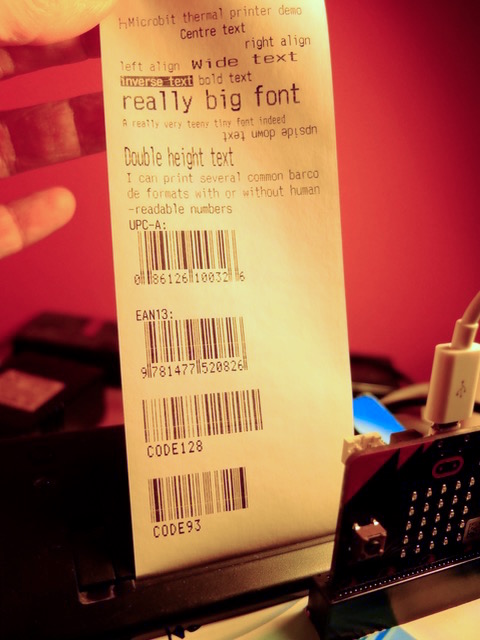
UPDATE – I have tidied up the code a lot and put a demo program on Github for you to enjoy – prints out a demo page like the one below:

I have a Sparkfun thermal till-roll printer which I used for making my Little Box of Poems – this was a box that printed out a random poem at the press of a big red shiny button. The original one was powered by an Arduino and then I made a Raspberry Pi version. I also made an internet printer using it, and a box that printed out the weather forecast just before I woke each day.

It had been sitting idle for a while and I started to wonder if I might be able to make a Little Box of Poems (or something similar) using a humble BBC micro:bit. And if making 2-player wireless microbit Pong was harder than I expected, then this was actually much easier than I could have dared hope.

This is what you’ll need:

  • a microbit
  • a serial (NOT USB!) thermal till-roll printer as sold by PimoroniSparkfun or Adafruit
  • a 5-9v power supply for the printer that can deliver at least 1.5A, 2A is better.
  • 2 jumper leads to connect the GND and RX pins of your printer to the microbit
  • I also used a Kitronik edge connector / breakout board to make connecting to the microbit easier.
  • Some Python code (below)
  • The Mu editor to flash the Python program to your microbit.

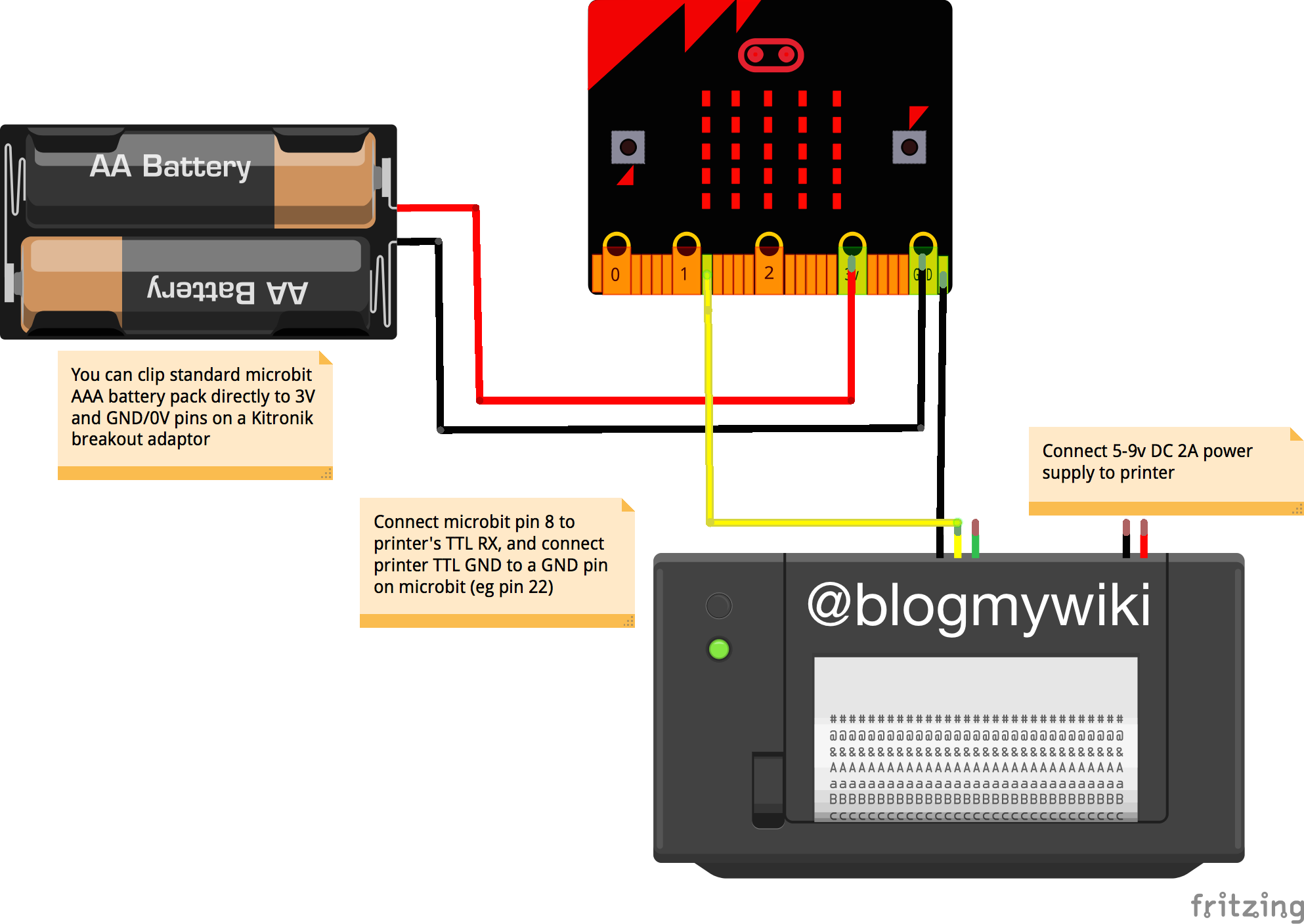
I connected the GND pin on the microbit to the black TTL GND wire on the printer, and I connected pin 8 on the microbit to the yellow TTL RX wire on the printer. I didn’t connect the printer’s TX pin as this is just 1-way communication, microbit to printer.

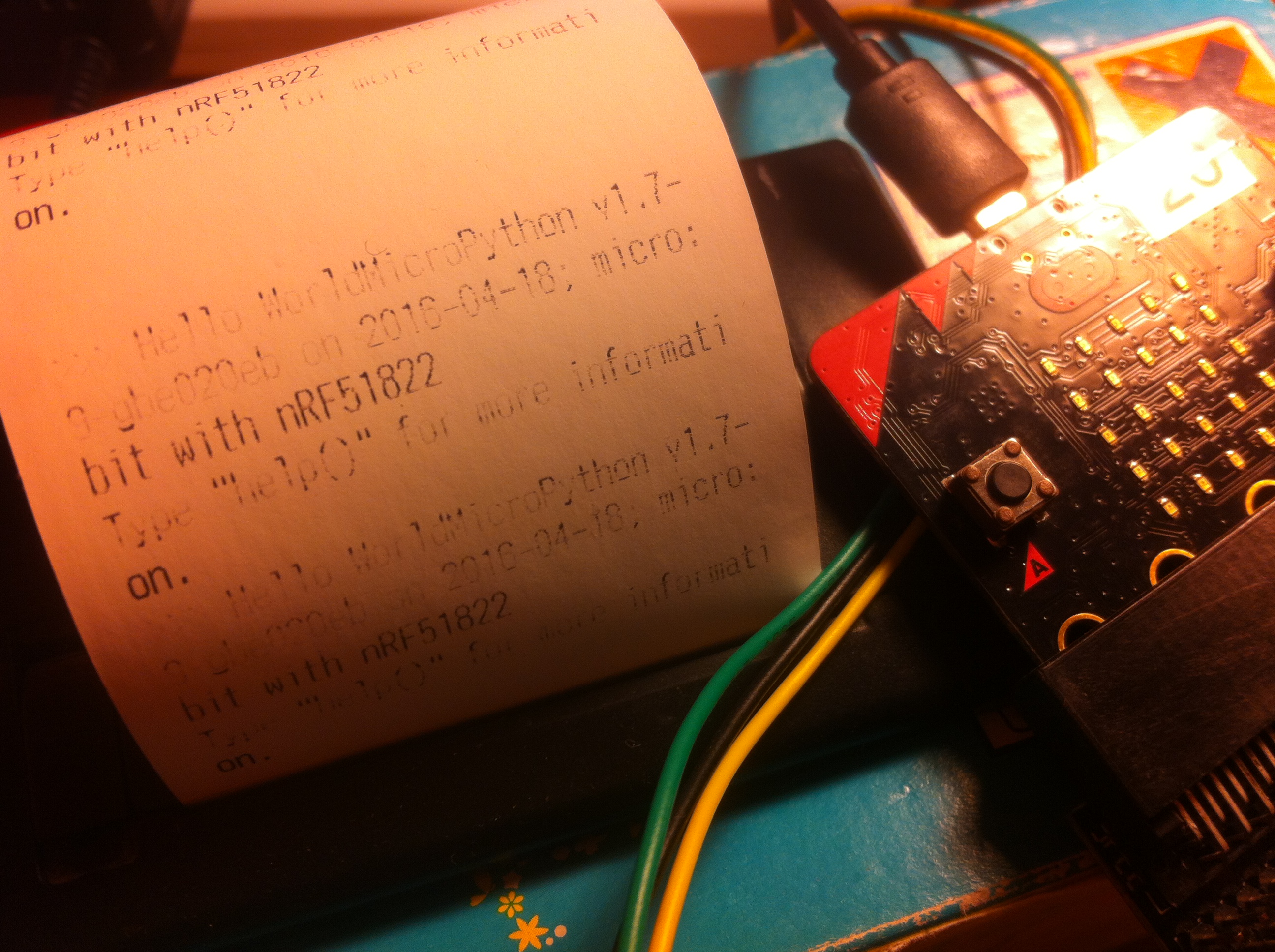
I had absolutely no idea what I was doing, but armed with an amusingly-translated Chinese instruction manual, some wires and blind faith I found that I could print some text with just a few lines of Python. It was a bit feint and garbled at first, and I seemed to be getting messages from the console! Look carefully and you’ll see my ‘hello world’.

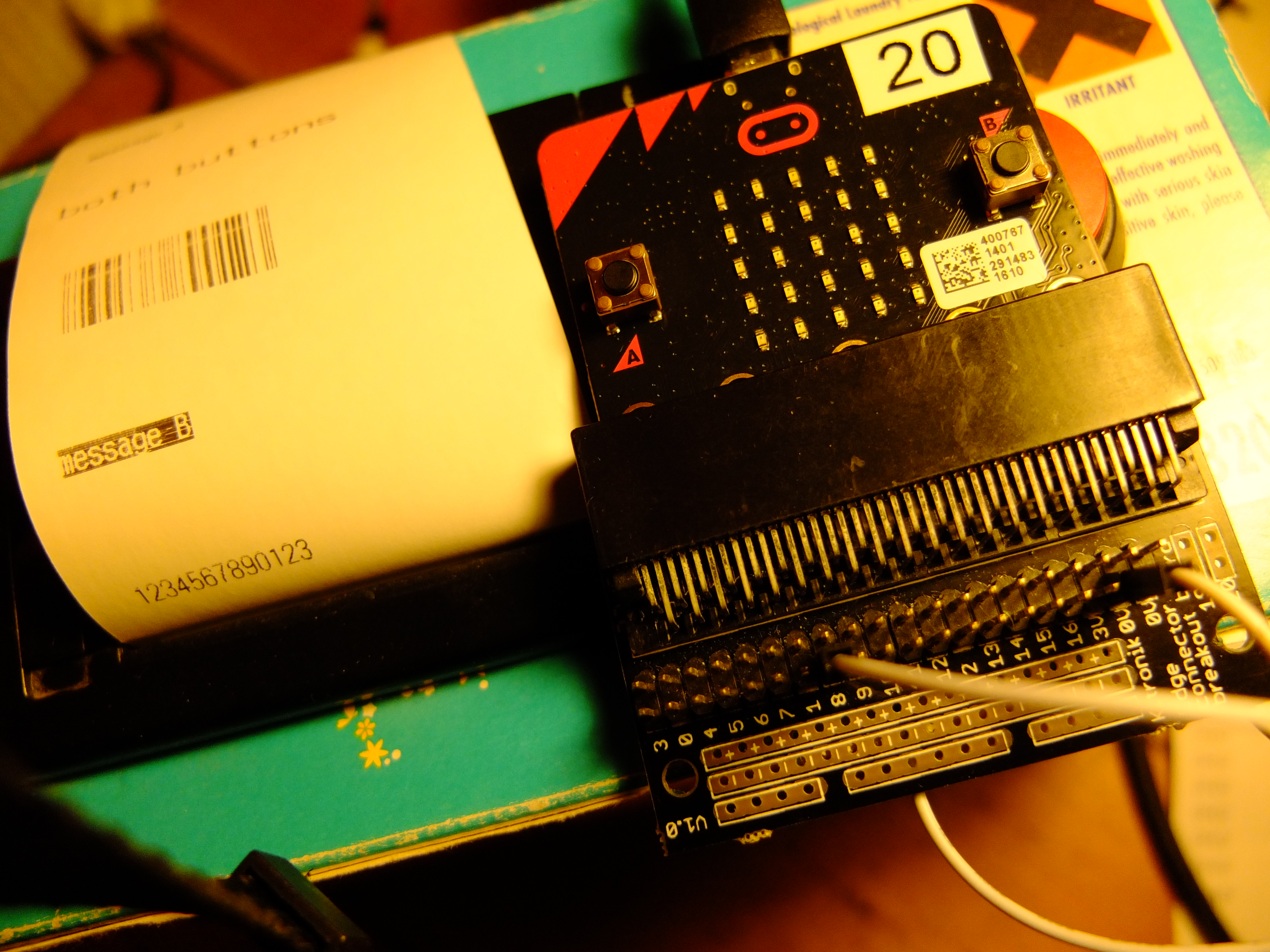
After a bit of jiggery-pokery (and reading the manual) I realised that I needed to send a linefeed (LF) character to get it to print the contents of the buffer. I found that at its simplest I could print different messages with different button presses with just a few lines of Python. I chose pin 8 for transmission as it looked like it wasn’t used for anything else, and the only other wire you need to connect is GND on the microbit to GND on the printer TTL connection. The \x0A at the end of the message is a hex code for line feed – this causes the printer to print the contents of its buffer and feed the paper up 1 line.

import microbit

microbit.uart.init(baudrate=19200, bits=8, parity=None, stop=1, tx=microbit.pin8, rx=None)

while True:
    if microbit.button_a.is_pressed() and microbit.button_b.is_pressed():
        microbit.uart.write("both buttons pressed\x0A\x0A")
    elif microbit.button_a.is_pressed():
        microbit.uart.write("message A\x0A\x0A")
    elif microbit.button_b.is_pressed():
        microbit.uart.write("message B\x0A\x0A")
    microbit.sleep(100)

I then wrote some slightly more complex code that would allow wide text, inverse text and even print 13 digit EAN-format bar codes. It would be easy to add double-height printing, more challenging but fun to get graphics working!

import microbit

microbit.uart.init(baudrate=19200, bits=8, parity=None, stop=1, tx=microbit.pin8, rx=None)

def normal_print(msg):
    microbit.uart.write(msg+"\x0A\x0A\x0A\x0A")

def wide_print(msg):
    microbit.uart.write("\x1B\x0E"+msg+"\x0A\x0A\x0A\x0A\x1B\x14")

def bold_print(msg):
    microbit.uart.write("\x1B\x451"+msg+"\x0A\x0A\x0A\x0A\x1B\x450")

def inverse_print(msg):
    microbit.uart.write("\x1D\x421"+msg+"\x0A\x0A\x0A\x0A\x1D\x420")

def print_barcode(msg):
    microbit.uart.write("\x1D\x6B\x43\x0D"+msg+"\x0A\x0A")

# increase printing temperature - increase hex number A0 for darker print
microbit.uart.write("\x1B\x37\x07\xA0\x02")

while True:
    if microbit.button_a.is_pressed() and microbit.button_b.is_pressed():
        microbit.display.scroll("AB")
        wide_print("both buttons")
    elif microbit.button_a.is_pressed():
        normal_print("1234567890123")
        microbit.display.scroll("A")
    elif microbit.button_b.is_pressed():
        microbit.display.scroll("B")
        inverse_print("message B")
    microbit.sleep(100)

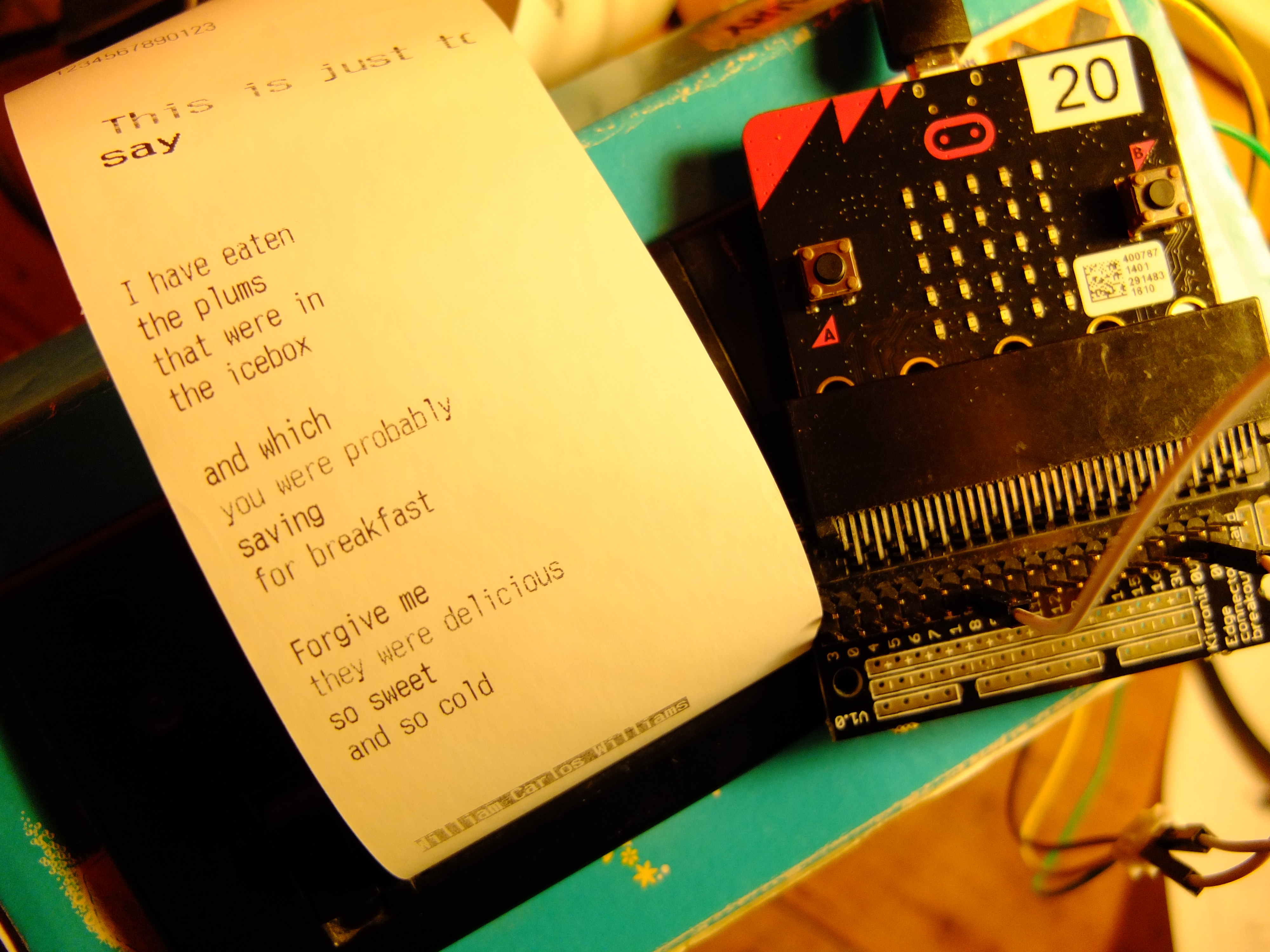
I had to do it – a microbit version of the Little Box of Poems. Press button A and a random short poem is printed. You could modify this code with poems of your own, or perhaps make a Christmas cracker joke generator… let me know what ideas you have!

import microbit
import random

microbit.uart.init(baudrate=19200, bits=8, parity=None, stop=1, tx=microbit.pin8, rx=None)

def normal_print(msg):
    microbit.uart.write(msg+"\x0A\x0A\x0A\x0A")

def wide_print(msg):
    microbit.uart.write("\x1B\x0E"+msg+"\x0A\x0A\x0A\x0A\x1B\x14")

def bold_print(msg):
    microbit.uart.write("\x1B\x451"+msg+"\x0A\x0A\x0A\x0A\x1B\x450")

def inverse_print(msg):
    microbit.uart.write("\x1D\x421"+msg+"\x0A\x0A\x0A\x0A\x1D\x420")

def print_barcode(msg):
    microbit.uart.write("\x1D\x6B\x43\x0D"+msg+"\x0A\x0A")

poemtitle = ['In a station of the Metro', 'The Sick Rose', 'This is just to say', 'Surprise']

poemtext = ['The apparition of these faces in the crowd;\n\
Petals on a wet, black bough.', 'O Rose thou art sick.\n\
The invisible worm,\n\
That flies in the night\n\
In the howling storm:\n\n\
Has found out thy bed\n\
Of crimson joy:\n\
And his dark secret love\n\
Does thy life destroy.', 'I have eaten\n\
the plums\n\
that were in\n\
the icebox\n\n\
and which\n\
you were probably\n\
saving\n\
for breakfast\n\n\
Forgive me\n\
they were delicious\n\
so sweet\n\
and so cold', 'I lift the toilet seat\n\
as if it were the nest of a bird\n\
and i see cat tracks\n\
all around the edge of the bowl.']

poemauthor = ['Ezra Pound\n', 'William Blake\n', 'William Carlos Williams\n', 'Richard Brautigan\n']

# increase printing temperature - increase hex number A0 for darker print
microbit.uart.write("\x1B\x37\x07\xA0\x02")

while True:
    if microbit.button_a.is_pressed():
        poem = random.randrange(0,4)
        microbit.display.scroll(str(poem))
        wide_print(poemtitle[poem])
        normal_print(poemtext[poem])
        inverse_print(poemauthor[poem])
    microbit.sleep(100)

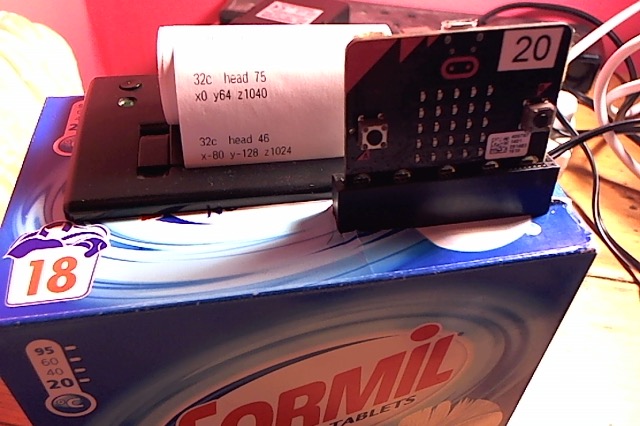
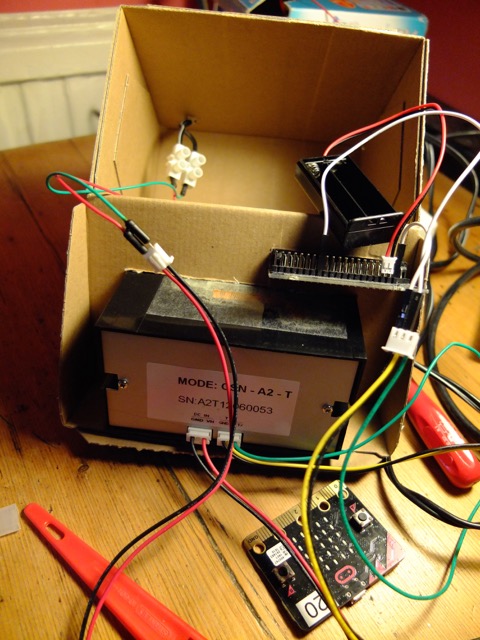
I then built the printer and microbit into an old soap powder box in the time-honoured Box of Poems tradition:

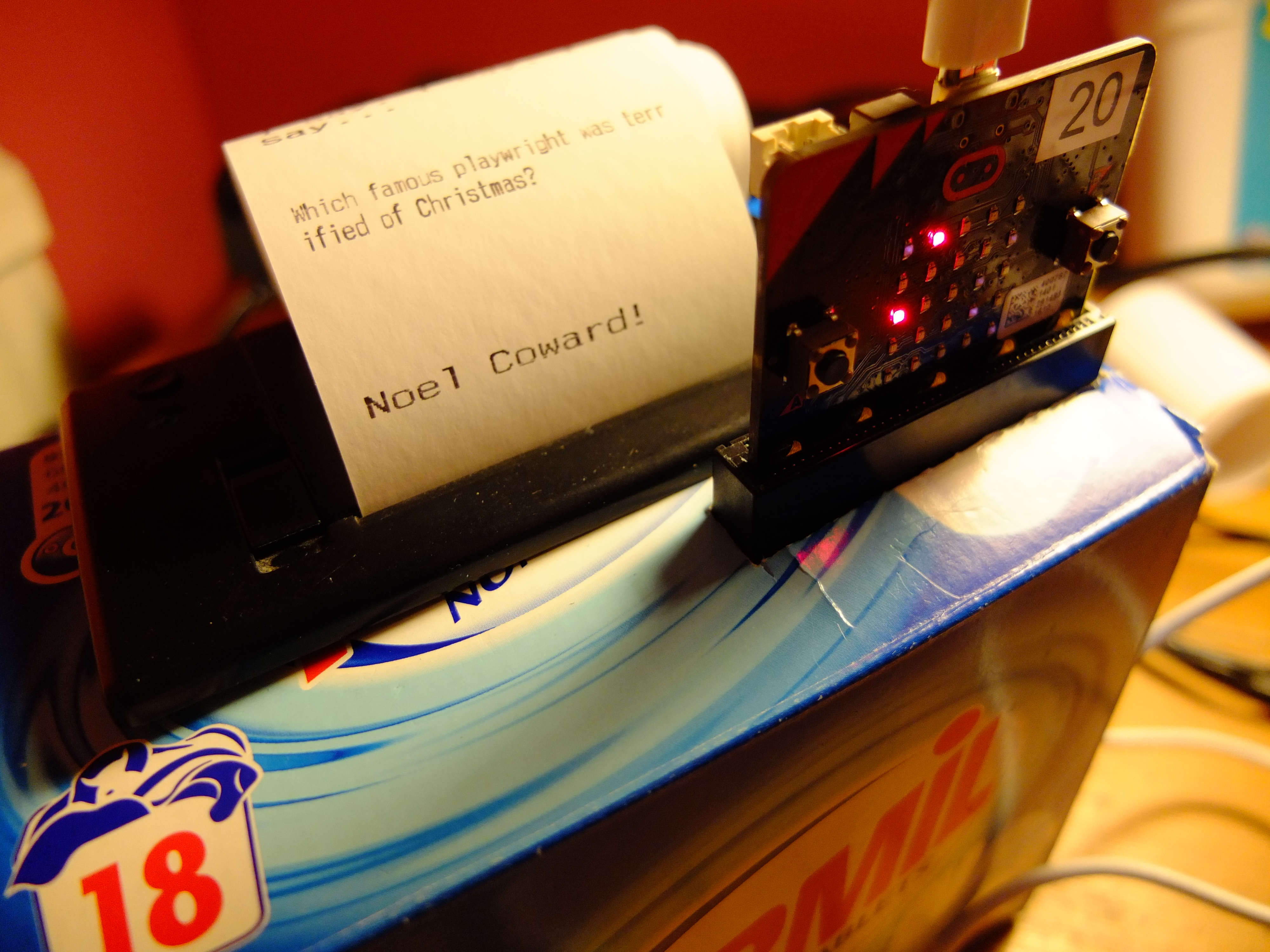
And finally… a festive twist. This version of the code will print a random poem if you press button A, and a really bad Christmas cracker joke if you press button B:

import microbit
import random

microbit.uart.init(baudrate=19200, bits=8, parity=None, stop=1, tx=microbit.pin8, rx=None)

def normal_print(msg):
    microbit.uart.write(msg+"\x0A\x0A")

def wide_print(msg):
    microbit.uart.write("\x1B\x0E"+msg+"\x0A\x0A\x1B\x14")

def big_print(msg):
    microbit.uart.write("\x1D\x211"+msg+"\x0A\x0A\x1D\x210")

def bold_print(msg):
    microbit.uart.write("\x1B\x451"+msg+"\x0A\x0A\x1B\x450")

def inverse_print(msg):
    microbit.uart.write("\x1D\x421"+msg+"\x0A\x0A\x1D\x420")

def print_barcode(msg):
    microbit.uart.write("\x1D\x6B\x43\x0D"+msg+"\x0A\x0A")

poemtitle = ['In a station of the Metro', 'The Sick Rose', 'This is just to say', 'Surprise']

poemtext = ['The apparition of these faces in the crowd;\n\
Petals on a wet, black bough.', 'O Rose thou art sick.\n\
The invisible worm,\n\
That flies in the night\n\
In the howling storm:\n\n\
Has found out thy bed\n\
Of crimson joy:\n\
And his dark secret love\n\
Does thy life destroy.', 'I have eaten\n\
the plums\n\
that were in\n\
the icebox\n\n\
and which\n\
you were probably\n\
saving\n\
for breakfast\n\n\
Forgive me\n\
they were delicious\n\
so sweet\n\
and so cold', 'I lift the toilet seat\n\
as if it were the nest of a bird\n\
and i see cat tracks\n\
all around the edge of the bowl.']

poemauthor = ['Ezra Pound\n', 'William Blake\n',
'William Carlos Williams\n', 'Richard Brautigan\n']

joke_question = ['Why are Christmas trees so bad\nat sewing?\n',
'Why did the turkey join\nthe band?\n',
'What song do you sing at a\nsnowman\'s birthday party?\n',
'Which famous playwright was\nterrified of Christmas?\n']

joke_answer = ['They always drop their needles!\n',
'Because it had\nthe drumsticks\n',
'Freeze a jolly\ngood fellow\n',
'Noel Coward!\n']

# increase printing temperature - increase hex number A0 for darker print
microbit.uart.write("\x1B\x37\x07\xFF\xFF")

microbit.display.scroll("Press A for poem, B for joke",
delay=150, wait=False, loop=True, monospace=False)

while True:
    if microbit.button_a.is_pressed():
        poem = random.randrange(0,4)
        wide_print(poemtitle[poem])
        normal_print(poemtext[poem])
        inverse_print(poemauthor[poem])
    elif microbit.button_b.is_pressed():
        joke = random.randrange(0,4)
        wide_print("I say, I say, I say...")
        normal_print(joke_question[joke])
        wide_print(joke_answer[joke])
    microbit.sleep(200)
Posted in computers, microbit | Tagged , , , , | 3 Comments

Pongo: wireless microbit Python pong

UPDATE: this project’s code is now on Github.

I love the wireless capabilities of Python on the BBC microbit and I’ve been using it with some success in my Year 8 classes.

I thought I’d have a go at writing a wireless Pong game in Python – it took me a lot longer than I expected for various reasons. I really wanted to have the same code running on both microbits, but I soon abandoned that as too complex. Much easier to have one microbit – Player A – controlling the game and deciding who gets a point and when. Player B is the ‘slave’ only sending its left and right paddle moves back to Player A and mirroring (literally) Player A’s screen.

I was keen to have each screen the same – rather than extending a long screen like a wired version I’ve seen. This is because I want each player to be able to be quite far apart, so seeing the other player’s screen isn’t necessary.

How to play

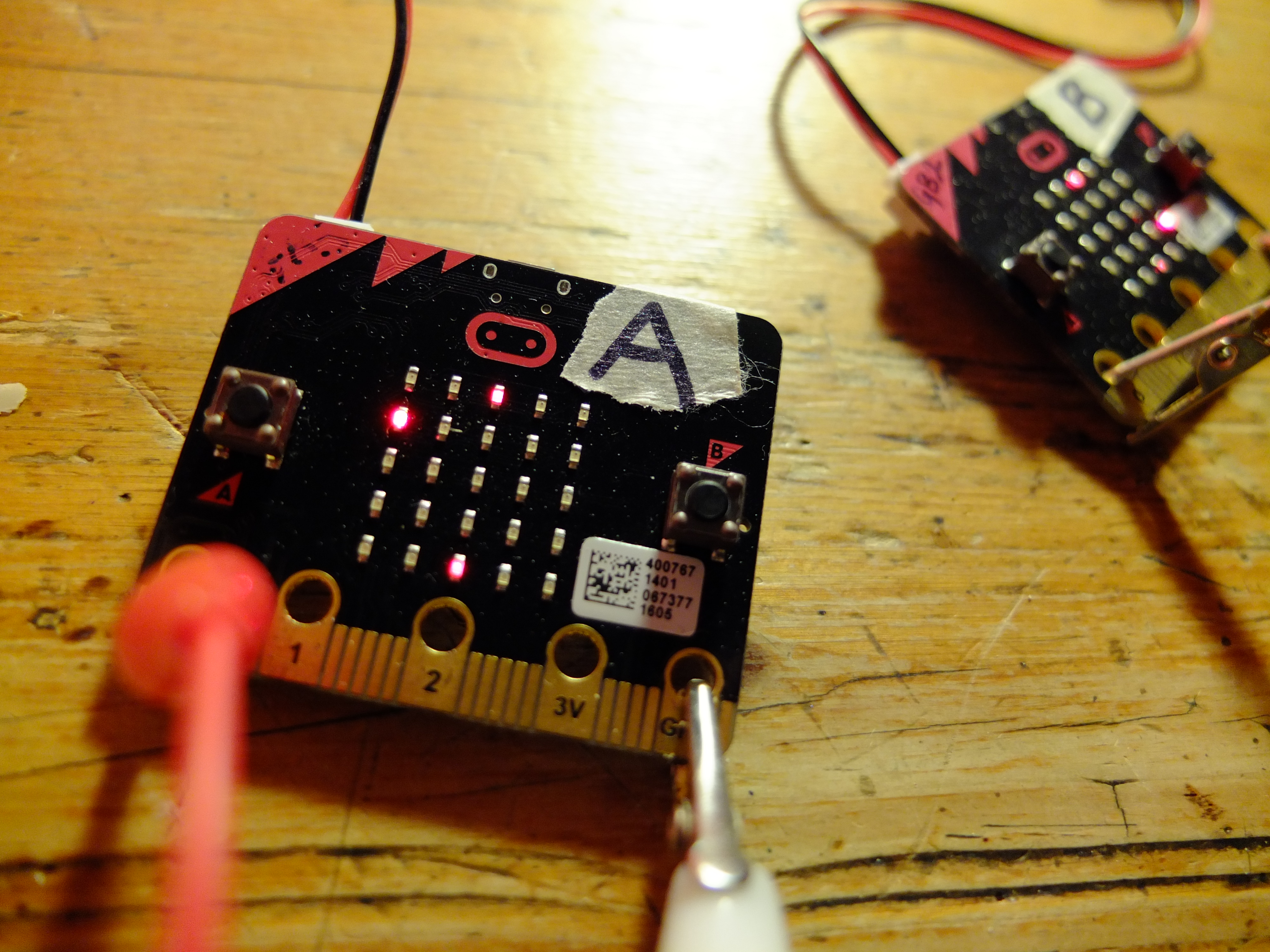
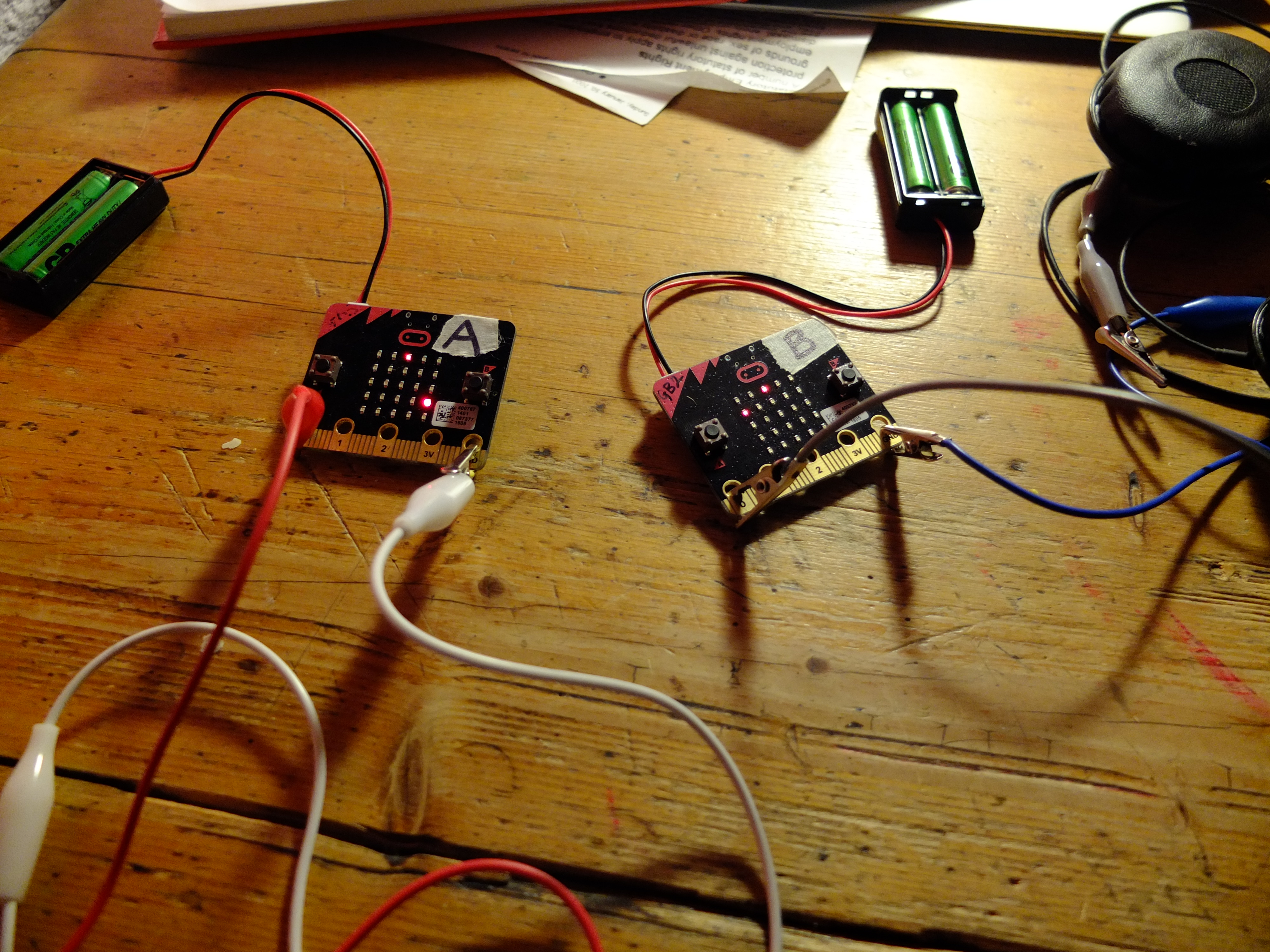
Flash Player A code (below) on to one Microbit using Mu, and Player B on to a separate microbit. You can optionally connect a headphone or buzzer to pins 0 and 1 on each microbit for some audio feedback joy.

Power up Player B first – it will wait for messages from Player A. Then power up Player A. The game starts straight away with the ball – the bright dot in the middle of the screen – moving in a random direction. Move your paddle left and right using A and B buttons. If you fail to hit the ball when it reaches your end the other player gets a point (points tallies are not shown on the screen) and the first player to 5 points wins. To play again you both need to press the reset button on the back of the microbits.

How it works

Player B is the easy one to explain. It runs a loop constantly polling for messages and keypresses. If you press button A to move left, or B to move right, it sends a message with your bat’s new position. It also listens for different kinds of messages from player A’s microbit. They all start with different code letters:
p + a number is the position of player A’s bat.
x and y messages give the current location of the ball, which is then inverted using a dictionary look-up table called ‘bat_map‘.
a and b messages give the respective scores or player A and B.

If a player reaches the winning score (5) it breaks out of the loop and plays a happy song (Nyan cat) if player B has won and a sad song (funeral march) is player A has won.

Player A is the master controller. It picks a random direction for the ball to start moving and bounces the ball if it hits any of the sides. If it hits the top or bottom and a player’s bat isn’t in the way, the other player gets a point. It has a crude timer using variables counter and delay – every time it reaches 1000 it moves the ball (I couldn’t work out how to get proper timers to work in Microbit Python – if indeed this is possible). If a player hits the ball with their bat it speeds up a bit.

It sends messages (as described above) to Player B with the ball position, score and player A bat position. The game ends in the same way as player B’s code described above, except you get the happy tune if player A wins and the sad one if player B wins.

How to mod

You can make the game faster by making the value of delay smaller. You can also make it last longer by increasing the value of winning_score in both sets of code.

A nice extension would be to add more sound (when you hit the ball for example) and to add levels with the game getting faster each time someone wins a game.

Let me know how you get on with it and if you have any other ideas for improvements – the physics of the ball bouncing is one area that I could do with help on!
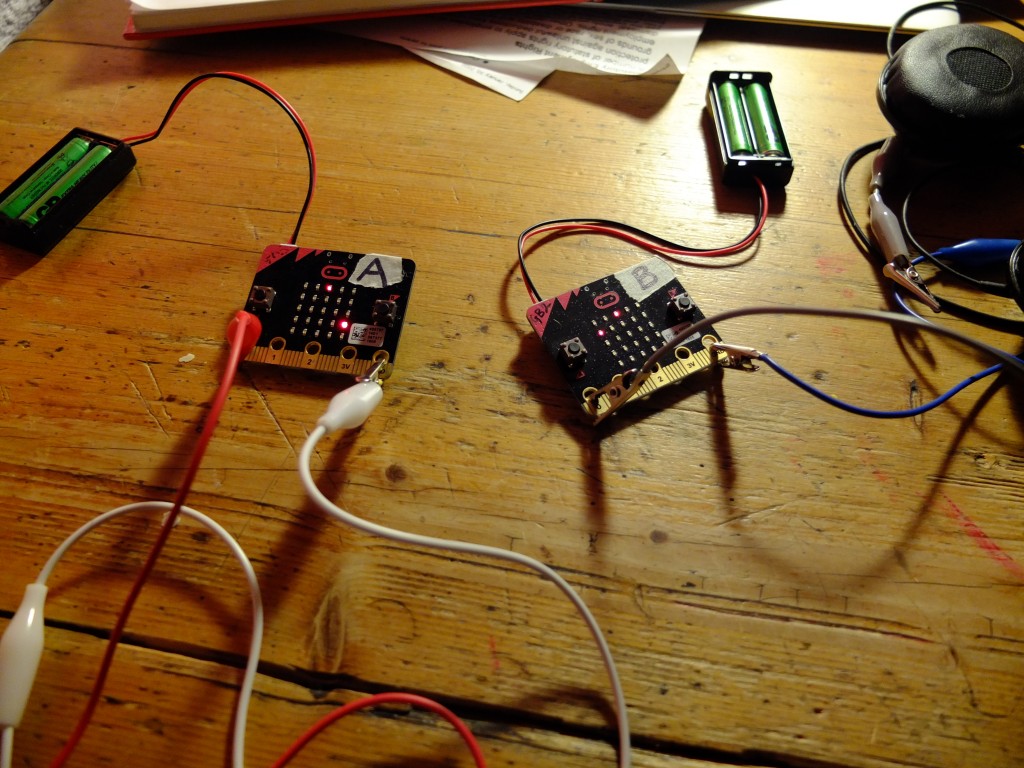
Here’s the player A code:

# Pongo by @blogmywiki
# player A code - with points

import radio
import random
from microbit import *
from music import play, POWER_UP, JUMP_DOWN, NYAN, FUNERAL

a_bat = 2              # starting position of player A bat
b_bat = 2              # starting position of player B bat
bat_map = {0: 4, 1: 3, 2: 2, 3: 1, 4: 0}
ball_x = 2             # starting position of ball
ball_y = 2
directions = [1, -1]   # pick a random direction for ball at start
x_direction = random.choice(directions)
y_direction = random.choice(directions)
delay = 1000           # used as a crude timer
counter = 0            # used as a crude timer
a_points = 0
b_points = 0
winning_score = 5
game_over = False

def move_ball():
    global ball_x, ball_y, x_direction, y_direction, counter, a_bat, b_bat, a_points, b_points, delay
    display.set_pixel(ball_x, ball_y, 0)
    ball_x = ball_x + x_direction
    ball_y = ball_y + y_direction
    if ball_x < 0:							# bounce if hit left wall
        ball_x = 0
        x_direction = 1
    if ball_x > 4:							# bounce if hit right wall
        ball_x = 4
        x_direction = -1
    if ball_y == 0:
        if ball_x == b_bat:					# bounce if player B hit ball
            ball_y = 0
            y_direction = 1
            delay -= 50						# speed up after bat hits
        else:
            play(POWER_UP, wait=False)      # A gets point if B missed ball
            a_points += 1
            ball_y = 0
            y_direction = 1
            radio.send('a'+str(a_points))			# transmit points

    if ball_y == 4:							# bounce if player A hits ball
        if ball_x == a_bat:
            ball_y = 4
            y_direction = -1
            delay -= 50						# speed up after bat hits
        else:
            play(JUMP_DOWN, wait=False)     # player B gets point if A misses
            b_points += 1
            ball_y = 4
            y_direction = -1
            radio.send('b'+str(b_points))
    counter = 0
    radio.send('x'+str(ball_x))				# transmit ball position
    radio.send('y'+str(ball_y))

radio.on()    # like the roadrunner

while not game_over:
    counter += 1
    display.set_pixel(a_bat, 4, 6)        # draw bats
    display.set_pixel(b_bat, 0, 6)
    display.set_pixel(ball_x, ball_y, 9)  # draw ball
    if button_a.was_pressed():
        display.set_pixel(a_bat, 4, 0)
        a_bat = a_bat - 1
        if a_bat < 0:
            a_bat = 0
        radio.send('p'+str(a_bat))
    if button_b.was_pressed():
        display.set_pixel(a_bat, 4, 0)
        a_bat = a_bat + 1
        if a_bat > 4:
            a_bat = 4
        radio.send('p'+str(a_bat))
    incoming = radio.receive()
    if incoming:
        display.set_pixel(b_bat, 0, 0)
        b_bat = bat_map[int(incoming)]
    if counter == delay:
        move_ball()
    if a_points == winning_score or b_points == winning_score:
        game_over = True

if a_points > b_points:
    play(NYAN, wait=False)
    display.scroll('A wins!')
else:
    play(FUNERAL, wait=False)
    display.scroll('B wins!')

display.scroll('Press reset to play again')

Here’s the Player B code:

# Pongo by @blogmywiki
# player B code

import radio
from microbit import *
from music import play, POWER_UP, JUMP_DOWN, NYAN, FUNERAL

a_bat = 2              # starting position of player A bat
b_bat = 2              # starting position of player B bat
bat_map = {0: 4, 1: 3, 2: 2, 3: 1, 4: 0}
ball_x = 2             # starting position of ball
ball_y = 2
a_points = 0
b_points = 0
winning_score = 5
game_over = False
radio.on()     # like the roadrunner

def parse_message():
    global a_bat, incoming, bat_map, ball_x, ball_y, a_points, b_points
    msg_type = incoming[:1]    # find out what kind of message we have received
    msg = incoming[1:]         # strip initial letter from message
    if msg_type == 'p':
        display.set_pixel(a_bat, 0, 0)
        their_bat = int(msg)     # mirror their bat position
        a_bat = bat_map[their_bat]
    if msg_type == 'x':
        display.set_pixel(ball_x, ball_y, 0)
        ball_x = bat_map[int(msg)]
    if msg_type == 'y':
        display.set_pixel(ball_x, ball_y, 0)
        ball_y = bat_map[int(msg)]
    if msg_type == 'a':
        a_points = int(msg)
        play(JUMP_DOWN, wait=False)
    if msg_type == 'b':
        b_points = int(msg)
        play(POWER_UP, wait=False)

while not game_over:
    display.set_pixel(b_bat, 4, 6)
    display.set_pixel(a_bat, 0, 6)
    display.set_pixel(ball_x, ball_y, 9)  # draw ball
    if button_a.was_pressed():
        display.set_pixel(b_bat, 4, 0)
        b_bat = b_bat - 1
        if b_bat < 0:
            b_bat = 0
        radio.send(str(b_bat))
    if button_b.was_pressed():
        display.set_pixel(b_bat, 4, 0)
        b_bat = b_bat + 1
        if b_bat > 4:
            b_bat = 4
        radio.send(str(b_bat))
    incoming = radio.receive()
    if incoming:
        parse_message()
    if a_points == winning_score or b_points == winning_score:
        game_over = True

if a_points < b_points:
    play(NYAN, wait=False)
    display.scroll('B wins!')
else:
    play(FUNERAL, wait=False)
    display.scroll('A wins!')
Posted in computers, microbit | Tagged , | Leave a comment