Possible first Y7 Python MicroBit lesson

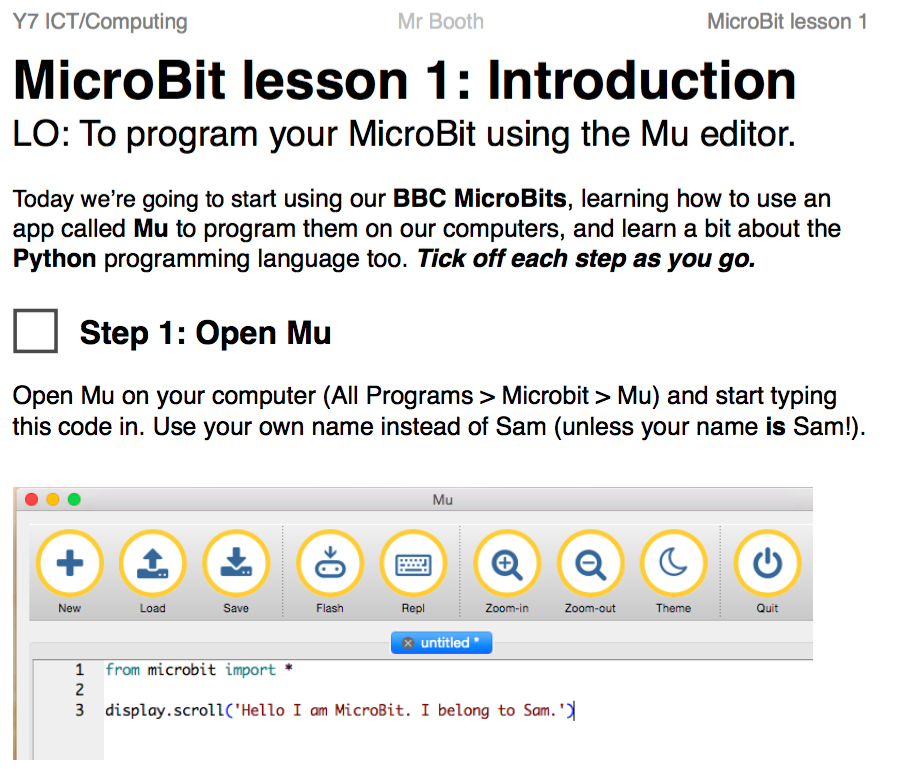
Here’s my first stab at a first Year 7 MicroBit lesson activity sheet – it assumes you’re using Mu as your editor, but not REPL (command line). It’s untested and will evolve with suggestions and with experience using it in class.

Students will learn how to write, flash and save code in Mu. They then learn about while True: loops, displaying built-in images, controlling the MicroBit using buttons A and B, the touch buttons and detecting shaking to trigger events.

Download PDF here. or see more generic up-to-date version here: https://github.com/bbcmicrobit/micropython/wiki/Ideas-for-first-Y7-Lessons

Posted in computers, education | Tagged , , , | Leave a comment

Can you do the Kettle Run in less than 12 parsecs?

Here’s another Python game for the BBC MicroBit that’s very easy for pupils to edit and improve.

The idea is that you navigate your ship through a canyon – or cave system or mountains. You can rotate your MicroBit through 90 degrees and fly up & down or stay left and right. Use your imagination.

Use the A and B buttons to move left and right (or up and down), avoiding obstacles as you fly. If you hit anything it’s GAME OVER and you press the reset button on the back to play again.

The aim is to get to your home port in order to put the kettle on for a nice cup of tea.

Complete 1 mission, and you go again – this time the game is faster and the terrain harder to navigate. Complete 5 and you win the game.

Hook a speaker or headphones up to pins 0 and GND to hear the audio.

Kettle Run 2 is an improved version with random terrain blocks, longer runs on each level – and an exciting cup of tea as a level up reward.

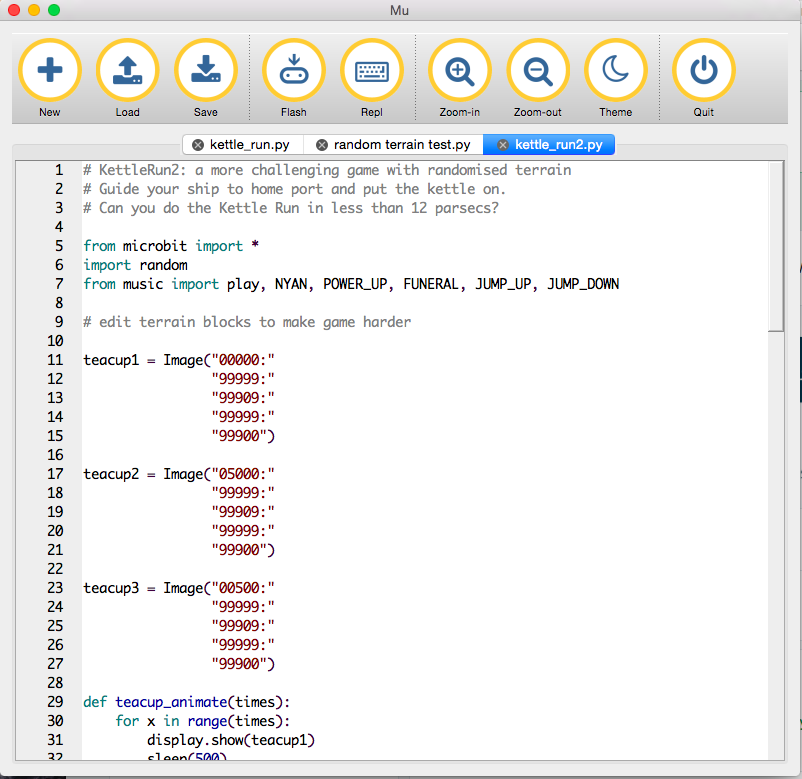
The game was written in the excellent Mu offline Python editor – just install Mu on your Mac, Windows PC or Linux machine (Ubuntu has been tested, and Raspbian I believe), write your code, plug in your MicroBit, click ‘flash’ and it just works! It even scrolls error messages (or ‘debugging messages’ as I prefer to call them) across the MicroBit display. An amazing piece of work by Nicholas Tollervey and others in the Python community.

Kettle Run code in Mu

There’s loads of scope for students to make improvements to this game, simple or complex:

  • Add more levels by changing while level < 6: to a higher number.
  • Make the game harder by speeding it up more on each level by making the number bigger in speed -= 20
  • Edit the terrain image to make it bigger or more challenging – the game should play as long as the image lasts.
  • Perhaps add different terrains for different levels.

Here’s the code on Github: https://github.com/blogmywiki/kettle_run

And here’s the original Kettle Run in action:

Posted in Uncategorized | Tagged , , , | Leave a comment

Tilty MicroBit game

I am lucky enough to have 3 teacher BBC MicroBits to play with, and I am exploring using the awesome Mu Python editor – this allows you easily to program the MicroBit in Python totally offline, with absolutely no internet access at all. This means you can still play with your MicroBit come the zombie apocalypse, assuming we still have electricity. (I’ve seen bits of Zombieland, so I know the electricity stays on in these situations.)

Here’s my first attempt at writing a game. It’s really simple but has TWENTY levels (sort of). You tilt your MicroBit to colour in all the pixels. When you fill in all 25, you move on to the next level… but the game gets harder to control as the delay in the loop gets shorter. It’s pretty easy but quite maddening if you get one pixel that you can’t fill in.

Hook up a speaker to pins 0 and GND if you want to hear the sounds.

You could improve the game in lots of ways, for example by having random events to wipe out certain pixels so you have to fill them in again, or by having obstacles you must NOT touch. Tinker, enjoy!

(You can also find the code on GitHub here: https://github.com/blogmywiki/tilty)

# A simple MicroBit game by Giles Booth
# Tilt and colour in all the squares
# If you win level 20, press reset button to play again

from microbit import display, accelerometer, sleep, Image
from music import play, POWER_UP, NYAN

def get_xy():
    yaccel = accelerometer.get_y() * accelerometer_sensitivity
    xaccel = accelerometer.get_x() * accelerometer_sensitivity
    return yaccel, xaccel

def count_lit_pixels():
    pixel_count = 0
    for xx in range (5):
        for yy in range (5):
            if display.get_pixel(xx, yy) != 0:
                pixel_count += 1
    return pixel_count

pause = 100
level = 1
accelerometer_sensitivity=1/300

#set initial position
x, y = 2, 2
yaccel, xaccel = get_xy()
y = max(0, min(4, int(y + yaccel)))
x = max(0, min(4, int(x + xaccel)))

while pause > 0:
    yaccel, xaccel = get_xy()
    newy = max(0, min(4, int(y + yaccel)))
    newx = max(0, min(4, int(x + xaccel)))
    if newy != y or newx != x:
        display.set_pixel(x, y, 1)
        x, y = newx, newy
        display.set_pixel(x, y, 9)
    else:
        display.set_pixel(newx, newy, 9)
    pixels = count_lit_pixels()
    if pixels == 25:
        play(POWER_UP, wait=False)
        level += 1
        pause -= 5
        sleep(200)
        display.show(str(level))
        sleep(1000)
        display.clear()
    sleep(pause)

play(NYAN, wait=False)
display.show('WIN!')
sleep(200)
display.show(Image.HEART)
Posted in computers, education | Tagged , , , | Leave a comment

Simple MicroBit Python demos

BBC MicroBit

Here are two VERY simple bits of code you can copy & paste into Mu to demo the awesomeness of Python on the MicroBit, and it’s easy for pupils to mess about with them and make them their own.

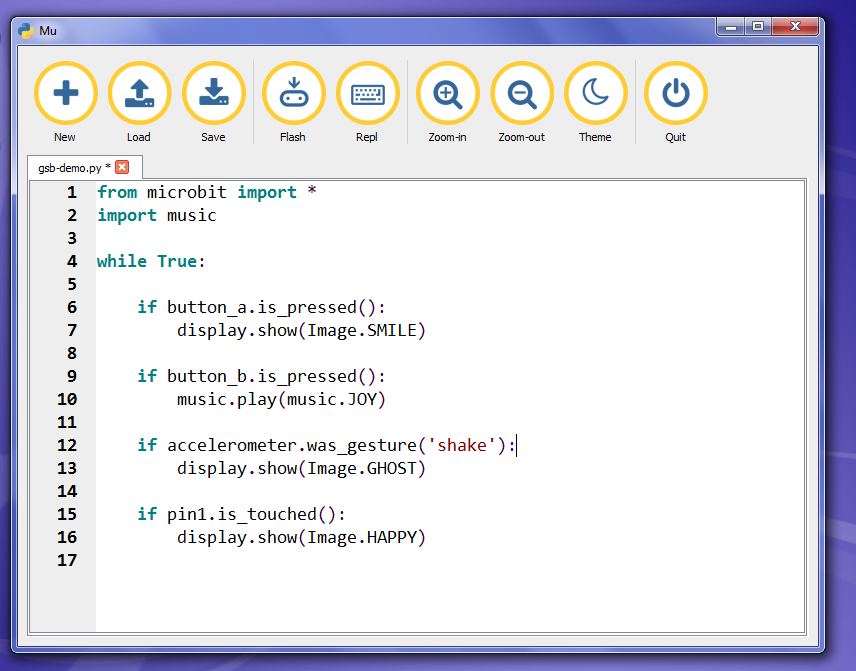
The first uses both buttons, a touch button and a shake sensor to trigger events.

For output it displays images and plays a tune if you connect a speaker to pins 0 and GND. You can use crocodile clip leads like you’d find in a MakeyMakey kit to do this.

I’ve included some other image and tune names in the comments to encourage children to tinker.

Enjoy!

from microbit import *
import music

while True:
    if button_a.is_pressed():
        display.show(Image.PACMAN)
    if button_b.is_pressed():
        music.play(music.NYAN)
    if accelerometer.was_gesture('shake'):
        display.show(Image.GHOST)
    if pin1.is_touched():
        display.show(Image.SURPRISED)

# Connect a speaker to pins 0 and GND to hear the music

# try these images: HEART, MEH, RABBIT, COW, DUCK, SWORD, GIRAFFE
# TARGET, HAPPY, HOUSE, TORTOISE, UMBRELLA, SNAKE, SKULL, BUTTERFLY

# try these musics: ENTERTAINER, PRELUDE, ODE, BIRTHDAY, PYTHON, WEDDING

…and here’s the MicroBit shaky dice program in Python:

from microbit import *
import random

one = Image("00000:"
            "00000:"
            "00900:"
            "00000:"
            "00000")

two = Image("00000:"
            "09000:"
            "00000:"
            "00090:"
            "00000")         

three = Image("90000:"
              "00000:"
              "00900:"
              "00000:"
              "00009")            

four = Image("00000:"
             "09090:"
             "00000:"
             "09090:"
             "00000")

five = Image("00000:"
             "09090:"
             "00900:"
             "09090:"
             "00000")           

six = Image("09090:"
            "00000:"
            "09090:"
            "00000:"
            "09090")

display.scroll('Shake me!')

while True:
    if accelerometer.was_gesture('shake'):
        throw = random.randint(1, 6)
        if throw == 1:
            display.show(one)
        if throw == 2:
            display.show(two)
        if throw == 3:
            display.show(three)
        if throw == 4:
            display.show(four)
        if throw == 5:
            display.show(five)
        if throw == 6:
            display.show(six)
Posted in computers | Tagged , , , | 4 Comments

Now the BBC MicroBit starts to make sense

BBC MicroBit
Behold, the world’s shortest USB lead!

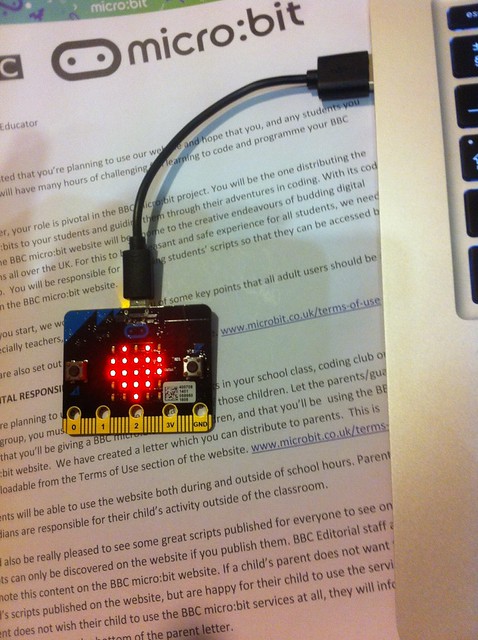
Today, after much moaning on my part about delays, I got our school’s 3 teacher BBC MicroBits. And I think I now know how I’m going to use them once we get the children’s boards.

We’ve already done some Python in Year 7, so I am reluctant to start teaching them a different language or paradigm at this point – I feel we’ve moved beyond blocks. I also have to soothe concerns about children working on the public internet, and I dislike the way the current TouchDevelop and block editors rely on internet access and a remote server being online to compile your code. [UPDATE: You can use TouchDevelop and block editors without a login and without internet access, although you will need it to load the compiler in a browser in the first instance. See https://www.microbit.co.uk/offline for details. I am grateful to Miles Berry and Peli de Halleux for clarifying this for me.]
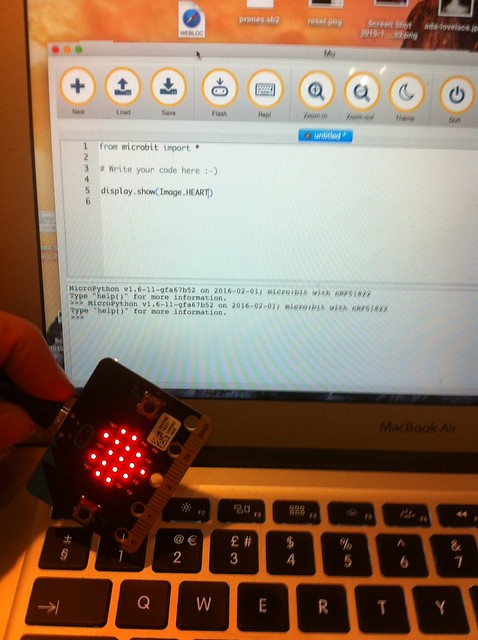
BBC MicroBit

I think Mu answers all of these questions for me. It’s the work of Nicholas Tollervy and others in the Python community – a standalone, cross-platform Python editor and command line tool that… just works!

Install Mu Micropython (I used a MacBook), plug in your MicroBit, start typing your Python code, press the Flash button – and the code runs on your MicroBit!
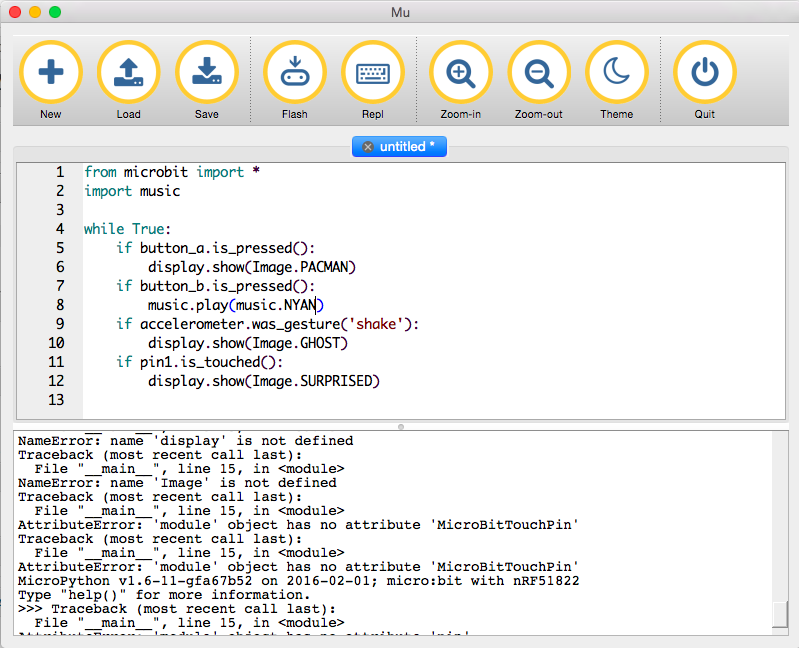
These very few lines of code do some cool things, and show off how the library of built-in images and tunes mean that children can do fun stuff with Python and the MicroBit amazingly quickly.

if button_a.is_pressed():
    display.show(Image.PACMAN)

draws a Pacman if you press the left button. There are LOADS of really fun built-in images to try.

if button_b.is_pressed():
    music.play(music.NYAN)

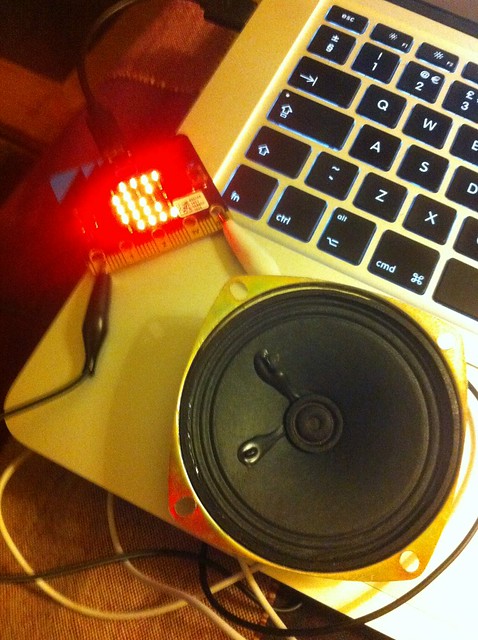
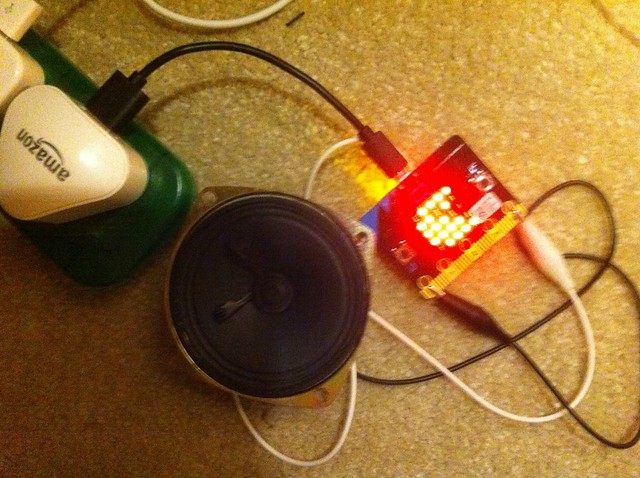
plays Nyan Cat music (many other tunes are available) if you press the right button. I attached a speaker with 2 crocodile clip leads from a MakeyMakey – no soldering required!
BBC MicroBit

if accelerometer.was_gesture('shake'):
    display.show(Image.GHOST)

Shake it and a ghost appears!

if pin1.is_touched():
    display.show(Image.SURPRISED)

Touch pin 1 (in a MakeyMakey way) and a surprised face lights up the screen.

Having forgotten (and now remembered) how really counter-intuitive the navigation is on the official MicroBit TouchDevelop lessons (and having to unlock my Microsoft account for some odd reason), I can honestly say I think using Python with Mu will be simpler than using block coding. It’s totally offline! No logins! No internet safety concerns. And it’s fun!

If you don’t have access to the command line (REPL) – as I currently don’t on my school Windows laptop – you get useful feedback in the form of error messages scrolling across the MicroBit display. Genius!
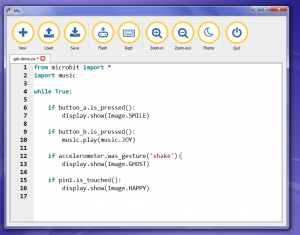
Mu for Windows - no drivers installed

Mu for Windows - no drivers needed for flashing code

Of course it remains to be seen if it will work on our Windows VDI (virtual desktops) at school, but I think I have seen the future of the MicroBit. And it’s snaky…

You can read the documentation for MicroBit MicroPython here: https://microbit-micropython.readthedocs.org/en/latest/ and download Mu here: https://github.com/ntoll/mu
BBC MicroBit

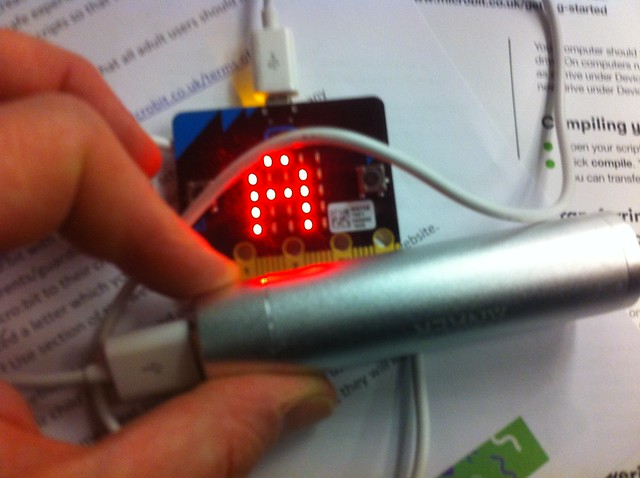
Running MicroBit self-contained off USB battery (above), and Kindle charger (below)
BBC MicroBit

Posted in computers, education | Tagged , , , | 2 Comments