Give the hudl a cudl

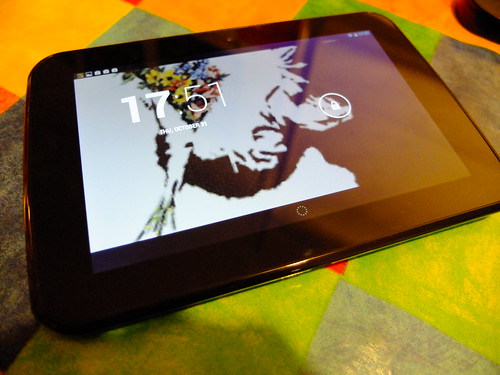
clock on lock screen

We got a Tesco hudl today – a very belated present for Son B. The hudl is a cheap (£119 – potentially much less if you have enough Clubcard points) 7 inch Android tablet that competes with the Amazon Kindle Fire HD (also £119) and the Google Nexus 7 (currently £199). I’m not going to compare it with those, however, as I’ve not used them. In fact my only frame of reference is a 1st generation iPad and the only other Android device I’ve used is my rooted Nook e-reader.

Cut to the chase: would I recommend it? On half a day’s use, I’d say yes. It feels well-made, it’s pretty easy to use – 11 yo Son B managed to set it up himself and install some free apps by himself – and it plays YouTube videos and runs the BBC iPlayer, which accounts for about 99% of what he used his mum’s iPad for. The cameras (front and back) are pretty awful, but we didn’t buy it for the cameras.
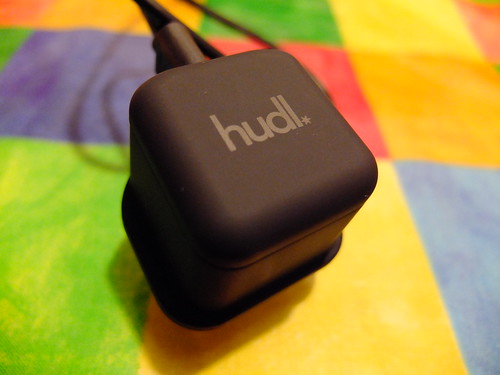
nice plug

It feels solid and well-made, and the supplied mains adapter and packaging shows some attention to detail. It doesn’t feel like a cheap device.
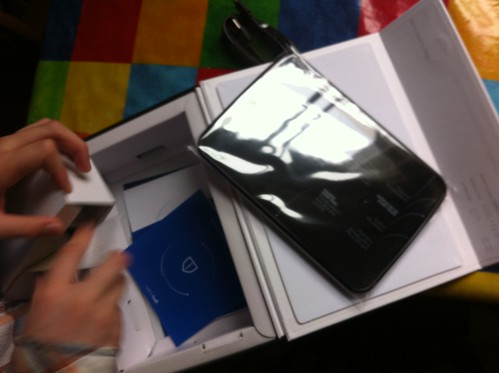
"What's an unboxing video, dad?"

As I say, setting it up was pretty easy, Son B doing most of it himself – once he’d figured out how to turn it on. He’d soon figured out he could install free apps using his YouTube login, and before long the home screen was filling up.
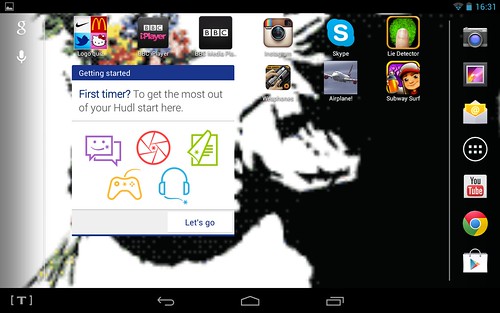
hudl homescreen after a few apps have been installed

It took me a while to work out how to do a screenshot. Holding down the power button brings up 3 options, but taking a screengrab isn’t one of them. Instead you have to simultaneously press the power and volume down buttons – a bit mad, but much easier than it was on older Android devices.
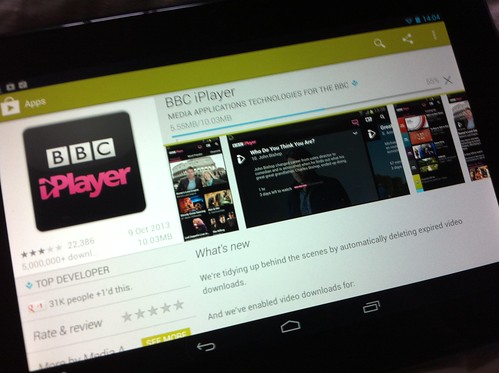
Installing the BBC iPlayer on our hudl

The BBC iPlayer seems to work just fine, but oddly you have to install something called the BBC Media Player separately in order to get it to work – I don’t recall ever having to do this on an iOS device.
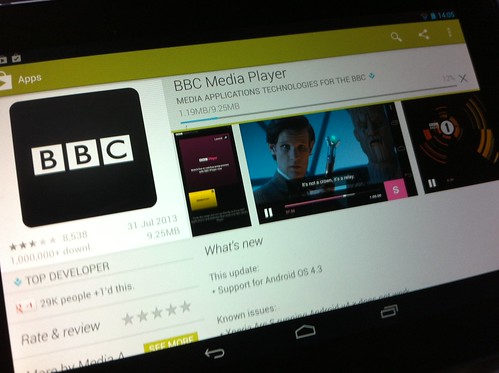
you have to install this on the hudl to make the iPlayer work

If I can ever manage to prise it out of SonB’s hands, I might be able to report on how it copes playing other video files. It has a Micro SD card slot for additional storage, you can connect it to a computer by USB for file transfer, and it also has a micro HDMI socket so you can plug it into a TV. We don’t have the right lead to test this, but to be honest I can’t see us ever using it this way. We have leads for connecting iPods and the iPad to a TV and I think we’ve used them once.

hudl's rear-facing camera in low light

It has two cameras. They both seem pretty awful, at least in fairly dim electric light. The rear-facing camera, I assume, is supposed to be the better of the two, but it had a horrible yellow cast on it. The front-facing web cam, if anything, looked slightly better (if you can get past the horror of the subject in the photo – I was looking at myself, you understand). But we didn’t get it for the cameras, and my views on people filming school performances and gigs on iPads are well known. I’m sure the webcam is fine for Skype, though.

hudl's front-facing camera in low light

I was a bit worried that I’d find Android a bit clunky after using an iPhone and iPad, especially as the rooted Nook e-reader gives a less than seamless user experience. But the implementation of Android on the hudl is just fine – it hasn’t been over-customised by Tesco (there’s that T on the bottom left-hand corner and some fluff you can dismiss) and it’s fairly intuitive to an Android-newbie like me.

So it’s early days, but we’ll give the hudl a cudl. I can’t get SonB off it, so that’s a good sign…
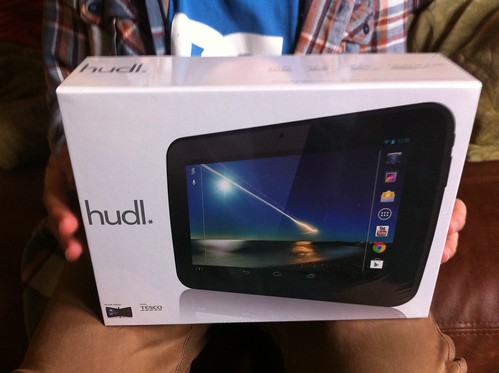
The Hudl arrives! There goes the afternoon...

update…

playing an MP3 off SD card on hudl

I managed to have a play with the hudl myself – used the Google music player to play MP3s off the micro-SD card, and the video player to play an iPod-formatted video file. Video playback was just fine, but I’ve not tried any HD video files yet.
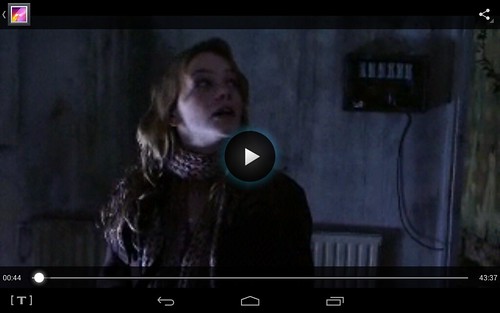
duck!

I also noticed that if you pull down the top of the screen you get a status widgety thing (that’s a technical term) that shows various things that are going on, and this includes some MP3 player controls. The audio quality from the built-in speakers is not great, but I plugged some good quality headphones in and the audio quality was very good indeed, if a little on the quiet side.
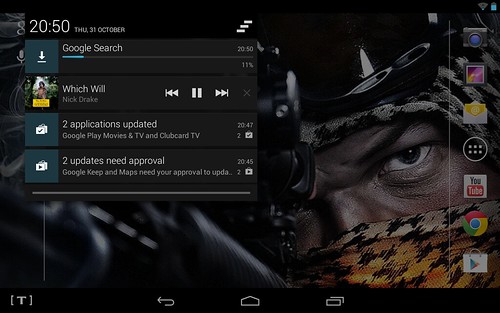
statusbar thingy, playing mp3 from SD card

For Halloween we watched The Woman in Black with the lights off – we could just as easily have watched Blink, though. I expected the wallpaper to reveal the word ‘duck!’

As they are currently exactly the same price, it’s interesting to have a look at this review comparing the hudl with the Amazon Kindle Fire HD. Personally I think the hudl is a better bet as it’s a more regular, open Android tablet. Yes it has Tesco stuff on it, but you can ignore / delete it (except the T button on the bottom left of the screen), but the Kindle, as far as I can tell, locks you in to Amazon’s services.
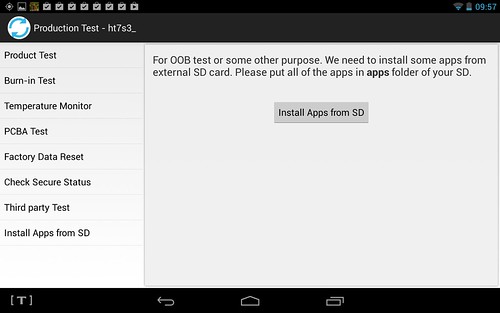
Screenshot_2013-11-01-09-57-50

(There’s also already a ‘hacking the hudl’ topic on a forum – apparently if you repeatedly tap the model number in the ‘about’ page, it calls up some diagnostics, and you can root it. Not sure why you’d want to, mind. Keep me away from this stuff!)
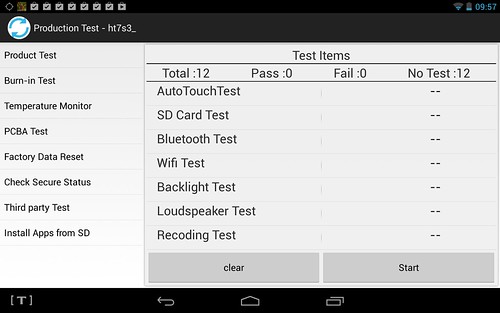
Screenshot_2013-11-01-09-57-15

Posted in Android | Tagged , , | 2 Comments

Python at CodeClub

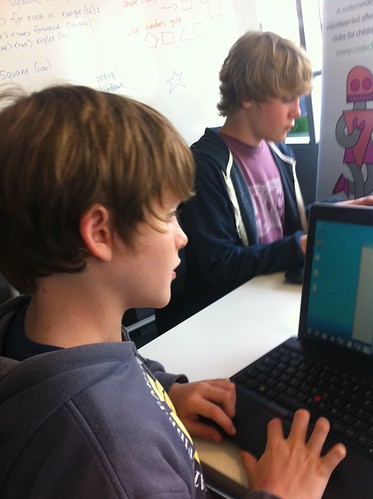
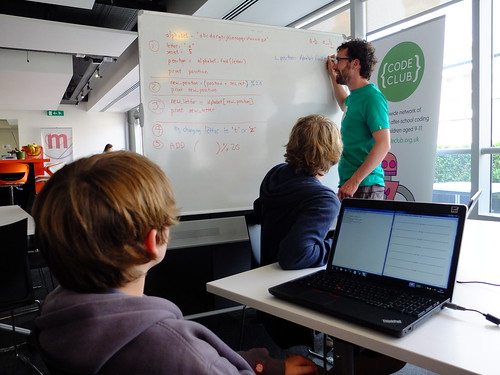
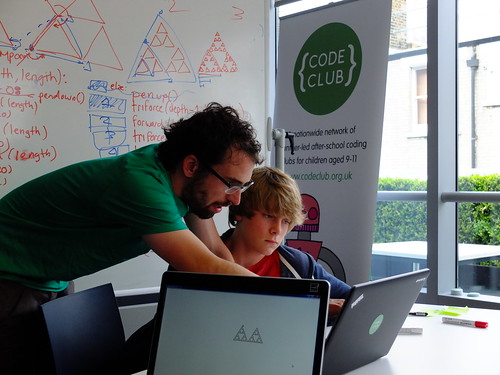
Today William (11) and Henry (13) joined a group of kids helping CodeClub find out ways of possibly teaching the Python programming language in Primary school after-school clubs, in addition to Scratch.

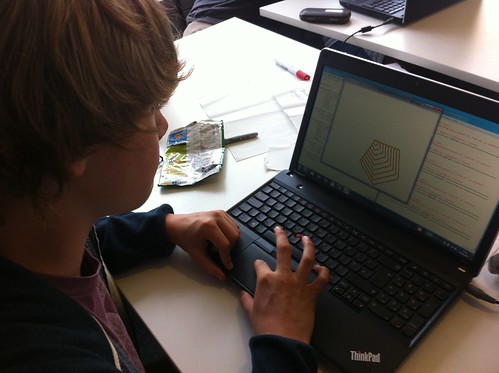
Drawing fractals in Python at CodeClub

Scratch is a very kid-friendly graphical environment for learning some basic concepts of writing code. Python, however, is a real programming language. It is not fluffy. It forces you to use the command line. Eeek!

Python testing at CodeClub

Quite a challenge to make it child-friendly, but I think the approach they adopted was a good one: they start with using the turtle library to draw shapes and patterns on the screen that will be instantly familiar to any child who has used Scratch, Logo or any kind of programmed turtle.

Learning how to make cyphers in Python at CodeClub

Children migrated from typing Python instructions at the command line, to using IDLE to edit and save their code; I think we agreed it would be better to dive straight into IDLE. (Half way through the day I finally figured out why IDLE is called IDLE. Doh!).

Python testing at CodeClub

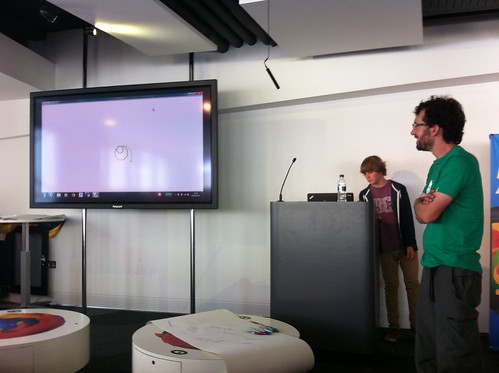
They moved from drawing lines, to polygons, writing their own functions to draw shapes with different parameters and then using these functions to make different patters or pictures on the screen, drawing robots or geometric designs. Kids who wanted to could then plug their laptops into the big screen and show everyone else what they’d achieved.

Henry demoing his Python code at CodeClub

Thanks to everyone at CodeClub for their work today, and for Mozilla for being such lovely and generous hosts.

Trying Python at home

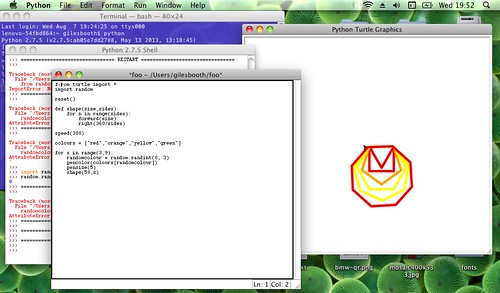
Here’s my bit of code I knocked up this evening using some of the concepts we looked at today, and including some new ones, such as random numbers and lists.

What it does is define a function called shape that has 2 parameters: the size of the shape, and the number of sides the polygon it draws will have. The speed command makes it draw a bit faster (this would have been handy earlier today when William was drawing polygons with 1000 sides!). It then draws polygons in random colours with increasing numbers of sides – from triangles to octagons.

from turtle import *
import random

reset()

def shape(size,sides):
    for n in range(sides):
        forward(size)
        right(360/sides)

speed(300)

colours = ["red","orange","yellow","green"]

for x in range(3,9):
    randomcolour = random.randint(0, 3)
    pencolor(colours[randomcolour])
    pensize(5)
    shape(50,x)

Some things to note:

In lists, the 1st item in the list is actually item number 0 in Python, so my random number to pick a colour from the list is between 0 and 3, not between 1 and 4.

I’m making shapes with different numbers of sides using a for loop – I don’t want a 1 or 2-sided shape, so I am starting my counting loop at 3 – hence for x in range(3,9): – also note that this counts from 3 to 8 – not 9. Crazy, eh?

I had a few problems running IDLE in MacOS X 10.6 – it kept hanging. I had to install some extra software and update Python. There’s more info here: http://www.python.org/getit/mac/tcltk/ – once I’d done that, all I have to do is type ‘idle’ at the OS X command line to launch IDLE.

Posted in computers | Tagged , | 2 Comments

Over The Bridge and Far Away

Review: The Bridge by Iain Banks (1986)

I wasn’t expecting to enjoy this.

I was going to re-read The Crow Road, my favourite Iain Banks, in the wake (wake, geddit? Aw, c’mon, give a guy a break, I’ve been reading Iain sodding Banks in every spare minute of my time for a week) of his death. Then I read that last Guardian interview, in which he said Canal Dreams was his least favourite of his own books, and The Bridge his favourite. ‘The one that went to university and got a degree’, he called it. Well, I hated Canal Dreams, so I supposed I ought to trust his judgement.

I was going to buy a copy when I discovered I already owned it. A huge paperclip, dull and rather pitted with age, sat at page 51 of my 1989 paperback edition, suggesting I never got any further. I could remember nothing of it, perhaps ironically given the subject matter of memory loss, aside from the initial description of the car crash, which 1989 me had found impenetrable.

2013 me, full and rather pitted with age, really rather loved this book. Perhaps I’m coloured by the author’s death, perhaps by the fact that I think Life On Mars / Ashes to Ashes nicked half their ideas from it. I shouldn’t like the bits tinged with fantasy and SF, but I enjoyed even those. The book that went to university, and if it didn’t quite get a First, it got a damn good 2.1 and had a lot of fun while it was there.

Posted in fiction, grief, literature, recently read | Tagged , , | Leave a comment

Weather forecast on a RaspberryPi printer – now with added Pi

Here’s how I get the weather printed on my RaspberryPi-powered GoFreeRange internet printer every morning at 6AM.

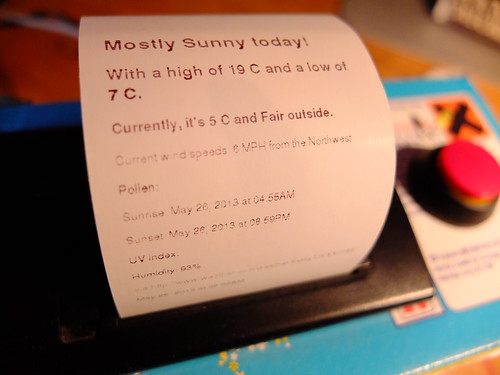
My daily weather forecast

Overview

  • I made a GoFreeRange printer using a RaspberryPi instead of an Arduino.
  • I signed up for IFTTT and got it to send a local weather forecast as a text file to a folder in my DropBox account each day at 6am.
  • I wrote a shell script on the RaspberryPi which looks to see if there’s weather forecast in my DropBox account. If there is, it downloads it to the RaspberryPi. It then moves the remote DropBox copy of the forecast to another remote DropBox folder so it doesn’t get printed again. The script then calls a Python script to send the forecast to the GoFreeRange printer backend server so it prints out on my printer.
  • I scheduled this shell script to run every 5 minutes on the RaspberryPi using crontab.


Details

I know there’s a Printer Weather app for the GoFreeRange printer, but I can’t get it to work and, knowing nothing about Ruby, I don’t have a clue how to install it myself – but I still want a weather forecast to come out of my little printer first thing in the morning.

The first time I got this working, I had to have a Mac turned on, as this was running JD Harper’s Python script to poll DropBox for new files to print. Having to keep a Mac running was a bit of a drag, especially when my little printer is being run by a RaspberryPi that just loves to run Python scripts.

The problem is that although there’s a Linux version of DropBox, it doesn’t work on the Pi’s ARM processor, and you need to have a DropBox folder mounted or sync’d locally on the Pi for the script to work.

Then I discovered Andrea Farbrizi’s Dropbox-Uploader shell script. This doesn’t mount or sync a DropBox folder by itself, but it does allow you to upload and download files to and from DropBox on a RaspberryPi. Incredibly useful! So I installed it on my Pi and got it working.

I also installed JD Harper’s Python script on the RaspberryPi – amazingly this pretty much worked first time, much easier than it had been to get running on my old iMac.

Daily weather forecast on my little printer

I put everything in a folder called /home/pi/dropbox/gfr/ on the Pi including a directory called txt for the downloaded weather text files, with 2 sub-directories, one called ToPrint and another called Printed.

I had hours of fun making sure all the files were accessed by absolute paths and filenames so when the scripts were run by cron, cron would know where to find everything. (Cron’s not very good at looking for things, you really have to point things out to it. It must be a man.)

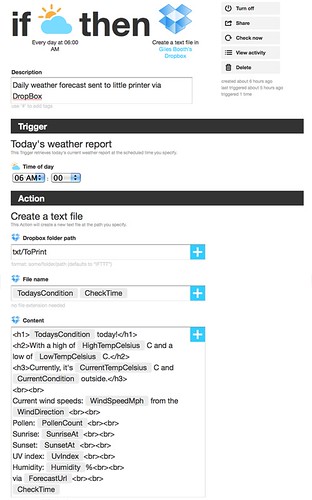
My IFTTT recipe looks rather like this, except I’ve changed it so the resulting file is always called ‘weather.txt’ – this just makes the coding a bit easier on the Pi:
Using IFTTT to print daily weather forecast on my little printer

Here’s what my shell script weather.sh looks like:


#!/usr/bin/env bash

# bash script by Giles Booth www.suppertime.co.uk/blogmywiki
# (c) 2013 Giles Booth
# for printing daily weather report on my Go Free Range printer
# using Andrea Fabrizi's Dropbox-Uploader shell script
# and JD Harper's printtxt.py python script to poll local
# folders and send text files to the GoFreeRange backend print server

# put a directory listing of Dropbox ToPrint folder in a text file
/home/pi/dropbox/gfr/dropbox_uploader.sh list txt/ToPrint > /home/pi/dropbox/gfr/ToPrint.txt

# if there's a remote file called weather.txt download it and move
# remote copy to 'Printed' folder in my DropBox

if grep -R "weather.txt" /home/pi/dropbox/gfr/ToPrint.txt
then
/home/pi/dropbox/gfr/dropbox_uploader.sh download txt/ToPrint/weather.txt /home/pi/dropbox/gfr/txt/ToPrint/weather.txt
/home/pi/dropbox/gfr/dropbox_uploader.sh upload /home/pi/dropbox/gfr/txt/ToPrint/weather.txt txt/Printed/weather.txt
/home/pi/dropbox/gfr/dropbox_uploader.sh delete txt/ToPrint/weather.txt
else
echo "no weather found"
fi

# clean up list of files to print
rm /home/pi/dropbox/gfr/ToPrint.txt

# now run the python script to print local text files
python /home/pi/dropbox/gfr/printtxt.py

And here’s what my crontab.txt looks like:

*/5 * * * * /home/pi/dropbox/gfr/weather.sh > /home/pi/dropbox/gfr/tempfile.txt 2>&1

This runs weather.sh every 5 minutes and writes a log file called tempfile.txt so I can see what’s been going wrong, if anything. I loaded the crontab with the
crontab crontab.txt
command. I still need to get this cron task to load up when the Pi is first switched on, though.

The other thing on my ‘To do’ list is to get the Pi to print any file in my DropBox ‘ToPrint’ folder, not just one named weather.txt

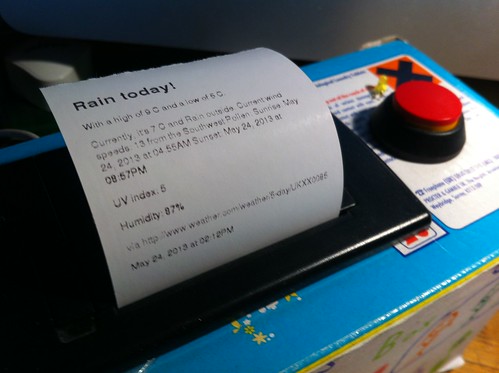
Daily weather forecast on my printer - rain, of course

Posted in computers, internet, Linux, Raspberry Pi, Raspbian | Tagged , , , , | 10 Comments

Daily weather forecast on my little internet printer

weather on my printer - rain, of course
Rain, of course

I want the weather forecast waiting for me on my little Raspberry Pi-powered internet printer in the morning. I tried signing up for the Printer Weather forecast app but it never worked – maybe it’s not running at the moment. I couldn’t work out how to install it myself, so I was a bit stuck.

Then I had an idea. I use IFTTT to email myself a weather forecast every morning. IFTTT stands for If This, Then That (or is it ‘If That, Then This’?). It glues together different web sites and services like Gmail, Flickr and Twitter in ways that can be incredibly useful. I had an idea to use the weather service on IFTTT combined with JD Harper’s really neat idea for using Dropbox text files as a way of printing to a GoFreeRange printer.

His insanely clever idea is to use a Python script to poll a Dropbox folder for text files – as new ones appear, his script reformats them as HTML, sends them off to the GFR backend print server with your printer’s URL, so the text prints. It then moves the text files to another folder so they don’t get printed twice.

Like JDHarper, I have a Mac, but I had a few issues getting his Python script to work. I had to install ‘elementtree’ and update the Mac’s version of Python from 2.4.4 to 2.7.7 as getcode() wasn’t supported in Python 2.4.4

I then used crontab to get the Mac to run the Python script every minute. (There’s another really useful guide to scheduling tasks with cron in MacOS X here.) My crontab.txt file looked a bit like this:
* * * * * cd /Users/gilesbooth/RaspPi/printer/ ; python printtxt.py
The first bit changes the directory the folder where JD Harper’s Python code lives, and the second bit runs it.
I loaded it by typing
crontab crontab.txt
at the command line.

It worked! I could now drop a text file, anywhere in the world, into one of my Dropbox folders, and (as long as my Mac is turned on) it prints on my little printer, wherever the printer may be.

This is where IFTTT comes in, and things get really tasty. Instead of getting the weather emailed to me, I changed my IFTTT recipe to send it as a text file at 6am each day straight into the Dropbox folder which is polled by the Python script on the iMac. I added a bit of HTML to the forecast to make it easier to read, but it works!

Using IFTTT to print daily weather forecast on my little printer

Obviously, having to have my iMac turned on sucks rather. So the next thing to do is to get the RaspberryPi to do the work of the iMac, if it’s possible to get the Pi to poll Dropbox folders… and some pictures would be nice. I might also re-write the Python script to make the formatting prettier.

Daily weather forecast on my little printer
looking brighter

Post-script

I have now managed to get it all running on a Raspberry Pi, with no need to have an Mac running to get files from DropBox to the GFR print server. Details to follow in a new post here.

Posted in computers, internet, Linux, Raspberry Pi, Raspbian | Tagged , , , , , , | 1 Comment