6502 breadboard computer: part 2

Having started to build a Ben Eater-style, 6502-based breadboard computer a few weeks ago, I’ve started to diverge my design a bit. Ben uses an Arduino Mega to monitor the status of the address and data bus, but I like old computers with blinkenlights and I also like the simplicity of a self-contained computer that doesn’t need an Arduino and another full-sized computer to display the data.

So I decided to keep the 16 LEDs I wired across the address bus, and added 8 new LEDs to the data bus, so I can monitor what’s going on, albeit in binary rather than in hexadecimal on an Arduino console screen.

Flashing an EEPROM
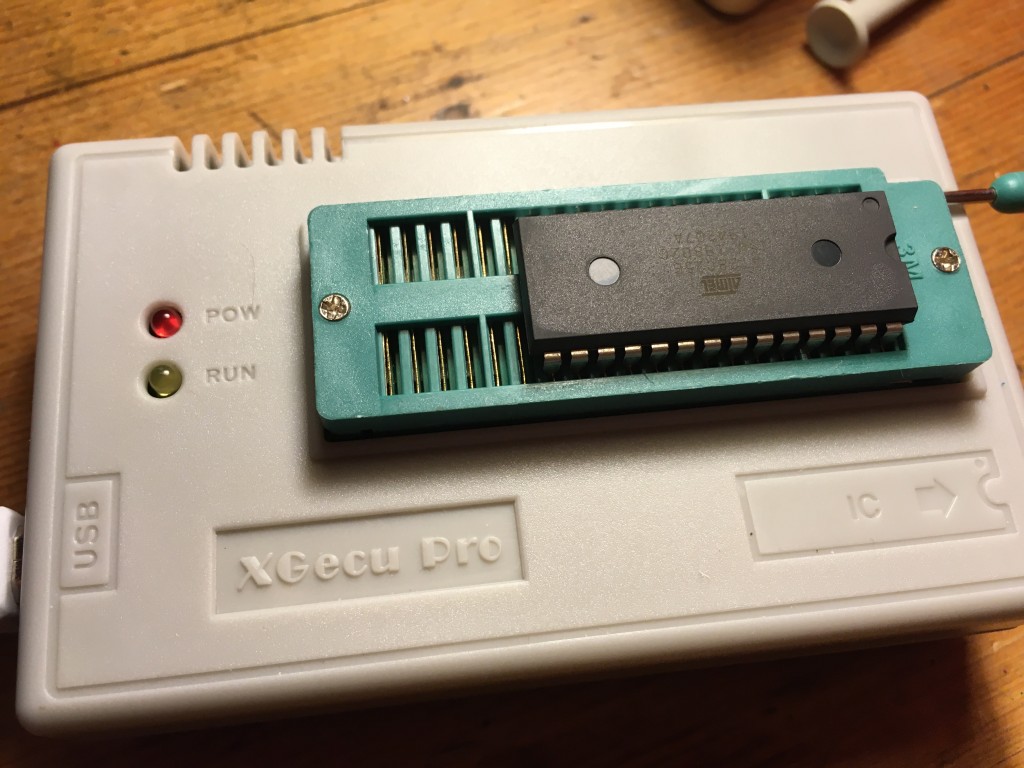
eeprom programmer

If we’re going to write a real program, instead of hard-wiring no operation instructions, we’ll need some sort of memory. The first kind we add is a read-only memory (ROM) so that the program remains when the power is off. This is used in old computers like the KIM-1 and Acorn System 1 to store the monitor program that allows you to enter code on a keypad and show things on an LED display. More complex systems like the Apple ][ and Commodore PET stored a BASIC interpreter in ROM as well as the machine's operating system.

As I want to keep changing the program as I develop the system, I need a kind of ROM that I can modify, which is where the EEPROM (electrically erasable programmable read-only memory) comes in.

It was quite exciting flashing my first ever EEPROM. Back in the day (by which I mean the 1970s) I think EPROMs had to be erased using ultraviolet light and the process took a very long time, but now you can erase and flash a 32K EEPROM in a few seconds. I got an inexpensive programmer from China, which comes with Windows software but, being on a Mac, I installed a command line utility called minipro, which I installed using brew at the MacOS terminal command line:

brew install minipro

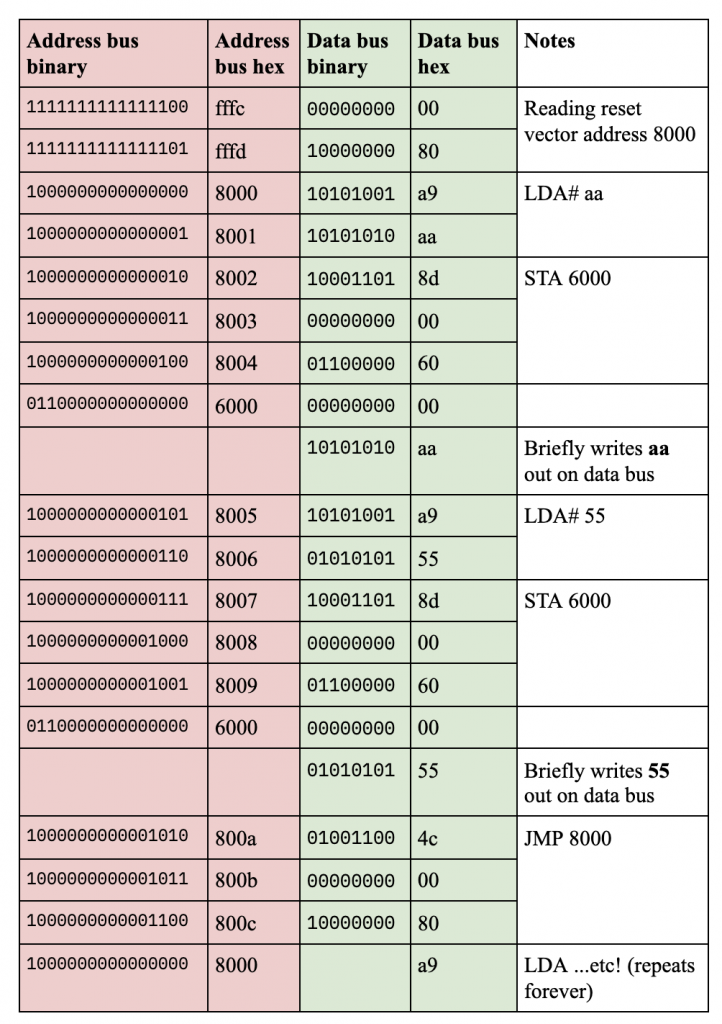
I modified Ben Eater's first program to add a loop and some different values. It just loads hex value aa (binary 10101010) into the accumulator, writes that out to memory location 6000, does the same with hex 55 (binary 01010101), and then loops back to the start of the program.

I also modified Ben's short Python program (code below) to create a binary file of exactly the correct length (32k) to fit on the EEPROM, which fills all the empty spaces with NOP (no operation) instructions - ea in hex.

You'll see that memory addresses are given 'backwards', i.e. address 6000 is coded as 00 then 60. This is the way that the 6502 (and some other processors) encode 2-byte addresses. It seems odd, but apparently there's a potential speed gain to be had from doing it this way. It's called little-endian encoding, after the pointless wars in Jonathan Swift's Gulliver's Travels over which end of a boiled egg you should crack open first. And, having done some machine code programming of my own, I finally understand it! The smaller (littler) byte of the two bytes comes first.

The other thing to note here is the 8000 address stored right near the end of the ROM, at locations 7ffc and 7ffd. This is the reset vector, which is super-important. When the 6502 processor is reset, it looks at these memory locations for the address at which it will find its instructions, the program you want it to run. In this build, we connect the EEPROM so that its first byte is at memory location 8000.

rom = bytearray([0xea] * 32768)
rom[0] = 0xa9   #LDA aa
rom[1] = 0xaa
rom[2] = 0x8d   #STA 6000
rom[3] = 0×00
rom[4] = 0×60
rom[5] = 0xa9   #LDA 55
rom[6] = 0×55
rom[7] = 0x8d   #STA 6000
rom[8] = 0×00
rom[9] = 0×60
rom[10] = 0x4c  #JMP 8000
rom[11] = 0×00
rom[12] = 0×80
rom[0x7ffc] = 0×00
rom[0x7ffd] = 0×80

with open(“rom.bin”, “wb”) as out_file:
  out_file.write(rom)

I connected the EEPROM programmer's USB cable to my laptop and burned the binary file created with the Python script on to it using this command:

minipro -p AT28C256 -w rom.bin

Wiring the ROM chip

I used an Atmel AT28C256 32k EEPROM chip. This, I have to say, was an absolute pig to wire up - look how illogical the address bus pins are! Pin 7 is next to pin 12 which is next to pin 14.
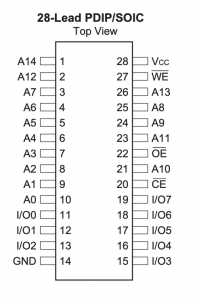
atmel eeprom pinout

I'm grateful to Pete Lomas for explaining to me that this illogical layout is caused by trying to maintain compatibility with older EPROMs and ROMs: no-one ever thought they'd be bigger than 1K, and room had to be found for the extra address lines.

So, I connected the EEPROM's address pins 0-14 to address bus pins 0-14 on the 6502 CPU, pin 14 to GND and pin 28 to +5v.

CPU address bus pin 15 goes via an inverter made from a NAND gate to the EEPROM’s CE (chip enable) pin 20. See Ben Eater's video for details. This is to ensure that the EEPROM is only enabled when the CPU is trying to address memory above location 8000.

Pin 27 WE (write enable) is tied high to +5v to prevent it being overwritten.

Pin 22 OE (output enable) is tied low (GND) as we want some output from the ROM.

The EEPROM I/O pins 0-7 are connected to data bus pin 0-7 on the CPU.

Running the program
first instruction annotated

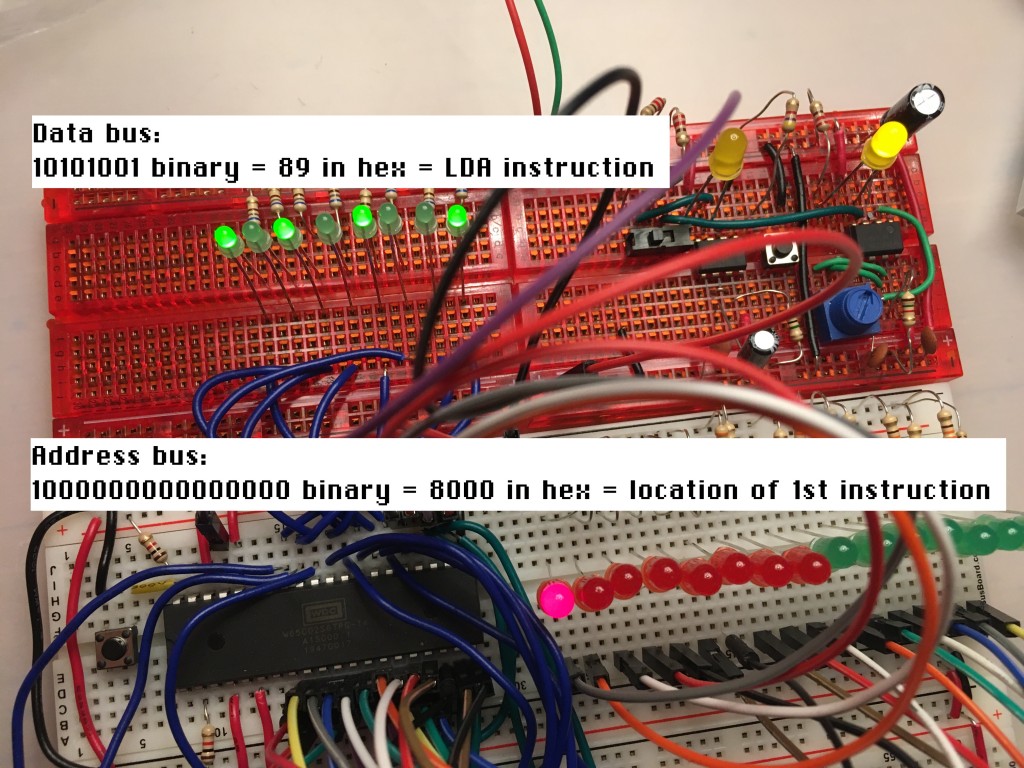
So, I powered it all up. As you'll see from the video at the top of the page, I wasn't sure if it was doing the right thing at first, but when I reset the CPU and single-stepped through the program, I discovered it was working perfectly. The picture above shows its status at address 8000, the first instruction of the program in my EEPROM. The data bus is showing binary 10101001, which is hex 89. 89 is the opcode for the 6502 LDA instruction, which is the first instruction!

I stepped through the whole program and confirmed every LED on the data bus is showing either the instruction opcode, or data being read or written.first program byte by byte
The next steps will be to add the 6522 versatile interface adaptor (VIA) and a display. Ben Eater makes some LEDs blink next, but I feel I have enough blinkenlights, I may skip that and go straight to adding an LCD display driven from the VIA chip.

Eventually I'm going to want to add a keypad. I found a few articles about adding PS/2 keyboards, but I want something simpler and more KIM-1 like. I have some flexible 4x4 matrix keypads, which will do for entering hexadecimal numbers, but I'll need at least 4 more buttons I think to create a self-contained single-board computer: stop, go, up and down. If anyone has any advice about how to attach a small (say 4x5 or 5x5) keypad to a 6502, I'd love to hear it!
Read what happened next with my 6502 computer in Part 3...

Posted in computers | Tagged , , | Leave a comment

6502 breadboard computer: part 1

The first computer I ever used, probably in 1977, was my older brother’s KIM-1. This was a bare, single board computer that was really just a development kit for the 6502 microprocessor. It just had 6 numeric LED displays and a hexadecimal calculator-style keypad with some extra buttons for entering, modifying, running and stopping programs running.

You programmed it in machine code – hexadecimal numbers that represented instructions and data. Although time-consuming and difficult, programming the ‘bare metal’ in this way is a great grounding in computer science and coding: it gives you an appreciation of how programs and hardware interact, but more fundamentally, it helps you learn how very much can be achieved with a very limited set of instructions. If you can add, you can subtract, you can multiply and divide, and so on.

The 6502 went on to power the Apple ][, Commodore PET, Commodore 64, Nintendo Entertainment System as well as the Acorn System 1 and the BBC Micro. I soon made the switch from machine code to BASIC, but always hankered after my own KIM-1 or Acorn System 1 - indeed I wish I'd nagged my parents more to but me the latter now, it would have been a pretty good investment. Acorn became ARM, and now almost every human on the planet has one of their microprocessor designs in their pocket. The other thing that stuck with me, coding in BASIC on a PET or ZX Spectrum, was the blinding speed at which machine code routines ran, whether utilities to flip graphics slideshows or entire games.

I previously explored turning a BBC micro:bit into a simple CPU-like machine, but thought for my winter project I'd have a go at building my own breadboard computer, based on the modern version of the 6502, the Western Design Centre W65C02S.

There's quite a vogue for building simple breadboard computers from the ground up, and I can of course recommend Ben Eater's video guides, which I'm using as the basis for my project. I'll be diverging a bit from his path, and I thought it might be worth documenting some of the problems I had along the way. I also highly recommend this single video from Wifi Sheep, who only takes the very first steps but explains everything very well for the non-expert.

Goals

  • To learn a bit more about the electronics associated with computer hardware design
  • To learn some electronics, full stop
  • To re-learn some assembly language for the first time in 40 years
  • Maybe eventually to make something with a simple display, keyboard and monitor program that can be programmed like a KIM-1 or Acorn System 1

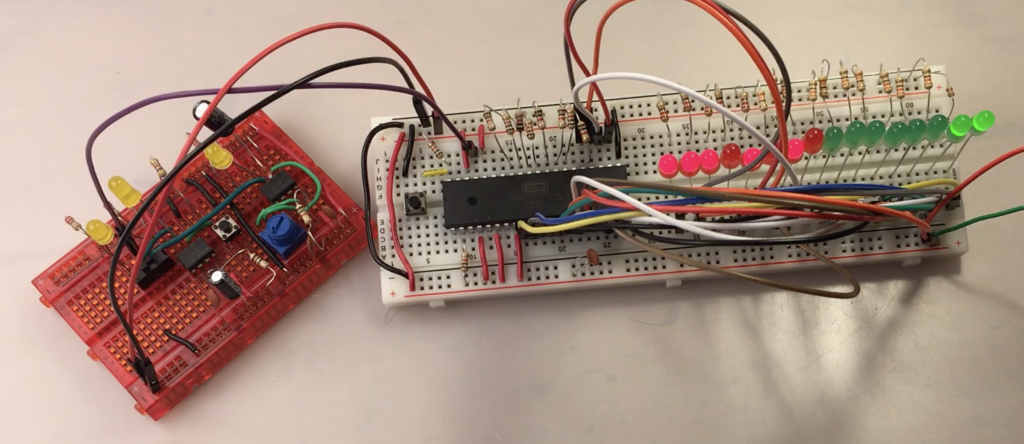
clock module

Starting with a clock

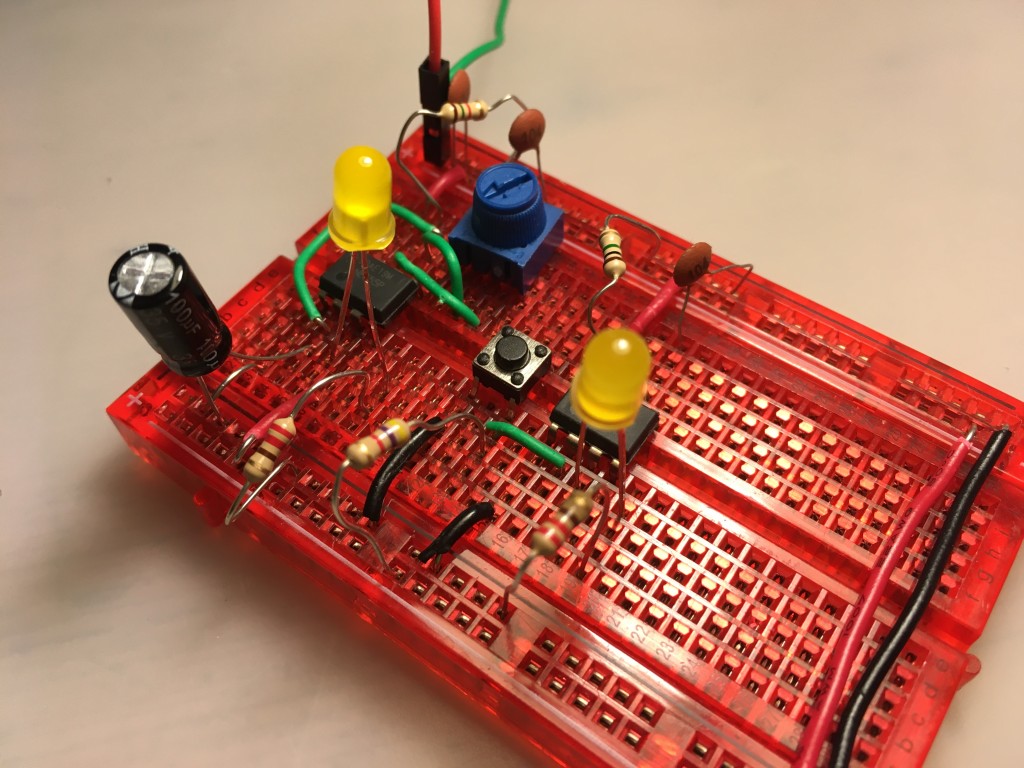
Making a clock seemed like a good place to start. I found Ben Eater’s clock a bit too advanced for my liking, and had originally intended just to have the option either to single-step the processor using a debounced button, or run it at the full 1MHz clock speed using a self-contained crystal oscillator IC.

In the end, I compromised a bit and built a clock using just two 555 timers which I can switch between single-step mode (using the 555 timer for debouncing) and a slow but variable mode which allows you to adjust the clock speed with a variable resistor. It’s basically the first two parts of the Ben Eater clock project, but I didn’t add the extra circuits to combine the logic, and I just added a simple single-pole / dual-throw switch to select which one I want to use. It’s not perfect, but it’s much simpler and more compact that Ben Eater’s, and I still learned a bit about 555 timers, and basic electronics with resistors and capacitors along the way.

Blinking lights!

It was now time to bite the bullet and connect up my modern 6502 processor. I ordered most of the bits Ben Eater uses from Mouser Electronics, and some other bits like the wire, LCD display and the EEPROM programmer from various suppliers in China. I guessed a bit, and time will tell whether I actually bought the right chips, I really didn’t have much clue what I was doing!

So, first step was to get some power to the processor, connect some LEDs across the address bus to see if it was alive and if my clock module worked. At first, I couldn’t get anything working at all. It turned out all the anti-static, anti-moisture packaging with its dire warnings had made me over-cautious. I just hadn’t pressed the pins of the CPU chip hard enough into the breadboard and they weren’t making contact.

first steps with the breadboard computer

I connected the pins of the W65C02 CPU like this:

w65c02s pinout

pin function notes
21 VSS GND for logic
8 VDD Main +5v power in
40 RESB Reset. Needs to be high to run; connects to 5v rail via a 1K resistor; connect a push button to GND rail as well.
38 SOB High, tie direct to 5v rail (set overflow)
2 RDY High, tie to high (+5v) via 1k resistor
4 IRQB High, tie direct to 5v rail (interrupt request)
6 NMIB High, tie direct to 5v rail (non-maskable interrupt)
36 BE High, tie direct to 5v rail (bus enable) – not connected in Wifi Sheep video

I connected some LEDs across the first few pins of the address bus (pins 9-14), powered both the clock and the CPU breadboard off an old USB lead which I chopped one end off and plugged into an old iPhone charger, and sure enough the LEDs on the address bus blinked madly.

Ordered blinking lights that count

That was quite exciting, but all a bit chaotic and meaningless. Following Ben Eater and Wifi Sheep I then hard-wired a NOP (no operation) instruction to the data bus. This means that the processor has an an instruction to follow, albeit one that does nothing, but it does mean you can see it scanning the address bus in some kind of logical order, and if you single-step the clock you’ll see that each NOP instruction takes two clock cycles to execute. I also added 16 LEDs across the whole address bus so I could see the whole bus being scanned.

full address bus LEDs

You need eight 1k ohm resistors for this. The NOP instruction’s hexadecimal code is EA, which is 11101010 in binary. Starting with pin 26, I connected them like this via 1K resistors

Pin     Connection
26  D7  +5v (1)
27  D6  +5v (1)
28  D5  +5v (1)
29  D4  GND (0)
30  D3  +5v (1)
31  D2  GND (0)
32  D1  +5v (1)
33  D0  GND (0)

Now you can single-step the 6502 through its initialisation sequence, and watch it then settle down to start scanning memory from location EA – and of course, as the single NOP instruction has been hard-wired across its data bus, this is the only instruction it can ever see, so it keeps on counting. It’s quite therapeutic watching the LEDs counting in binary, but next I need to run some real code, which means using some kind of assembler program and programming and adding some memory in the form of an EEPROM… what could possibly go wrong!?

Posted in computers, hardware | Tagged , , , | 2 Comments

Printing text on an LCD display using switches

There’s a YouTuber called the 8-Bit Guy who’s made a fantastic project where he gets text on an LCD display just using switches instead of a micro-controller or computer. He made his (video below) in a nice box with chunky switches, and I thought I’d try and make one on a breadboard.

This was a mistake, but I did, just about, get it to work and it makes an interesting project to learn a bit about low level logic, binary maths, data representation and so on with some very simple and inexpensive parts. It’s a good gateway to building a more complex project like a breadboard computer, which I plan to do this winter and it will use a display just like this so it’s all good practice.

Building it

Here’s what I used:

  • a 2 x 16 alphanumeric LCD display (old-fashioned parallel type, not one with an SPI interface)
  • 9 tiny single-pole dual-throw switches
  • a push-button
  • a 0.1uF capacitor to debounce the push-button
  • a variable resistor
  • a 4.7k ohm resistor
  • a breadboard
  • jumper wires
  • a USB lead with one end stripped to provide 5v power

Here’s how I wired it up – I’d be very happy to be corrected on my inevitable mistakes – I am not an electronics expert in any way!

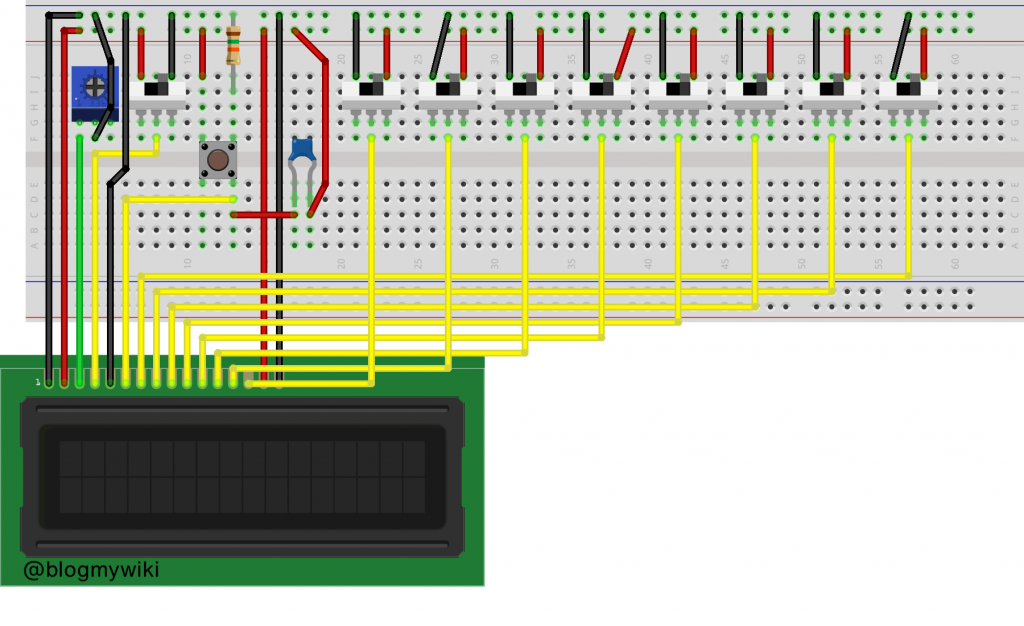
LCD switch wiring diagram

The LCD pin wiring goes like this from left to right:

LCD pin
 1 GND
 2 +5v
 3 variable resistor for contrast
 4 centre pole of register select switch
 5 GND
 6 one side of the enter button
 7 to centre pole of data switch
 8 to centre pole of data switch
 9 to centre pole of data switch
10 to centre pole of data switch
11 to centre pole of data switch
12 to centre pole of data switch
13 to centre pole of data switch
14 to centre pole of data switch
15 +5v for backlight
16 GND for backlight

Using it

Switch the program select switch to the 0v / GND position and enter some control codes. I tried a few different ones but found that this (sometimes) worked to select two line mode. Put the data switches in each position, then press the ‘enter’ button:

0000 1111
0011 0000

Then to enter text, switch the program select switch to the +5v position, alter the switches to the positions of binary representations of ASCII characters, and press the enter button after each one.

H 0100 1000
E 0100 0101
L 0100 1100
L 0100 1100
O 0100 1111
  0010 0000 (space)
W 0101 0111
O 0100 1111
R 0101 0010
L 0100 1100
D 0100 0100

The little breadboard switches are far too fiddly and prone to flying out of the board, so if I were to make this properly I would go the same way as the 8-Bit Guy and use big switches in a proper box.

If you fancy connecting one of these to a BBC micro:bit, check out my previous post: http://www.suppertime.co.uk/blogmywiki/2019/04/lcd-microbit/

Related videos

The 8-Bit Guy video that started me making this:

A Ben Eater video on adding LCDs to a breadboard computer which has very useful stuff on the control codes:

Posted in computers, hardware | Tagged | Leave a comment

micro:bit OLED compass

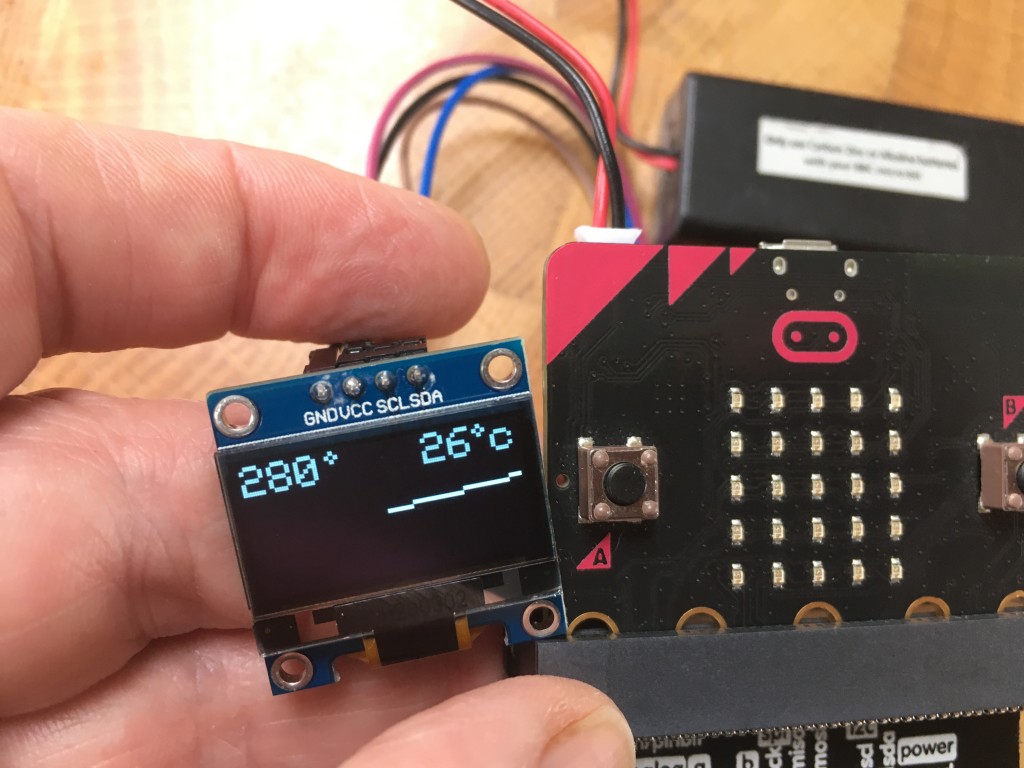
micro:bit OLED compass

These 128 x 64 pixel OLED displays are inexpensive and provide a great way to augment micro:bit projects. They’re easy to wire up using a breakout board and 4 female-to-female jumper wires. Just connect it like this:

OLED  / micro:bit
----------------
GND  -> GND
VCC  -> 3v
SCL  -> SCL (pin 19)
SDA  -> SDA (pin 20)

There are lots of different ways of driving OLED displays from a micro:bit. I’ll do a round-up of them all soon, but here I experimented with using a MakeCode extension for a 4Tronix robot, the Bitbot, which happens to include some quite nice blocks for writing text and drawing shapes on an OLED display.

This driver can use the full 128 x 64 resolution but I’ve chosen to use the ‘zoom’ mode here to make the text easier to read.

The program keeps taking bearing readings in a ‘Forever’ loop, rounds them to the nearest 10 degrees to stop the display jumping around too much.

As well as showing the compass bearing and current temperatures as numbers, it also draws a line to show which way North is – just like a compass needle!

A bit of maths is called on for this to convert an angle to x,y co-ordinates that can be plotted on a screen. It gets a bit messy because of the offset to the middle of the screen, having to rotate it through 90 degrees and I needed to flip it left-right for some reason but in short it works like this:

x co-ordinate = cos(angle*pi/180) * half width of screen

y co-ordinate = sin(angle*pi/180) * half height of screen

It draws circles for degree symbols and turns the bearing into a string padded with spaces to make sure digits are over-written when it goes from a 3-digit bearing like 350 to a single digit bearing like 0.

Next I may improve this by allowing you to set the bearing that it points to to the current bearing, so you’d have a little gizmo that always points whatever way you want to go.

Posted in microbit | Tagged , , , | Leave a comment

micro:bit radio messager with OLED display

What it is

Based on my previous micro:bit keyboard project, this allows you to type a message on a micro:bit using an old PC PS/2 keyboard and send it over radio to another micro:bit.

How to make it

You’ll need a couple of micro:bits, a micro:bit breakout board, a small OLED display, some jumper wires and a breadboard. You’ll also need an old PS/2 keyboard with the plug cut off and you’ll need to identify the 5v VCC, data and GND wires on the PS/2 keyboard cable. See my previous post for more on this.

Connect the keyboard to the micro:bit like this:

KBD | micro:bit
5v VCC -> 3v
data -> pin 1
GND -> GND

Connect the OLED display like this:

OLED | micro:bit
VCC -> 3v
GND -> GND
SCL -> SCL (pin 19)
SDA -> SDA (pin 20)

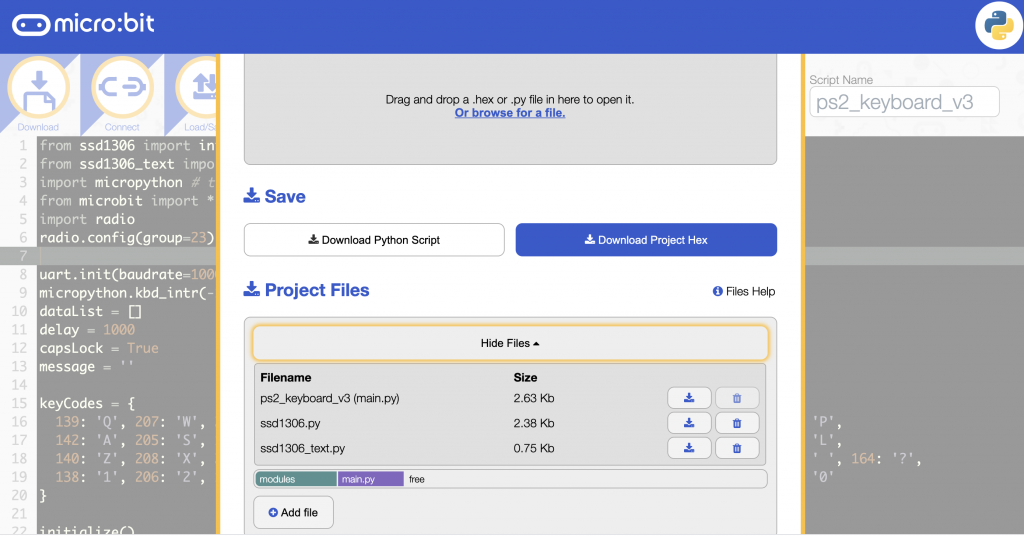
As well as the Python program at the end of this page, you’ll need to add two Python libraries ssd1306.py and ssd1306_text.py to make the OLED display work. You can do this using the online micro:bit Python editor. Click on the Load/Save button then ‘Show files’ then ‘Add a file’:

adding more files in the Python editor

Flash the 3 files to your micro:bit and you may need to press the reset button on the back of the micro:bit before first use. Your mileage may vary with the Baud rate, and the precise keycodes for each letter.

The receiving micro:bit will need some code on it like this:

from microbit import *
import radio
radio.config(group=23)
radio.on()
storedMessage = ''

while True:
    message = radio.receive()
    if message:
        display.scroll(message)
        storedMessage = message
    if button_a.was_pressed():
        display.scroll(storedMessage)

How to use it

Type your message and it should appear on the OLED display. Backspace will delete any errors. Caps lock key will toggle upper & lower case – the letter A in the bottom right-hand corner shows you which mode it’s in. Pressing enter will send your message by radio and clear the message.

How it works

It works using the principle of brute ignorance. I ignore the proper protocols for PS/2 keyboards and treat it as incoming serial data at 10000 Baud. This worked for me with the old Dell keyboard I found on the street. PS/2 keyboards send 3 codes every time you press a key: a key identifier, a release code when you let go, and it repeats the key identifier. The program looks these up and turns them into the appropriate letters every time 3 codes are received.

Improve it

- Change radio channel on the fly
- Add a Caesar cypher with selectable key – great for group interception / cryptanalysis games!

The main code

Here’s the Python code. You’ll also need those two Python OLED display libraries mentioned above, remember!

from ssd1306 import initialize, clear_oled
from ssd1306_text import add_text
import micropython # to enable disabling of accidental keyboard interrupt
from microbit import *
import radio
radio.config(group=23)

uart.init(baudrate=10000, bits=8, parity=None, stop=1, tx=None, rx=pin1)
micropython.kbd_intr(-1) # disable accidental keyboard interrupt
dataList = []
delay = 1000
capsLock = True
message = ''

keyCodes = {
  139: 'Q', 207: 'W', 210: 'E', 215: 'R', 150: 'T', 219: 'Y', 222: 'U', 161: 'I', 226: 'O', 231: 'P',
  142: 'A', 205: 'S', 145: 'D', 213: 'F', 154: 'G', 217: 'H', 157: 'J', 224: 'K', 224: 'K', 229: 'L',
  140: 'Z', 208: 'X', 209: 'C', 148: 'V', 152: 'B', 153: 'N', 220: 'M', 225: ',', 165: '.', 149: ' ', 164: '?',
  138: '1', 206: '2', 146: '3', 147: '4', 214: '5', 218: '6', 159: '7', 158: '8', 162: '9', 163: '0'
}

initialize()
clear_oled()
add_text(11, 3, 'A')
x = 0
y = 0

while True:
    add_text(x, y, '_') # cursor
    if capsLock:
        add_text(11, 3, 'A')
    else:
        add_text(11, 3, 'a')
    if uart.any():
        data = bytearray(1)
        uart.readinto(data, 1)
        dataList.append(data[0])
        if len(dataList) == 3:
            if dataList[0] in keyCodes:
                if capsLock:
                    letter = keyCodes[dataList[0]]
                else:
                    letter = keyCodes[dataList[0]].lower()
                add_text(x, y, letter)
                x += 1
                if x > 11:
                    x = 0
                    y += 1
                if y > 2:
                    y = 0
                    clear_oled()
                if x < 0:
                    x = 0
                if y < 0:
                    y = 0
                message = message + letter
            elif dataList[0] == 172: # toggle caps lock
                capsLock = not capsLock
            elif dataList[0] == 242: # backspace
                message = message[:-1]
                add_text(x, y, ' ')
                x -= 1
            elif dataList[0] == 131: # press F12 to review message
                display.scroll(message)
            elif dataList[0] == 236: # send message when enter pressed
                radio.on()
                radio.send(message)
                radio.off()
                add_text(0, 3, 'TX')
                message = ''
                x = 0
                y = 0
                sleep(delay)
                clear_oled()
            dataList = []
    display.clear()
Posted in microbit | Tagged , , , | Leave a comment