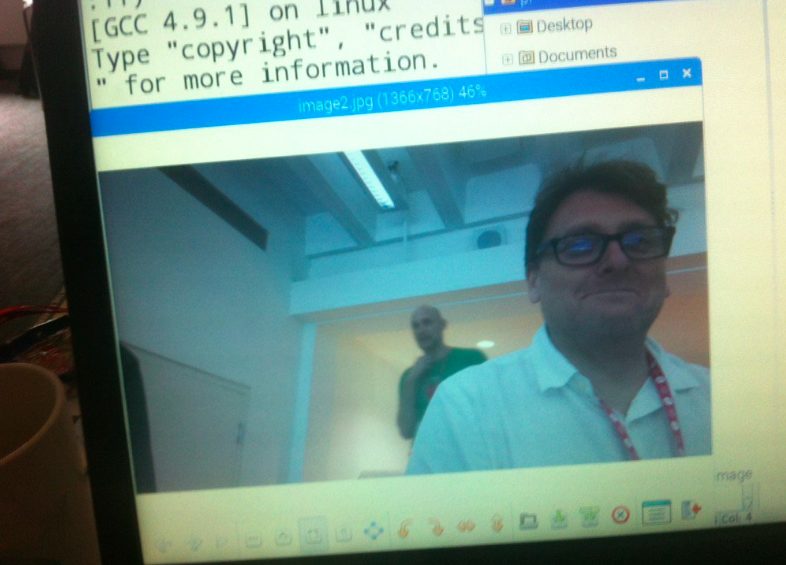
 I was incredibly lucky enough to get a place on Picademy in London this month. What is Picademy? It’s the best CPD I have ever had. They bring together teachers and educators for two days of shared learning about technology, based around, but not limited to, the Raspberry Pi computer. They run periodically all over the UK and in the US as well.
Over the two days you have talks, do some physical computing workshops and then get into groups on day two to design and make some sort of physical computing project.
I thought I’d brain-dump a few quick thoughts and things I will be taking away from the course. In no particular order…
- If you teach Computer Science to young people, you seriously need to consider attending Picademy, even if you have no interest in (or experience of) the Raspberry Pi computer. Did I mention that this is the best CPD I have ever had? Better than courses my school has paid hundreds of pounds for. And Picademy is FREE.
- Bring a small paper notebook. Desk space may be limited, I didn’t have room for my laptop and you may want to take notes. Bring a phone too for taking photos, videos, tweets – and possibly controlling robots!
- Don’t worry about the project too much. I honestly think I could have joined ANY one of the projects the group worked on and I would have found the experience very rewarding. At the end of day 1 I thought I was going to do something controlling Sonic Pi from the environment, on day 2 I actually joined a group building a photo booth for a school disco. Some of the ideas from other groups evolved hugely during their makes and they were all inspirational in very different ways.
- Collaborate! I really recommend working with others on your project. I’ve made quite a few Raspberry Pi projects before, but never in 2 hours with 2 other people I had only just met. Learning each other’s strengths and dividing up the work was an immensely valuable experience, akin to what we expect children to do in group work in class.
- No matter how experienced you are, the workshops put you in the position of a learner – an invaluable experience. Think you know how to light an LED using Python? Try building it in real time following a teacher giving you instructions on a screen and a short deadline, and experience the frustrations first hand of not getting every element working in the time allowed. This happens in lessons all the time, and yet it was an eye-opener to me to find myself not being able to complete some tasks.
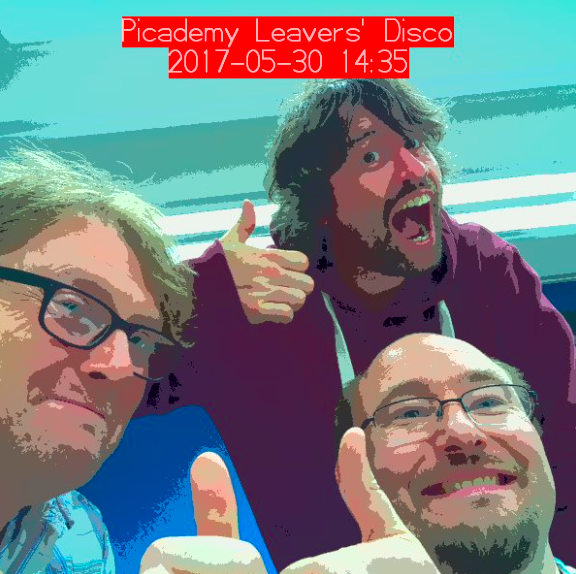
- Learning though play – I am inspired to do what we did in class: give a group some basic tools and then set them free to play and do what they will with it. In our group’s project were able to build on a few lines of code from day 1 and by the end of day 2 we had a photo booth that would let you choose different filters and tweet a photo with a timestamp and caption, all controlled from 2 buttons and some simple Python code we wrote from scratch.
- Consider making a makerspace – move the desks if you can, make clusters, make it less formal. (My desks in my current school’s ICT room are bolted to the floor in rows, but I will find a way round this!)
- If you only have 1 or 2 Raspberry Pis, but them on a network & get the children to explore Linux and the command line by SSH.
- Do something small first, show it off to SLT, get funding for more kit saying ‘this is what we can do’.
- Making teaching more like coding. This was one of many excellent points made by James Robinson – coders share code, and we all benefit. Why not do the same with teaching resources? Why do we guard them so jealously? Publish them, get feedback from people who’ve used them, iterate, improve, collaborate. We’ve all pinched ideas and resources from other teachers – now give something back!
- Keep in touch with fellow Picademicians (!?), share, get help, help others – personally I think Twitter is by far the best tool for this. Join today if you’re not already on it and you join a huge community.
- If you want to understand something, emulate it. This was a point made by Pete Lomas about his time at college when instead of doing readings from an electronics experiment, he wrote an emulator which yielded him perfect results – but more importantly, gave him a deeper understanding of how the thing worked. It reminded me of the time I struggled to understand the Monty Hall Problem – until I wrote a Python program to emulate it.
- Happiness through sharing your knowledge. One small moment was the absolute highlight of my two days. We’d all finished, given our presentations about our projects, about to pack away and I wandered over to another group whose project I really admired (hello @misskteague!). They were stuck sending radio messages between microbits, and I knew I’d done something similar a few months ago and was able to find my write-up (see, writing stuff up is important!), they copied a few lines of Python code, it worked! High-fives and smiles all round and I (selfishly, but it’s a good kind of selfish) felt utterly filled with happiness.
- It’s intense. I didn’t get a whole lot of sleep, and not just because of the thunderstorm on Sunday night. There was a thunderstorm going off in my mind for 2 days. The day after I lay down in the afternoon and slept deeply for an hour. Be prepared to have your mind blown!
Remote control robot car (controlled on an android phone using BlueDot) #picademy @martinohanlon pic.twitter.com/YabF11hUXc
— Laura (@CodeBoom) May 30, 2017
Safety lights for mum going to make a bottle in the night/ annoying colleague deterrent!! Triggered by PIR :) #picademy pic.twitter.com/o91rbYTLJR
— Laura (@CodeBoom) May 30, 2017
Microbit class feedback tool – class press how they feel about the topic and this is displayed on master microbit grid #Picademy pic.twitter.com/GaUbcGr6Yd
— Laura (@CodeBoom) May 30, 2017
Wearable "Where's Wally" cam (Raquel is wearing it on the right) which tweets the pics and you have to guess #Picademy pic.twitter.com/Esi6DdFvnv
— Laura (@CodeBoom) May 30, 2017
Thank you so much to all my fellow course members for your kindness, generosity of ideas – and what great ideas you all have! Thank you to The Museum of London for being perfect hosts and taking us on a tour round the exhibits. And a huge thank you to the folk from the Raspberry Pi Foundation who made these two days so special: James Robinson (@LegoJames), Laura (@CodeBoom), Marc Scott (@Coding2Learn), Lauren Hyams – fellow Wittertainee! – (@lauren_hyams), Dan Fisher (@fluffywyvern), Ben Nuttall – GPIO guru – (@ben_nuttall), and last but not least, Pete Lomas (@PeteLomasPi) who presented us with our certificates and gave an inspirational talk about how technology shaped his life, from a boy who hated school to being one of the co-founders and inventors of the Raspberry Pi.
I leave Picademy inspired, happy and well fed in body and mind!
Foo Fighters Tribute Band’s new album